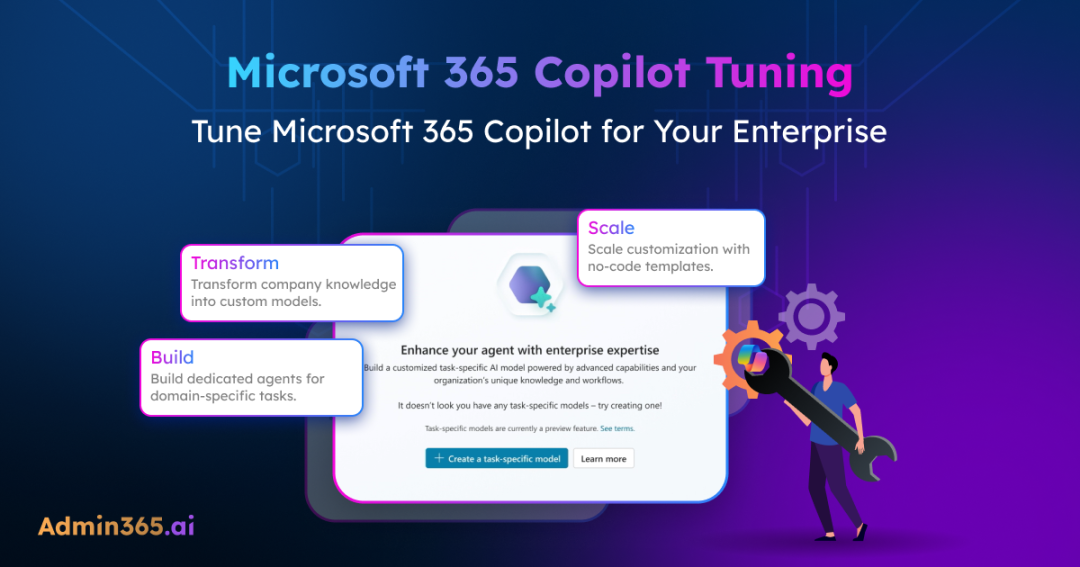
Many organizations have hit a familiar wall: Copilot answers fine, but it doesn’t ‘sound like us.’ It frequently lacks the specific terminology, unique formatting, and internal documentation that teams rely on daily. While the information is present, the organization’s ‘voice’ is missing, and internal quality standards may not be fully met.
That’s the gap Microsoft 365 Copilot Tuning is built to close. It serves as a no-code layer that enables the creation of task-specific agents trained directly on organizational data. By leveraging this capability, businesses can develop agents within the Microsoft 365 trust boundary to handle domain-specific tasks with higher precision.
This blog explores what Copilot tuning is and how it functions in detail.
What is Microsoft 365 Copilot Tuning?
If you’ve already built agents in Agent Builder, you know the shape: pick a template, add your instructions, point at the grounding data, ship. Tuning is what you reach for when that shape isn’t enough.
Copilot Tuning is a refinement process that allows administrators and creators to steer the AI’s behavior without writing a single line of code. Instead of relying solely on the broad knowledge of a Large Language Model (LLM), tuning anchors the AI in a specific “source of truth”—your company’s files, previous successful projects, and proprietary style guides.
For example, an agent trained on organizational technical support materials can instantly answer support queries. By incorporating proprietary acronyms and internal procedures, it delivers more relevant, accurate responses than a generic model.
With Copilot Tuning, you can:
- Train models with company knowledge to ensure the AI understands specific business contexts and history.
- Build agents to perform domain-specific tasks such as specialized document writing, technical validation, or style editing.
- Drive consistency and save time on complex content tasks by embedding internal standards and knowledge directly into the workflow.
- Ensure responses stay grounded in current information by integrating with live enterprise data through Microsoft Graph.
- Maintain security within the Microsoft 365 trust boundary, strictly honoring existing user access permissions and data privacy.
Currently, Microsoft 365 Copilot Tuning is available to a limited set of customers through early access programs.
Who is Eligible for Microsoft 365 Copilot Tuning?
As an advanced customization capability, Microsoft currently maintains strict eligibility requirements for the early access program:
- License Threshold: Only tenants with at least 5,000 Microsoft 365 Copilot licenses are currently eligible for the preview.
- Automatic Activation: For eligible tenants, Copilot Tuning appears in the Microsoft 365 admin center and is enabled by default.
- Hidden Settings: If your tenant has fewer Microsoft 365 Copilot licenses, the Copilot Tuning settings page won’t appear in your admin center. You can build standard agents in Agent Builder, but the tuning options stay hidden.
The Six Copilot Tuning Templates in Agent Builder
Microsoft 365 Copilot Tuning supports a set of task-oriented templates designed for specific business scenarios. In Agent Builder, you can start by picking the tunable template closest to what your team actually needs. Each template includes a specialized workflow that automatically coordinates the underlying AI model, tool integration, and grounding rules to ensure task-specific accuracy.
Six tunable templates are available today:
- Document writing: Reach for this when proposals, contracts, policies, or technical docs need to come out in your house style.
- Document summary: Use when you want summaries shaped by audience, tone, and purpose.
- Expert answers (Q&A): Leverage this template when domain-specific responses must align with organizational content, specialized terminology, or large enterprise knowledge sources.
- Document validation: Utilize this template when you want to check documents against your policies and standards.
- Style editing: Use when drafts need to be pulled back into your brand voice and maintain consistency across teams.
- Optimization: Leverage this template for planning, resource allocation, and other business optimization tasks.
Each of these templates works effectively out of the box. However, organizations can choose to tune them further when the default behavior must align more closely with specific business requirements.
Types of Microsoft 365 Copilot Tuning
The three types of agent tuning supported are:
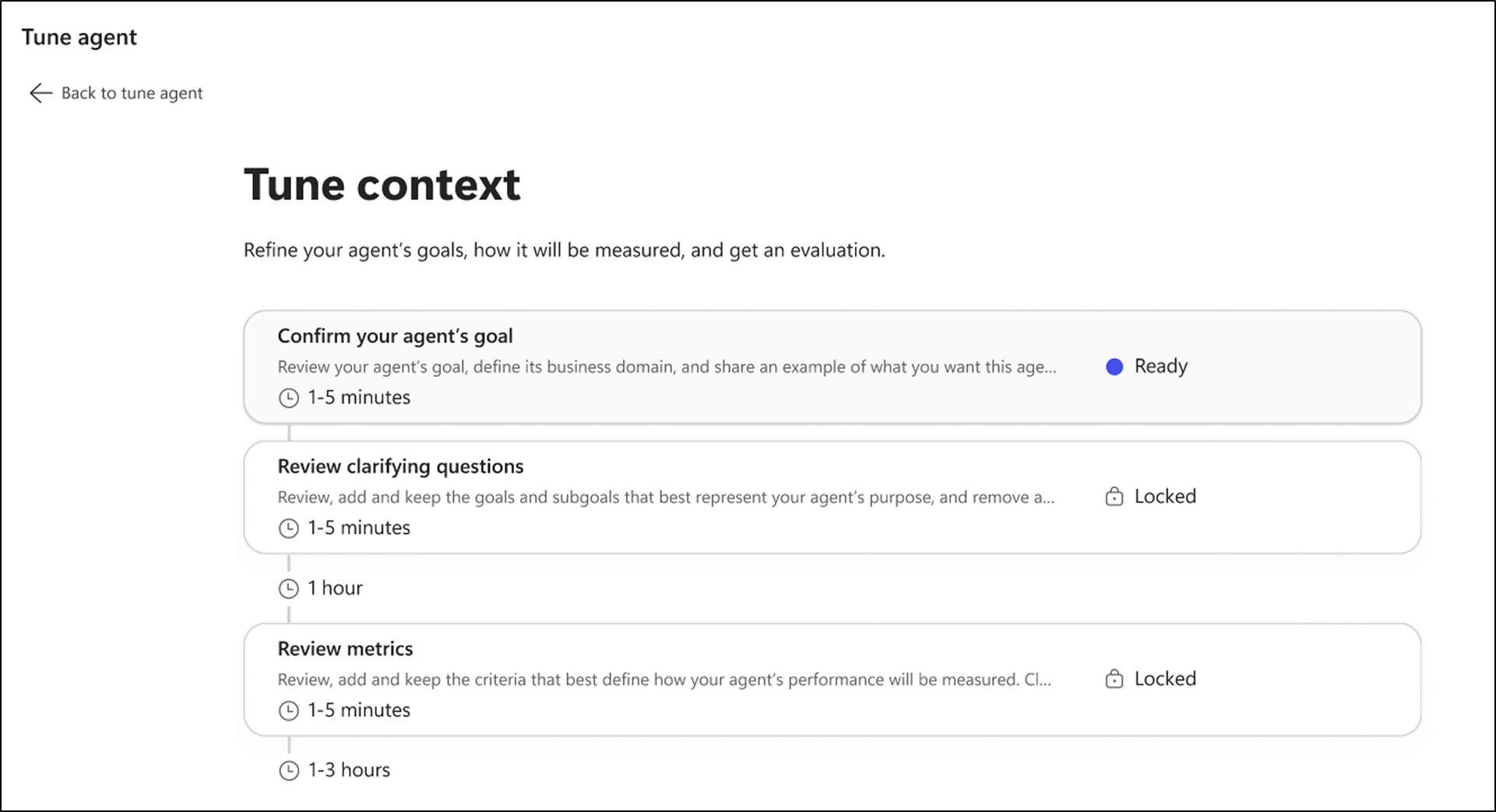
- Context Tuning:
Context tuning is the simplest and lightest form of tuning. Organizations select a tunable template, define the expected outcomes, and provide a few representative examples. Based on these inputs, Copilot generates an evaluation rubric that helps measure and refine output quality over time.
For example, a document writing agent can be tuned using sample proposals, policies, or technical documents so the generated content better matches organizational writing styles and terminology.
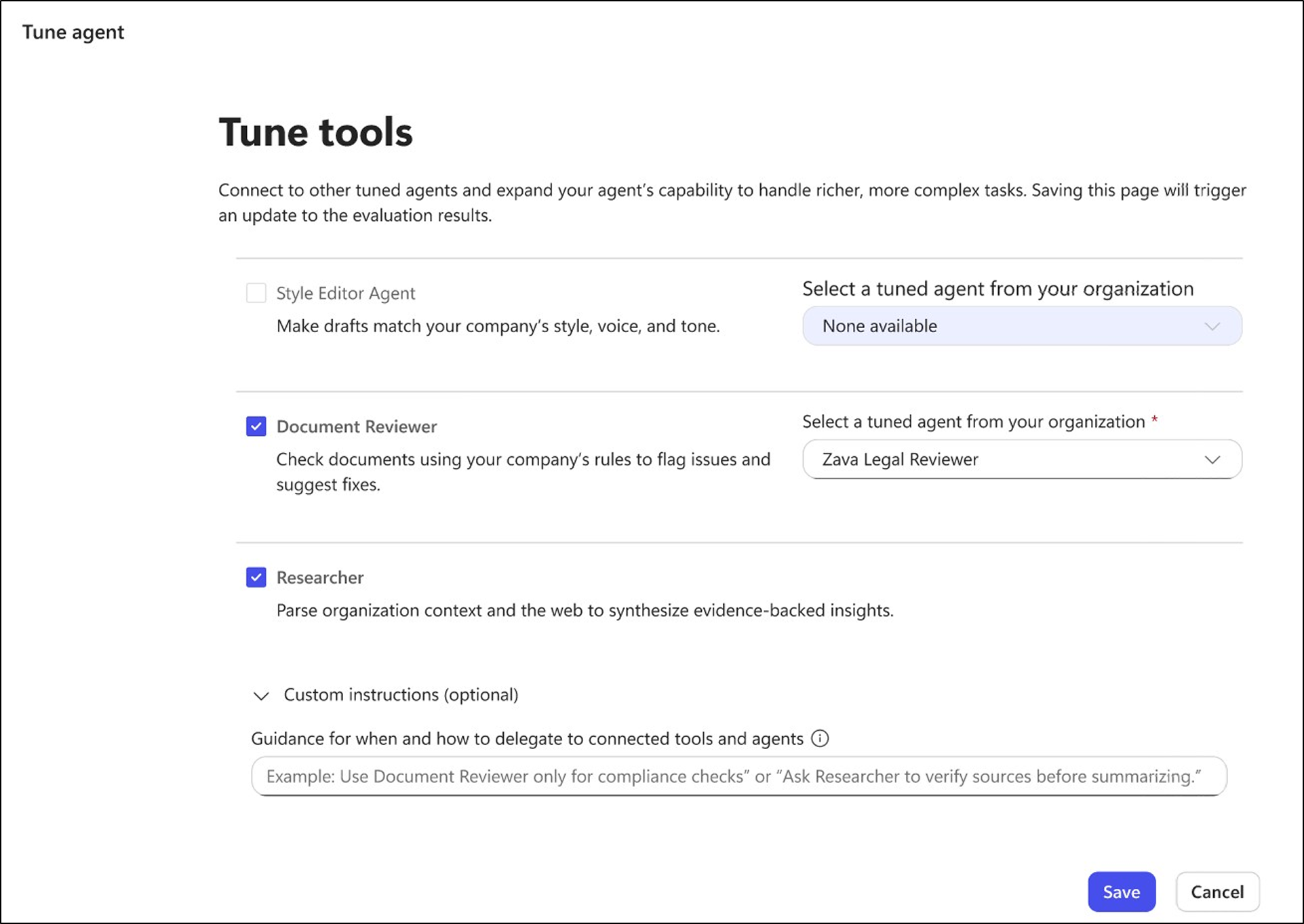
- Tool Tuning
Tool tuning comes into play when context alone is not enough to achieve the desired results. In this approach, organizations extend the agent’s workflow by connecting additional tools and capabilities.
For example, an agent may need to validate content against another system, perform style checks, retrieve external research, or collaborate with another agent before generating the final response.
- Model Tuning
Model tuning is the deepest level of customization. In this process, organizations provide high-quality training examples, and the model undergoes supervised fine-tuning and reinforcement learning to better align with business-specific expectations.
The job runs asynchronously, so your users keep using the existing agent while it’s in flight. When it finishes, you look at the evaluation results: if the new model doesn’t beat the rubric, you don’t push it live.
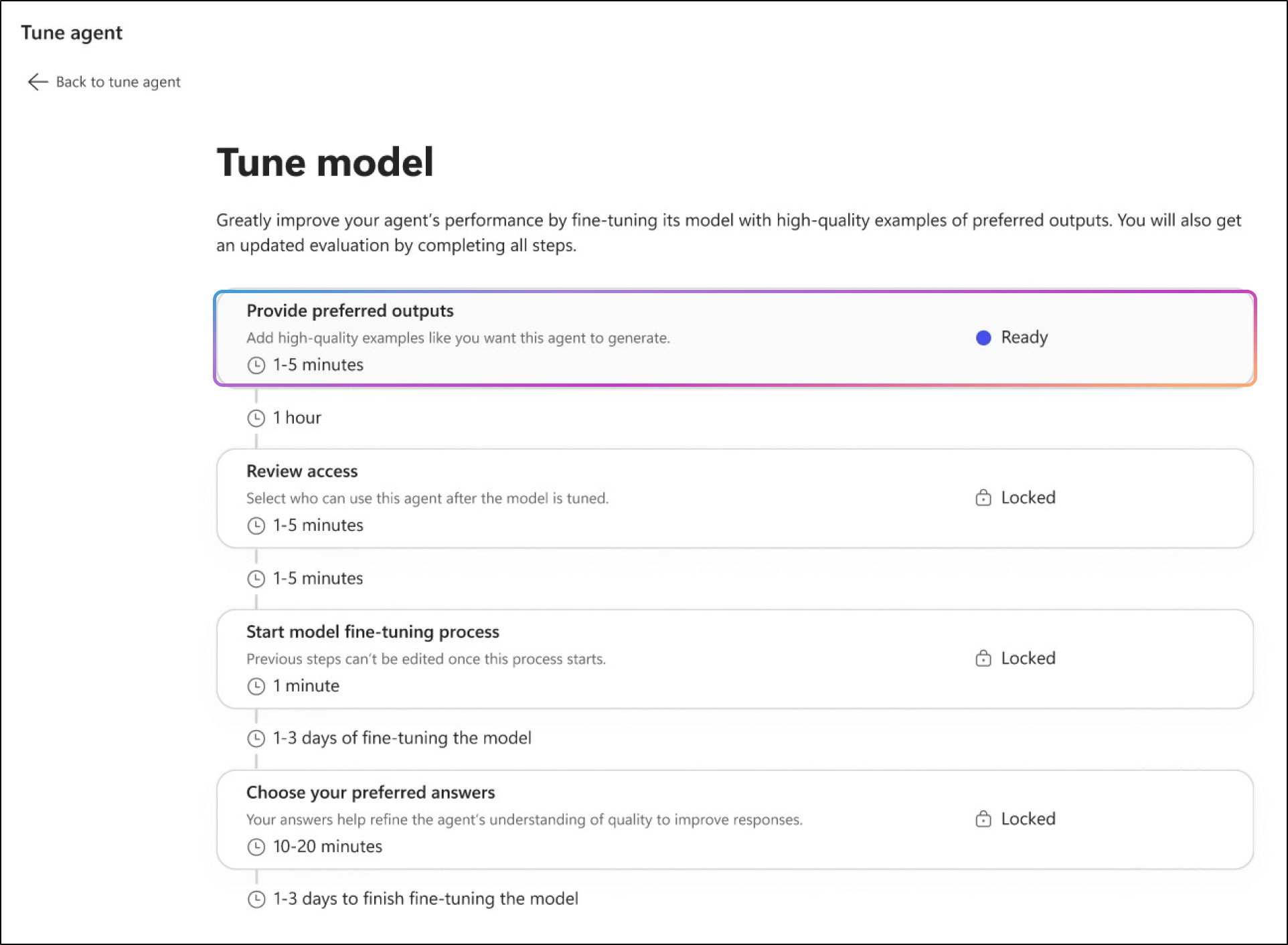
Once created and tuned, agents can be shared with eligible users across the organization. Users can interact with tuned agents through supported Microsoft 365 Copilot experiences, including the Microsoft 365 Copilot app and Copilot Chat in Teams.
Best Practices for Tuning Copilot Agents
Tuning is not a one-time process. To maximize the value of your tuned agents and ensure they remain high-performing assets, users can follow these core principles:
- Define Clear Boundaries: Always establish a specific scope for your agent. Knowing exactly what the agent should (and shouldn’t) handle prevents “hallucinations” and keeps responses relevant to your team’s needs.
- Master the Prompt: Use clear, specific instructions to get the best results. Providing starter prompts for your team is an excellent way to demonstrate the intended tone and format, making it easier for others to engage effectively.
- Iterate Through Dialogue: Encourage users to refine outputs through multi-turn interactions, asking the agent to adjust its tone, expand on points, or reformat data as needed.
- Prioritize Governance: Ensure every agent aligns with organizational security and compliance policies. This includes being mindful of the data snapshots created during tuning and adhering to internal data handling standards.
- Create a Feedback Loop: Treat agent development as a continuous process. Use real-world user feedback to identify gaps in knowledge or style, then use those insights to retrain or adjust your tuning configurations.
Copilot Tuning Admin Controls in the Microsoft 365 Admin Center
Administrators can control who is allowed to tune agents with Copilot Control System in the Microsoft 365 admin center. Five configuration options are available at tenant level to manage tuning access and agents:
- Enable for all users: Every licensed Microsoft 365 Copilot user in the tenant can perform context, tool, and model tuning for agents. This is the default setting for eligible organizations.
- Enable for specific users or groups: Admins can restrict access to selected individuals or Microsoft Entra security groups.
- Just-in-Time Access Requests: Users outside the allowed list can submit a request directly from Agent Builder with a business justification. Admins can then grant access permanently or for a specific window, allowing for a controlled but flexible rollout.
- Disable tuning: You block all new tuning across the tenant. Agents that are already tuned keep working; only new tuning stops.
- Open-source model toggle for Copilot Tuning: Even with tuning enabled, you can decide whether your users tune against open-source or external base models. A separate toggle lets you allow or block them. Flip it off if you want to keep tuning on Microsoft-managed models only.
- Agent 365 portal: Tuned agents show up in the Agent 365 portal alongside the rest of your tenant’s agents. From there, you can view every tuned agent, block or disable a specific one, or delete it outright. Deleting a tuned agent deletes its fine-tuned model and snapshot data along with it.
What Happens After Tuning Access Changes?
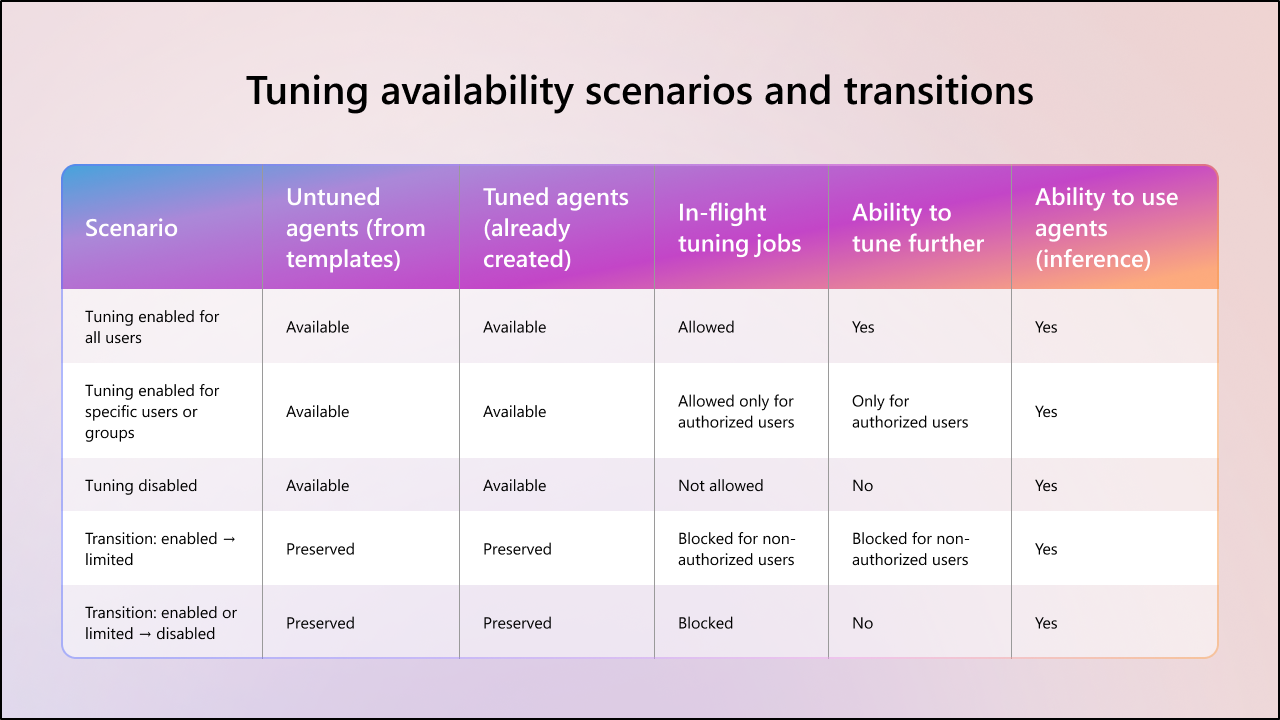
Here’s what happens when administrators change the default Copilot Tuning setting from “Enable for all users” to restricted access or disabled mode.
- Protect Existing Agents: All currently tuned and deployed (untuned) agents remain fully intact. Restricting access does not delete, hide, or revert the agents your teams have already built.
- Maintain Operational Continuity: The logic, grounding, and custom instructions of active agents continue to function normally. Users will see no change in how their agents process or respond to queries.
- Restrict Further Refinement: While agents stay active, the ability to tune them depends on current permissions. If access is revoked, users can still run their agents but can no longer retrain or tune agents.
- Ensure Permanent State Persistence: State changes are one-way; the system does not trigger a rollback or revert agents to a previous version just because access levels or configurations are adjusted.
Key Compliance, Privacy, and Data Residency Considerations
Copilot Tuning is enabled by default for eligible tenants, meaning organizations should immediately assess how these customizations impact their existing governance framework.
Snapshot Data and Compliance Scope
- During Copilot Tuning, only the SharePoint Online (SPO) content explicitly selected by the user is used as training data. The original content remains governed by existing DLP and retention policies.
- Data used for Microsoft 365 Copilot tuning is retained for a maximum period of two years.
- For tuning, the system creates a snapshot copy of the selected data within the tenant-isolated Microsoft 365 environment. The data is used only for tuning and is never shared across tenants.
- However, DLP and retention policies applied to the original SharePoint content do not automatically extend to snapshot data created for tuning. The snapshot should be treated as a separate compliance scope.
- Snapshot permissions are fixed at the time tuning starts. If access changes, the agent must be retrained to reflect the new permissions.
- Snapshots remain available as long as the agent exists. Deleting the agent also removes its related snapshot data.
GDPR and Data Protection Impact Assessments (DPIAs)
- Copilot Tuning does not automatically require a Data Protection Impact Assessment (DPIA). However, the requirement depends on factors such as the type of data processed, processing scale, regulatory obligations, and whether tuned agents support automated decision-making scenarios. Organizations are responsible for determining whether a DPIA is necessary.
- Under regulations like GDPR, the organization remains the Data Controller while Microsoft acts as the processor. Copilot Tuning supports common data subject rights, including discovery, deletion, and access export requests for snapshot metadata through Microsoft support channels.
- Customer data used for Copilot Tuning is not accessible to Microsoft unless explicitly authorized.
Data Residency and Routing
- Training data, inference data, and snapshot data are stored within the macro region associated with the tenant.
- Advanced Data Residency (ADR) and Multi-Geo capabilities are not yet fully supported for Copilot Tuning. Organizations requiring ADR must currently waive ADR requirements and work with their Microsoft account team for access.
- Microsoft states that the EU Data Boundary continues to apply for eligible EU tenants. While Flex Routing can optimize performance during peak loads by routing processing elsewhere, admins can disable this to maintain strict regional isolation.
Frequently Asked Questions
Here are some commonly asked questions about Microsoft 365 Copilot Tuning and their answers.
Does my tenant qualify for Copilot Tuning?
You need at least 5,000 Microsoft 365 Copilot licenses in your tenant during public preview. If you have fewer, the Copilot Tuning settings page won’t appear in your admin center. If your tenant has Advanced Data Residency commitments, you waive ADR through your Microsoft account team before using the feature.
What’s the difference between tune context, tune tool, and tune model?
Tune context defines goals, success criteria, and examples for the agent. Tune tool integrates additional tools or agents into the workflow. Tune model retrains the underlying model on your data using supervised fine-tuning and reinforcement learning. Microsoft recommends starting with context tuning and only escalating to tool or model tuning if results don’t meet expectations.
Do DLP and retention policies on my SharePoint content protect the tuning snapshot?
No. Microsoft is explicit that source DLP and retention policies don’t apply to snapshot data. The snapshot is stored separately, in a tenant-isolated environment, with its own retention (as long as the agent is active, max two years). Evaluate this gap with your compliance team before tuning on sensitive content.
What happens to my tuned agents if I disable Copilot Tuning?
Your existing tuned agents keep working. Users continue using them as before, and only new tuning is blocked. Disabling tuning is non-destructive and reversible, so treat it as a safe pause if you need to investigate or wait on a policy review.
Microsoft 365 Copilot Tuning helps organizations move beyond generic AI responses by aligning agents with business-specific terminology, workflows, writing styles, and operational standards. With tunable templates and built-in Microsoft 365 security boundaries, organizations can create more context-aware and task-focused AI experiences without managing complex AI infrastructure. Happy tuning!