For years, AI at work operated on a simple model: open a chat box, ask a question, receive an answer, and move on. While incredibly useful for generating content, summarizing details, and more, this AI model has remained largely reactive—waiting for users to initiate every interaction.
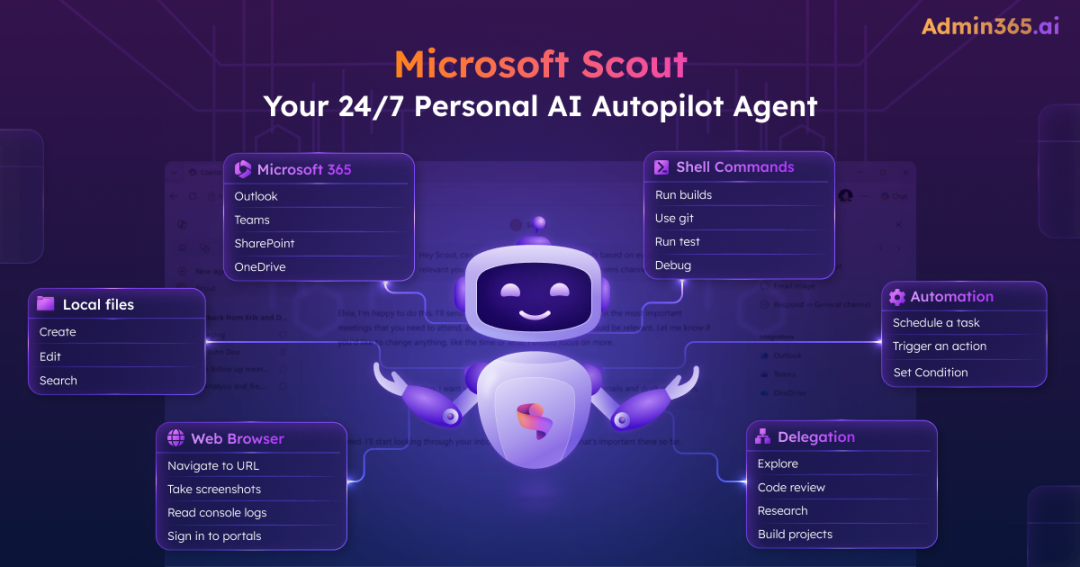
That reactive model just got a serious upgrade. At the Build conference on June 2, 2026, Microsoft introduced Microsoft Scout, its first AI Autopilot. Unlike traditional chat-based AI tools, Scout is an always-on, autonomous agent that operates continuously in the background with its own identity.
In this blog, we’ll explore what Microsoft Scout is, how it works, and the capabilities that set it apart from traditional AI chatbots. By the end, you’ll have a clear understanding of whether Scout is ready for your environment and what it takes to deploy it securely.
What Is Microsoft Scout?
Microsoft Scout is Microsoft’s first AI Autopilot—a new category of always-on AI agents designed to help users manage and execute work across Microsoft 365 and local computing environments. Built for Windows and macOS, Scout combines local system access with Microsoft 365 integration, allowing it to work across applications, files, and services from a single conversation.
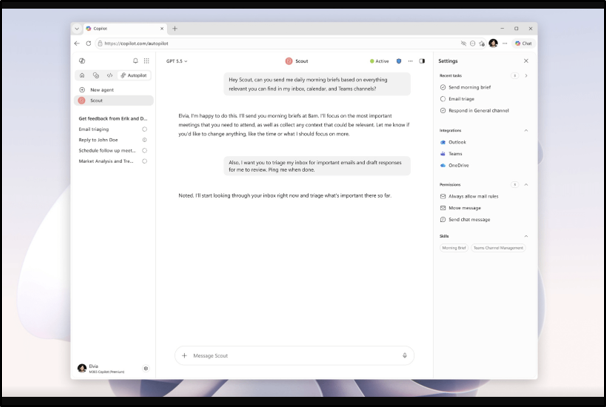
Rather than requiring users to switch between multiple applications or create complex automation workflows, Scout is designed around outcomes. Users describe what they want to accomplish in natural language, and Scout determines the actions required to move the work forward. This enables a more continuous and proactive way of working compared to traditional chat-based AI experiences.
Another important aspect of Scout is its governed identity. This allows organizations to apply existing security, compliance, auditing, and data protection controls while enabling autonomous AI-driven workflows.
What Can Microsoft Scout Do
This is where Microsoft Scout fully earns its “always-on” autopilot designation. Instead of merely summarizing text or generating static responses, Scout possesses a wide, execution-focused capabilities.
- Acts on Files and Tools – Scout operates directly inside the local environment. It can natively read, create, search, and edit documents within the designated local workspace directory and Microsoft 365 apps.
- Execute Commands and Automate Tasks – It can execute shell commands, run scripts, perform builds, and carry out other system-level tasks. These actions operate within Microsoft’s three-tiered permission framework, helping ensure that sensitive operations remain under organizational control.
- Automates Browser-Based Workflows – Scout includes browser automation capabilities powered by Playwright. This allows it to navigate websites, fill forms, interact with web applications, and perform repetitive browser-based tasks on behalf of users.
- Granular Action Approvals – By default, Scout utilizes an explicit approval structure. Before executing potentially sensitive actions, such as running dangerous terminal scripts, changing file permissions, etc, Scout pauses and explicitly prompts you for confirmation.
- Work Across Microsoft 365 – Scout manages Outlook email, calendar, Teams messages, OneDrive & SharePoint files, and meetings. Users can ask it to find a meeting slot, draft a reply, or summarize this week’s inbox, and it works directly against the real data.
- Build Context with Work IQ – Microsoft Scout leverages Work IQ to understand ongoing tasks and learn the context. It maps the collaboration patterns, files, and other data to build semantic context over time, so it gets more useful the longer users use it.
- Delegate Work to Agents – For complex requests, Scout can create and coordinate specialized sub-agents that work in parallel on different parts of a task. The results are then consolidated and presented back to the user, helping accelerate larger workflows.
- Sensitivity Label Tracking – Scout continuously tracks data sensitivity throughout an active session. Scout is hard-governed from writing or pasting that labeled content into unprotected destinations like public Teams channels, external applications, or plain-text folders.
Note: Scout is currently available as a preview through Microsoft’s Frontier program, so capabilities and availability may change.
How Does Microsoft Scout Work?
Now that you have a clear picture of what the Microsoft Scout AI Autopilot can do, let’s look at how it actually executes these tasks in the real world. Imagine that you need to validate a configuration change, share the results with a colleague (Sarah), and arrange a follow-up discussion if issues are found.
Traditionally, this process involves multiple tools and several manual steps. You would need to review files, run commands, analyze the output, compose an email, and coordinate schedules separately.
With Scout, the same workflow can be initiated through a single request:
👉 Your Request: “Scout, review the latest project configuration file, run the build, send the results to Sarah, and schedule a follow-up meeting if any issues are detected.”
In a single continuous workflow, Scout will:
- Access your local file system to open and read the configuration file.
- Spin up your shell to automatically run the build command and then analyze the results
- Cross over into Microsoft 365 to pull Sarah’s contact info, draft and send an Outlook email with the build logs, and check your shared calendars to book a Teams meeting.
This ability to bridge local resources and Microsoft 365 services is what makes Scout different from traditional AI assistants. Instead of helping with one task at a time, Scout is designed to connect multiple tasks into a single outcome-oriented workflow.
Key Features of Microsoft Scout AI Personal Agent
Microsoft Scout sets a new standard for workplace automation by merging full system interactivity with background execution. Below is a deep dive into the core features that power this autonomous AI agent.
Granular Permission Controls
Microsoft has built Scout with a permission-first approach. Admins and users can control which capabilities Scout can access, including the file system, shell, browser automation, and Microsoft 365 services. Shell command execution is governed through a three-tier permission model:
- Auto Approve – Commands execute automatically without user intervention.
- Prompt for Approval – User confirmation is required before execution.
- Always Deny – Commands are blocked from running.
Organizations can customize which commands are automatically approved, require prompts, or are permanently restricted in the Scout settings.
Background Execution and Autonomous Workflows
Unlike traditional AI assistants that stop working when a conversation ends, Scout can continue operating in the background and execute tasks asynchronously.
Scout supports two automation modes:
- Heartbeats: This allows Scout to repeatedly execute a predefined prompt at regular intervals. Users can configure the prompt to execute, execution intervals, working hours, and permissions available during execution. This makes Heartbeats ideal for recurring monitoring, reporting, and follow-up tasks.
- Automations: This enables Scout to execute workflows based on schedules or predefined conditions. For example, users can configure Scout to run at specific times, monitor for particular events, or trigger actions when defined conditions are met.
To protect your environment while you are away, Scout enforces a significantly more restrictive permission policy during background modes compared to your active, interactive chat sessions. These automation capabilities allow Scout to continue working even when users are away from their devices.
Memory and Context Retention
Scout maintains memory across conversations, allowing it to remember preferences, decisions, and previously completed work. Users can search past session history to revisit conversations, review prior decisions, recover generated content, and restore context from earlier interactions. This persistent memory helps reduce repetitive instructions and enables more personalized assistance over time.
Productivity Skills
Scout includes a growing library of built-in skills that extend its capabilities across Microsoft 365 applications and productivity scenarios. Some of the available skills include:
- Word – Create, read, edit, and manage Word documents.
- Excel – Create, analyze, and modify Excel workbooks and CSV files.
- PowerPoint – Create and edit presentations.
- Loop – Create and update collaborative workspaces and content.
- Web Artifacts Builder – Generate interactive HTML dashboards, visualizations, and web-based reports.
Organizations can extend Scout’s capabilities by creating custom skills. New skills can be added simply by placing SKILL.md definition files within the designated skills directory. This extensibility allows businesses to tailor Scout to their unique workflows, tools, and operational requirements.
How Microsoft Scout Stays Under Control
Microsoft Scout will undoubtedly be an incredibly helpful tool for users, offering a true 24/7 autonomous partner to manage their daily workloads. However, as an admin, it is completely natural to feel a sense of hesitation. An automated background agent that natively touches your local files, system shell, browser sessions, and corporate mailbox should make you pause.
Fortunately, Microsoft engineered Scout so that every single capability it possesses comes tightly paired with an enterprise-grade administrative control. The table below maps each operational capability to the specific security guardrail that bounds it.
| Capability | What it can do | The guardrail that bounds it |
| File System | Create, edit, search files in your workspace | Per-capability toggle switch; sensitive directories always require explicit approval; Auto-approve OFF by default |
| Shell Commands | Run commands, builds, tests, scripts | Three-tiered permissions model. You can define which commands auto-approve, which require a prompt, and which are denied by default. |
| Browser | Navigate, fill forms, interact with web apps using Playwright | Browser has its own toggleable category. |
| Microsoft 365 | Read, draft, manage email, calendar, Teams, OneDrive | Actions that send, share, reply, forward, or update info visible to others require explicit confirmation. Sensitivity labels and DLP are enforced in real time. |
| Autonomous modes (Heartbeat / Automations) | Act in the background on a schedule or trigger | Runs under the agent’s own governed Entra identity. Restricted Permission Scopes compared to the interactive session. |
| Skills (bundled + custom SKILL.md) | Extend Scout with reusable task logic | Policy validation, auditing, and administrative governance controls. |
A few of these deserve a second look.
The Entra identity is the heart of the governance story. Microsoft assigns each agent its own governed identity instead of relying on a shared, anonymous service account. So when Scout sends an email or runs a job, that action traces back to a known actor your directory already understands.
Another topic likely to attract attention is Scout’s foundation on OpenClaw, an open-source agent framework. The concern is understandable. Microsoft’s own security guidance treats OpenClaw as untrusted code, which is exactly why the identity, permission, and policy-conformance layers exist. Microsoft designed the autonomy and accountability to work together as two halves of one system.
In other words, Scout’s security model isn’t based on trusting the agent. It’s based on controlling, monitoring, and verifying what the agent is allowed to do.
How to Install Microsoft Scout Autopilot Agent
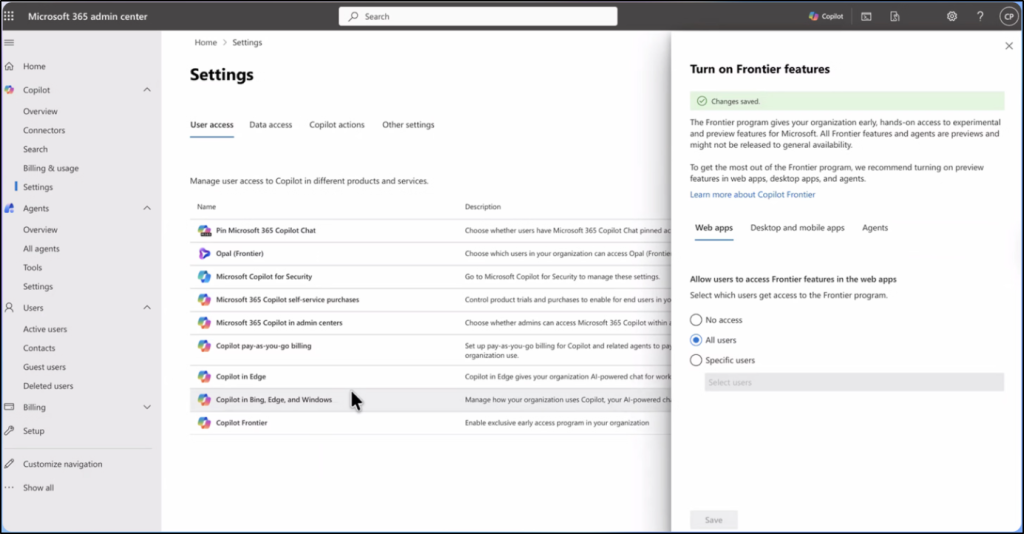
Microsoft Scout is currently available in public preview through Microsoft’s Frontier program. To access Scout, admins must run through and complete the required steps:
- Turn on Frontier in Microsoft 365 admin center: An admin enrolls the organization in the Frontier program and switches on Copilot Frontier in the Microsoft 365 admin center, setting access to All users or Specific users. After saving, allow up to about three hours for the change to propagate.
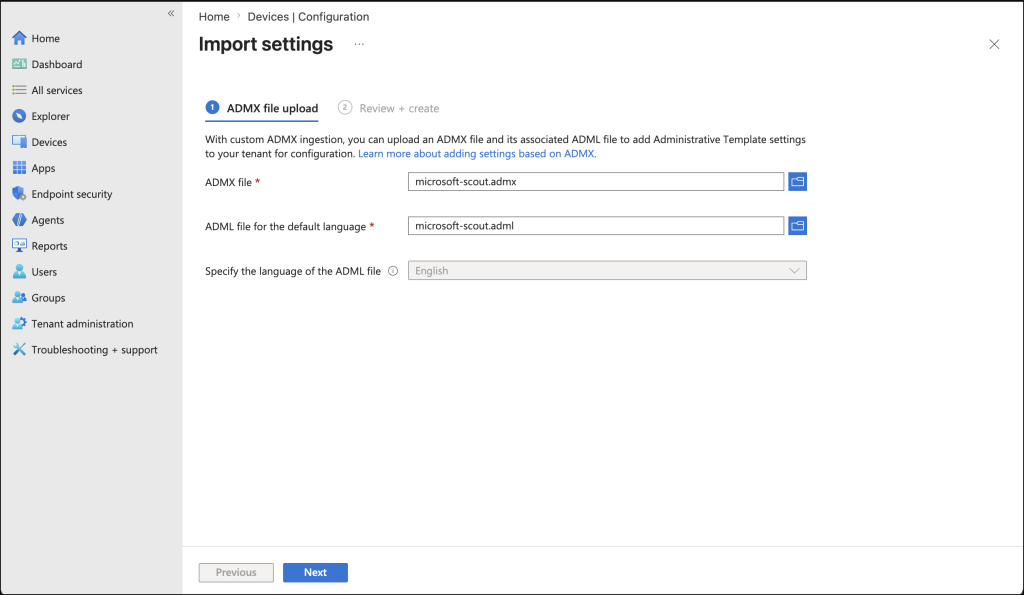
- Enable the app on devices: The admin should configure the Microsoft Scout Intune policy on target devices and complete the attestation / opt-in form. Microsoft requires the attestation because Scout can route data to third-party inference paths, such as GitHub.
Steps to Install Microsoft Scout on Devices
After administrative requirements are complete, end users must ensure they meet the following requirements to download and install Microsoft Scout on their devices.
- A device running Windows 11 or macOS 12 (Monterey) or later.
- An active Microsoft 365 Copilot license.
- Permission to install desktop applications on the device.
- A GitHub account with the required GitHub Copilot license
Once these prerequisites are satisfied, end users can follow the steps below to proceed with the installation process.
- Download the Microsoft Scout installer appropriate for Windows or macOS.
- Install the application on the device.
- Sign in using the Microsoft 365 account.
- Grant the required permissions for Scout to access local resources and Microsoft 365 services.
- Sign in to GitHub when prompted
Once done, configure the desired capabilities, permissions, and automation settings based on your organization’s requirements. After setup is complete, Scout is ready to begin assisting with tasks, workflows, and automations across your local environment and Microsoft 365 services.
Two gotchas worth knowing before you troubleshoot:
- Sign-in fails with no clear reason? Installing the app always succeeds — access is enforced only at sign-in. A blocked sign-in almost always means an admin gate isn’t finished, not a problem on your machine. Check Frontier, Intune, and the attestation first.
- Scout missing from Agent management? The admin account itself also needs to be enrolled in Frontier before Scout appears there.
Microsoft Scout vs Copilot: Reactive Assistant vs Always-On Agent
By now, you should have a clear understanding of Microsoft Scout—how it works, what it can do, and the controls Microsoft has put in place to govern it.
That clarity also helps address one of the biggest misconceptions surrounding Scout: Microsoft Scout is not the Copilot chat you already know. While both are part of Microsoft’s AI ecosystem, they are designed for different purposes.
The following comparison highlights where Scout extends beyond the traditional Copilot experience.
| Feature | Microsoft 365 Copilot | Microsoft Scout (Autopilot) |
| Primary Model | AI Assistant | AI Autopilot |
| Trigger | User asks; it responds | Always-on; acts on schedules and triggers |
| Identity | Runs as a user | Its own governed Entra identity |
| Surface | Chat in browser, Teams, and other Office apps | Standalone desktop app (Windows / macOS) |
| Reach | Cloud and Microsoft 365 data | Local files, shell, browser, MCP servers, and Microsoft 365 |
| Autonomy | Reactive, one turn at a time | Proactive; runs work in the background |
| Typical Scenario | Summarize this email thread and draft a reply | Run this build, notify stakeholders of the issues, schedule follow-ups, and update the schedule. |
If you’re wondering whether Scout replaces Copilot, it doesn’t. Scout is a new category within the Microsoft AI ecosystem, not a replacement for the chat assistant. The simplest way to think about the difference is this: Copilot waits. Scout acts.
Should Admins Be Excited or Cautious About Microsoft Scout?
The answer is both, honestly.
Scout is a real shift — the first agent that does the work without waiting to be asked, and that’s worth paying attention to. If you’re an admin, the smart move now is preparation: line up Frontier enrollment, your Intune policy, the attestation, and dual licensing, and decide your permission and governance posture before anyone signs in. It’s still a preview, so explore it deliberately rather than betting production on it yet.