
Imagine two users working with Claude. One works smoothly and finishes tasks without interruption. The other is just getting into flow when things start working well after three prompts. Claude is on a roll, and then it lands: “You’ve hit your usage limit.” Now the user is waiting for a reset instead of finishing the job.
The difference is not the system. Most of the time, you hit that wall because of how you are working, not because your plan is too small.
The good news is you do not need a bigger plan to fix this. A few small habit changes can stretch the same plan much further. There is no secret message count to game, and you rarely need to upgrade to solve it. Let’s look at why the limit hits and the simple habits that help you avoid running into it.
How Claude’s Usage Limit Actually Works
Before getting to the tips, understand what you are actually spending within your Claude plan.
One Shared Limit Across All Claude Tools
Claude Pro offers higher usage limits, but the system still works as a single shared pool rather than separate allowances for different tools or apps. The Free plan comes with a basic limit, while Pro typically provides around 5× more usage, with both operating on a rolling reset window of roughly 5 hours.
This means all activity across Claude apps, Claude Code, and Claude Desktop all counts toward the same limit. There is no separate coding budget or chat budget. Therefore, a heavy afternoon in Claude Code can quietly reduce what you have left for chat later in the day. Once you see it as one shared pool, the rest of these tips start to make sense.
Claude Usage Limit vs Conversation Length Limit
Claude applies limits across different surfaces. There are two types of limits, and they often get mixed up even though they are not the same thing.
- Usage limit: The overall amount of Claude you can use within a set period.
- Conversation length limit: How long can a single chat grow before it becomes too large to continue.
You can hit one without the other. Knowing which one stopped you tells you whether to start a fresh chat or simply wait for a reset.
Simple Habits That Stretch Your Claude Usage Limits
Use the table below to quickly see the symptoms you notice, what is actually using your limit, and the simple fix you can apply.
| Situation | What’s draining usage | Simple fix |
| Cut off mid-task in a long single conversation | The entire chat history is sent again with every message, so the conversation keeps growing and becomes more expensive to process | Start a new chat once a task is complete and carry forward only a short summary |
| Burned through usage but only did “simple” work | Using a more powerful model than needed, which consumes more per request | Use lighter models for simple tasks and reserve stronger models for complex work |
| Responses feel longer or slower than needed | Large output tokens, including detailed explanations and extended thinking, increase usage per response | Ask for concise answers and request only the sections you need |
| Uploading a whole file every time a question is asked | Claude processes the entire file, including unnecessary parts, which increases usage | Share only the relevant section or split large files so only what is needed is provided |
| Reworking or regenerating the same output multiple times in a single chat | The full response is generated repeatedly instead of only changing the parts that need updates, increases token usage | Ask for specific edits or updates to only the required sections instead of regenerating the entire output |
Follow these simple fixes consistently, even if they feel small. They can help reduce unnecessary usage and help you avoid hitting limits faster.
Best Ways to Avoid Claude Usage Limits
Here are a few additional tips that build on the earlier points and help you manage usage even more efficiently:
- Keep prompts short and precise: Common words and punctuation often use one token each, while longer words are split into multiple tokens. For example, a simple word like “redoing” can be broken into parts like re / do / ing. Therefore, use clear and simple instructions instead of long or repetitive prompts to reduce token usage.
- Ask User questions: Use a short prompt and let Claude ask follow up questions instead of sending long messages. Each question is generated once, and your answers are usually clicks or replies. Selecting or confirming options uses very few tokens compared to repeated full responses.
- Use voice input instead of typing: Speak prompts in one go instead of typing long text to avoid unnecessary usage. This naturally captures intent, tone, and context in a single shot, reducing repeated corrections or rewrites.
- Send complete prompts instead of follow ups: Instead of sending separate prompts, include all details in one message rather than multiple small updates. This avoids reprocessing the same context. Example: Instead of sending three messages like “summarize,” “make it formal,” “add example,” combine them into one clear instruction.
- Summarize and restart chats regularly: After 15 to 20 messages, summarize key points and start a fresh chat to avoid context buildup. This prevents Claude from re-reading older parts of the conversation repeatedly and helps reduce token usage.
- Use Projects for repeated files: Store commonly used files in Projects instead of re-uploading them every time. Re-uploading the same files repeatedly increases token usage because they are processed again in each conversation. Projects use a retrieval system (RAG) to reuse the same content without reprocessing it each time.
- Turn off unused tools and features: Disable connectors, web search, or extended thinking when not needed. For tasks like grammar checks or simple edits, these tools are unnecessary and only add extra processing.
- Plan before generating final output: Ask for a plan first, then request the final version to reduce repeated rewrites.
- Edit messages instead of sending new ones: Refine your original prompt instead of sending multiple similar follow ups.
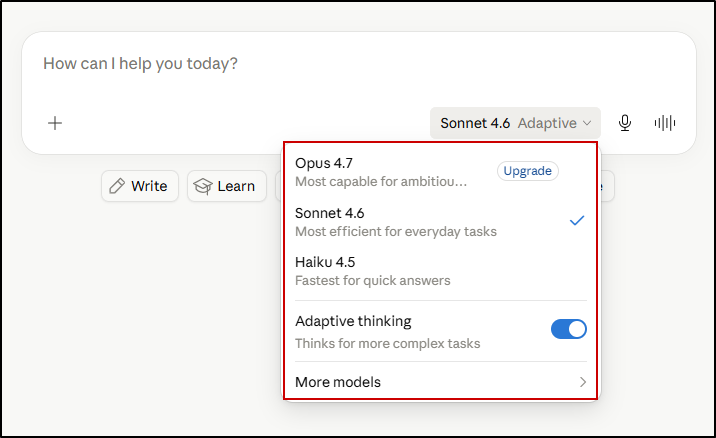
- Match the model to the task: Use Sonnet or Haiku for simple tasks like summaries, quick questions, and grammar checks. For complex reasoning and deep analysis, use the Opus model, and combine it with extended thinking for harder problems.
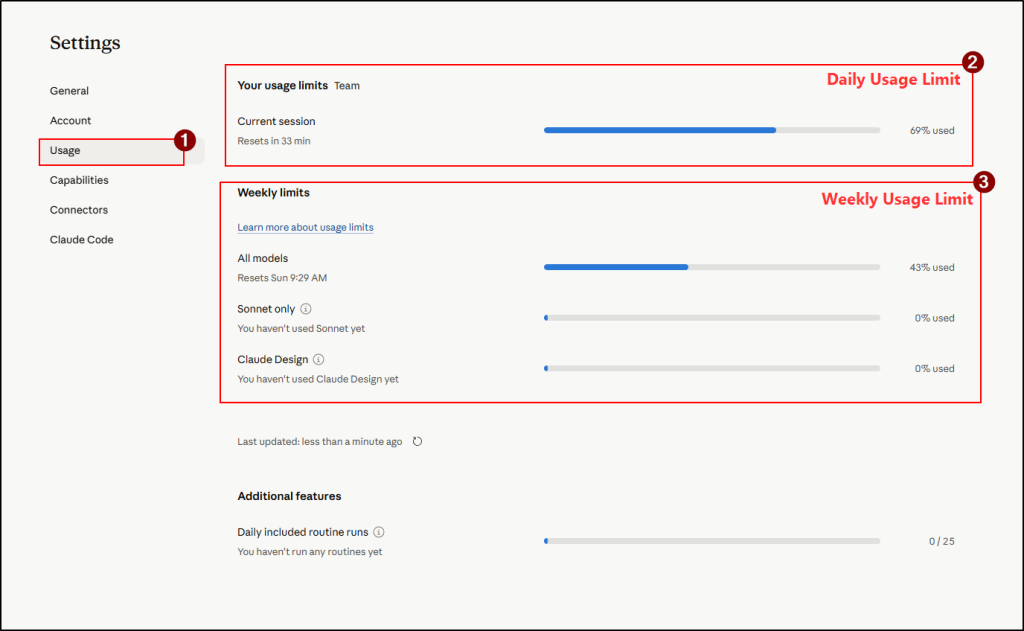
- Track Your Usage Before You Hit the Limit: It is easy to hit the limit without noticing because usage builds up over time. This provides limited visibility into the 5-hour session or weekly window. To avoid running out suddenly, regularly check Settings → Usage to see your current progress and plan.
How to Avoid Usage Limits in Claude Code
If you only use Claude in chat, you can skip this section, though the habits above still apply to you. For Claude Code users, there are a few built-in tools that can make a noticeable difference in how efficiently you use it.The most useful commands you can rely on are /clear and /compact.
- /clear: Use when you finish one task and move to something unrelated. It fully resets the context, so make sure to save anything important first.
- /compact: Run when continuing a long task. It summarizes the session so far and removes unnecessary noise while keeping the important context.
It is best to run /compact at natural break points rather than waiting until the session slows down. Doing it early keeps the summary cleaner and avoids carrying unnecessary information forward.
A few more habits keep Code usage lean:
- Keep your CLAUDE.md short: Claude reads it on every message, so a bloated file taxes every turn. Treat it as a compact reference for stable rules rather than a full knowledge base.
- Plan before big changes: For tasks involving multiple files, have Claude plan first instead of diving in and exploring. You can also hand verbose jobs like running tests to a subagent, so only the summary comes back into your main session.
- Watch the gauge: Run /status in Claude Code, or open Settings then Usage in the apps, to see how much of your five-hour and weekly windows you’ve used. Checking before you’re cut off beats discovering the limit the hard way.
Frequently Asked Questions on Claude Usage Limits
Here are some commonly asked questions about Claude usage limits and their answers:
1. When does my Claude usage limit reset?
Claude has two reset windows. The first is a rolling 5-hour session limit, where usage gradually frees up over time instead of resetting all at once. Paid plans may also include a weekly limit that resets 7 days after the session starts.
2. Does Claude code use the same limit as chat?
Yes. Claude Code, Claude apps, and Claude Desktop all share the same usage pool. The heavy usage in one place reduces the remaining usage available in the others.
3. Do Projects count against usage?
Projects help reduce repeated usage. Files stored in a Project are cached using retrieval systems, so Claude does not fully reprocess the same file every turn. You still use tokens for the conversation itself, but not for repeatedly uploading and reading the same document.
4. How do I check how much usage I have left?
In Claude apps, go to Settings → Usage to view your session and weekly usage progress. In Claude Code, run /status to check your current remaining usage.
5. What if I still hit the limit and need to keep working?
You can reduce usage by switching to a lighter model, starting a fresh chat to remove old context, or simplifying prompts. Paid plans with usage credits enabled may also continue at pay-as-you-go rates after limits are reached.
So What’s the One Habit Worth Starting Today?
Treat your usage like one shared pool and avoid giving Claude more context than needed. Keep conversations short, match the model to the job, and lean on Projects for anything you reuse. Those three habits alone will carry most people comfortably through their plan. And if you’ve cleaned up your habits and still hit the wall most weeks, that’s the honest signal it’s time for usage credits or a bigger plan, not another workaround.