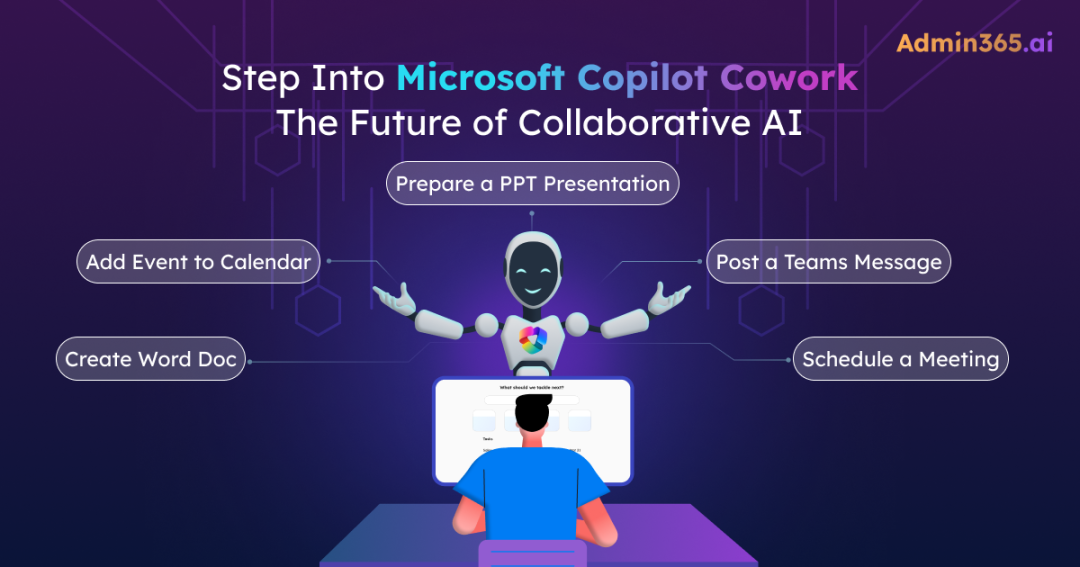
We’ve all been there: you ask an AI for help, and it gives you a great ‘to-do’ list—only for you to spend the next hour manually executing every single step yourself. But that’s changing. Microsoft is moving beyond simple prompt-and-response interactions into a model where AI can take action across your workspace.
You heard that right—Microsoft has officially introduced Copilot Cowork, a breakthrough feature that marks the shift from AI assistance to AI execution. Currently available in the Frontier preview, it allows Copilot to move beyond simple chats to planning and handling complex, multi-step tasks on your behalf across Microsoft 365. Let’s take a closer look at what Copilot Cowork is and how to enable it.
What is Microsoft Copilot Cowork?
Copilot Cowork acts as an assistant that you can delegate tasks and workflows to within Microsoft 365. It orchestrates work across apps like Outlook, Teams, Word, and Excel—eliminating the need to switch between them.
Under the hood, Copilot Cowork is powered by Work IQ, which enables it to understand intent, coordinate actions across apps, and manage multi-step workflows intelligently.
For example, you can ask Cowork to prepare a project status update. It can gather inputs from emails in Outlook, summarize discussions from Teams, create a report in Word, and share it with stakeholders—all as a coordinated workflow, with approvals where required.
What Makes Copilot Cowork Different?
- Action-Oriented Execution with User Control: Most Copilot experiences focus on generating suggestions. Cowork goes further—it builds a plan and executes tasks across apps, pausing only for approvals on sensitive actions. You can review or edit results at any stage and pause execution anytime to provide additional context or refine the request.
- Powered by Anthropic, Not OpenAI: Unlike other Copilot experiences that rely on OpenAI models, Cowork uses Anthropic’s Claude models. While it leverages Claude technology, this is not the same as using Anthropic’s standalone Claude or any Claude cowork product. It runs within Microsoft’s Copilot ecosystem and requires Anthropic to be enabled as a subprocessor in tenant settings. Without this configuration, Cowork will not function.
Currently, Cowork runs in the browser at m365.cloud.microsoft and in the Copilot desktop app on Windows and Mac. It works inside Outlook and Teams too.
What Copilot Cowork Can Do in Microsoft 365?
Copilot Cowork can execute tasks across Microsoft 365 apps by orchestrating workflows based on your intent. Here are a few examples at a glance:
- Draft and send emails in Outlook
- Schedule meetings and manage your calendar
- Create documents, spreadsheets, and presentations
- Summarize meetings and prepare briefings
- Search and retrieve organizational data
To deliver these outcomes, Cowork operates through skills—capabilities it uses to perform specific actions based on your request. For example, drafting an email triggers the Email skill, while creating a presentation uses the PowerPoint skill. At launch, Cowork includes 13 built-in skills that work together to handle tasks across apps.
Built-in Skills in Copilot Cowork
| Skill | Capability | Example Use Case |
| Word | Drafts, edits, and refines documents. | “Draft a 2-page briefing on Q2 revenue.” It writes and refines the document for you. |
| Excel | Analyzes data and builds spreadsheets with formulas and insights. | “Build a pivot table from the sales data with formulas for month-over-month growth.” |
| PowerPoint | Creates and structures presentations from input or notes. | “Turn my notes into a 10-slide deck for tomorrow’s review.” |
| Converts, extracts, and formats content from PDF files. | “Export the report as a PDF I can share externally.” | |
| Composes, replies, forwards, and sends emails with attachment handling. | “Reply to Priya’s thread and loop in Sam.” It drafts, and on your approval, sends. | |
| Scheduling | Schedule meetings based on availability and context. | “Set up a 30-minute sync with the marketing leads next week.” |
| Calendar Management | Organizes schedules, creates events, and manages conflicts. | “Find me two hours of focus time this week and decline anything that isn’t critical.” |
| Meetings | Prepares summaries, insights, and talking points for meetings. | “Prep me for my 2 PM with the finance team.” It pulls context and suggests talking points. |
| Daily Briefing | Compiles key updates and priorities for the day. | “What do I need to know before the workday starts?” |
| Enterprise Search | Retrieves relevant files and information across the organization. | “Find the latest onboarding deck we used for engineering hires” |
| Communications | Drafts announcements and stakeholder communications. | “Draft an all-hands announcement about the org change” |
| Deep Research | Gathers, analyzes, and summarizes information from multiple sources. | “Compare our pricing to three competitors and summarize the takeaways” |
| Adaptive Cards | Generates interactive, structured responses with actionable elements. | “Build an interactive approval card for Teams” |
You can see which skills Cowork is using at any moment. They show up in a side panel during the conversation, so there’s no guessing about what’s happening under the hood.
Custom Skills in Microsoft Copilot Cowork
Here’s where Cowork gets interesting. You can extend it with your own skills, and you don’t need Copilot Studio to do it. You just drop a markdown file into a OneDrive folder.
Say you want a “weekly-report” skill that pulls together your recurring Monday summary. You’d create this file:
|
1 |
/Documents/Cowork/Skills/weekly-report/SKILL.md |
That’s it. Next time you open Cowork, it picks up the new skill automatically. You can create up to 20 custom skills.
From a governance angle, this design is cleaner than it sounds. Your custom skills live in OneDrive, so they inherit everything you already have in place: DLP policies, sensitivity labels, retention settings. Whatever rules apply to a user’s OneDrive apply to their custom skills too. There’s no separate policy surface to manage.
Cowork’s Approval Model and User Controls
Cowork won’t fire off an email or create a meeting without your sign-off. Before performing any sensitive action on your behalf, it asks for your approval. You’ll see a preview of what it wants to do, and for medium and high-risk actions, a risk indicator flagging the potential impact.
A few things about the approval flow are worth knowing:
- Action buttons (Send, Post, Create, Schedule): These buttons reflect the exact action being performed, not a generic “Approve.” Selecting one allows Cowork to proceed with that specific action for that instance.
- Don’t ask again (dropdown): Available alongside the action button, this option allows Cowork to proceed and skips approval prompts for similar actions within the current conversation. This effectively disables approval gates for that category of actions during the session.
- Approve All: When multiple actions are pending approval, this option allows all of them to proceed at once, reducing the need for repeated confirmations.
- Cancel: Stops the current action. Cowork skips it and continues with the rest of the task where possible.
How to Use Copilot Cowork in Microsoft 365
Getting Copilot Cowork working in your tenant requires a few prerequisites to be in place, followed by enabling and accessing it. Let’s walk through it.
Prerequisites for Enabling Copilot Cowork
Here’s what you need in place first:
- Microsoft 365 Copilot (Premium) licenses for every user you want to give Cowork access to
- Frontier program enrollment at the tenant level, with users included in the preview
- Anthropic enabled as a subprocessor in your tenant (enabled by default outside the EU; EU tenants must opt in to enable Anthropic manually)
- A modern browser such as Microsoft Edge or Google Chrome for reliable performance
- Microsoft-built agents enabled at the tenant level, as Cowork depends on agent capabilities to function
How Users Can Access Copilot Cowork in the Agent Store
Once the prerequisites and Frontier enrollment are sorted, your users can pick up Cowork through the Agent Store inside Microsoft 365 Copilot. Here’s what to do:
- Open Microsoft 365 Copilot at m365.cloud.microsoft or the Copilot desktop app.
- Under the Agents header in the left navigation, select All agents.
- Search for Cowork and click Add.
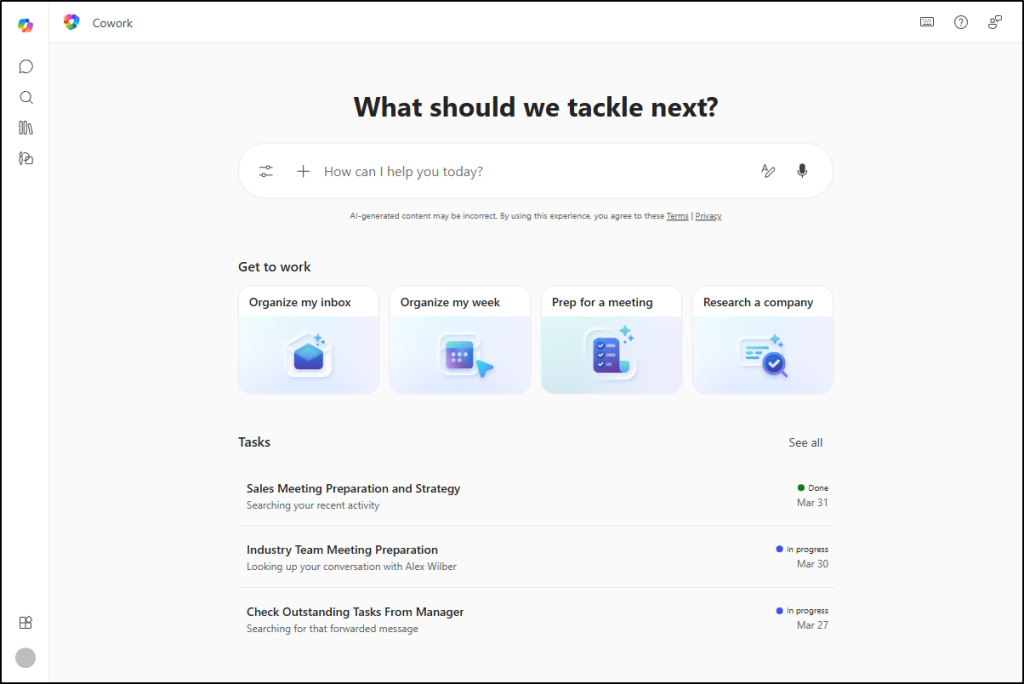
Cowork shows up in their Copilot rail from there. If your users spend more time in Teams, they can add it from there too. In Teams, look for Open Agents and bots in the right navigation.
Once added, users can start interacting with Cowork directly from the chat interface:
- Provide detailed instructions (up to 16,000 characters) for better results.
- Attach files using Add attachments (work context, local files, or cloud files from OneDrive, SharePoint, or Teams).
- (Optional) Use voice input via the microphone icon instead of typing.
- Select Send to start execution.
How Admins Can Control Access for Microsoft Copilot Cowork
If you’ve managed other Copilot agents before, you’ll recognize the drill. Cowork lives in the same governance surface, and the path is the familiar one:
Microsoft 365 admin center → Copilot → Agents → All agents.
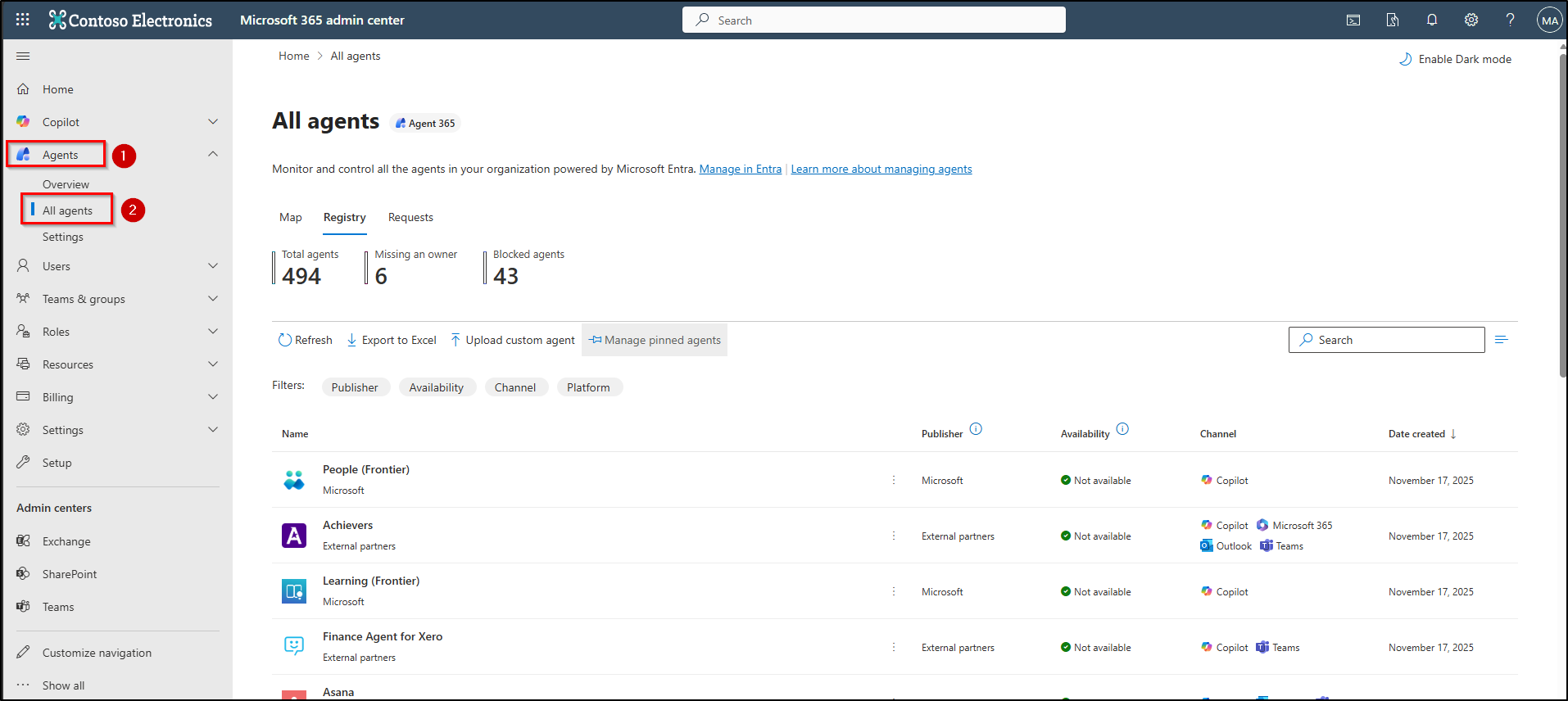
Go to the All agents page and select Cowork. You’ve got three choices for who can use it:
| Setting | What It Means |
| Available to all users | Anyone in your tenant with a Copilot license can find and install Cowork. This is the default, and usually too broad for a preview feature. |
| Available to specific users or groups | You pick the security groups or users who get access. This is the right setting for a pilot. |
| Blocked | Nobody can access and use Cowork. Good for tenants that aren’t ready or have compliance concerns about Anthropic. |
For pilots or departmental rollouts, go with specific users or groups. If you want to scope by country or region, you’ll need to use security groups for that. Cowork doesn’t have native geo-scoping built in.
Deploy and Pin Microsoft Copilot Cowork for Users
These two look similar, but they’re doing different jobs, and the order matters.
- Instead of requiring users to install Copilot Cowork themselves, admins can deploy it centrally to make it available to all users or specific groups without any manual effort. Deployment pushes Cowork onto your users so they don’t have to go hunt for it in the Agent Store. Head to Copilot → Agents → All agents, pick Cowork, and choose Deploy to → Entire organization or Specific users/groups.
- Pinning is what keeps Cowork visible in the Copilot rail (the right-side panel) so users don’t forget it’s there. You can only pin something that’s already deployed, so do deployment first. For pinning, go to Copilot → Agents → Manage pinned agents, pick Add a pinned agent → Cowork, and set your scope.
One quirk to know: your users can unpin Cowork from their own view if they want. Deployment sticks around until you change the access control yourself.
Security and Compliance Considerations for Copilot Cowork
Copilot Cowork aligns with existing Microsoft 365 security and compliance controls, ensuring consistent data protection and governance.
Microsoft Purview DLP Coverage for Cowork
Good news on the DLP front: you don’t have to build anything new. Your existing Microsoft 365 Copilot DLP policies already cover Cowork. If a document has a sensitivity label that blocks AI processing, or hits a DLP rule, Cowork respects it. Same behavior as your other Copilot agents.
Audit Logs for Copilot Cowork
Audit logs work the same way. Every Cowork interaction lands in Purview under Copilot activities. You get this with Audit Standard at no extra cost. If your compliance team or legal needs to trace what Cowork did and when, the logs are already there waiting. These logs include details such as the agent name, agent ID, and version.
Data Residency for Cowork Conversations
Your Cowork conversations stay in your tenant’s local region by default, same as the rest of Microsoft 365 Copilot.
If you’re running Advanced Data Residency (ADR) or a Multi-Geo setup, Cowork plays along with whatever you’ve configured. Your conversation data stays inside the residency boundary you’ve set, which matters when you’ve got regulated workloads with data sovereignty requirements attached.
Cowork vs Copilot Chat vs Copilot Agents
If you’ve tried to figure out where Cowork fits alongside Copilot Chat and Copilot agents, you’re not alone. All three carry the Copilot name, but they work very differently once you get under the surface. Here’s how they compare side by side.
| Categories | Copilot Chat | Copilot Agents | Copilot Cowork |
| What it does | Answers questions, drafts content, summarizes | Runs repeatable workflows you build (help desk, onboarding) | Executes multi-step tasks across your M365 apps |
| How much freedom it has | Suggests only (you act on it) | Acts within the narrow scope you defined | Acts broadly, but pauses for approval on sensitive steps |
| What it costs | Free tier gets you started; Copilot license for full M365 grounding | M365 Copilot license + Copilot Studio | M365 Copilot license + Frontier enrollment |
| What powers it | OpenAI GPT | OpenAI GPT (extensible) | Anthropic Claude |
| How hard is setup | Almost nothing | Build + deploy in Copilot Studio | Frontier enrollment at two levels |
| When to reach for it | Quick answers, a first draft, catching up on a thread | A process that repeats the same way every time | A task that spans multiple apps and takes real time |
| Takes action on your behalf? | No | Yes, within narrow scope | Yes, across broad M365 surface with approval gates |
So when should you reach for each one?
- Copilot Chat: When you need a quick answer or draft—like summarizing a document, rewriting an email, or getting a fast explanation
- Copilot Agents: When a process is repetitive and predefined—such as onboarding workflows, ticket routing, or approval processes built in Copilot Studio
- Copilot Cowork: When work spans multiple steps and apps—for example, preparing a project update by pulling inputs from Outlook, summarizing Teams discussions, creating a report in Word, and sharing it with stakeholders
The thing to realize is that Cowork asks for more trust than the other two. It takes real action, not just suggestions.
Limitations of Copilot Cowork in Microsoft 365
Cowork is still in preview, so there are rough edges. Here’s what to warn your users about before you roll it out:
- Local files are off-limits: If your users have files on their desktop, Cowork can’t access them. It only works with OneDrive and SharePoint. Anything local, they’ll have to upload first.
- No deletion support: Cowork can create, edit, and reorganize files in OneDrive or SharePoint, but it cannot delete files or folders. Cleanup still needs to be handled manually or through other tools.
- No mobile support yet: Browser and desktop app only. If your users live on mobile, Cowork isn’t there yet.
- Approval controls can be bypassed: The “Don’t ask again” option can disable approval prompts for certain actions within a session. If users don’t understand the impact, they may unintentionally reduce oversight. This should be clearly addressed in rollout communication.
- Preview-quality outputs: Treat Copilot Cowork’s outputs as drafts. Have users review emails, documents, and messages before sending, especially when the source data is messy or the instructions were vague.
- Preview terms apply: Features can change, disappear, or behave differently as Microsoft iterates. Don’t build critical workflows that assume today’s behavior is permanent.
- Limited to accessible data: Cowork can only work with data and services your Microsoft 365 account is authorized to access. If permissions are missing, results will be incomplete.
- Search and data quality impact results: If your organization’s data is outdated, poorly structured, or not indexed, Cowork’s outputs may be incomplete or inaccurate.
- Struggles with vague or complex requests: Ambiguous or overly broad instructions can lead to incorrect results. Similarly, complex multi-step tasks with many dependencies may not always complete as expected. Clear, specific instructions improve outcomes.
- Voice input limitations: Voice input depends on browser support and may not be available in all environments.
- Custom skills are not validated: Custom skills created by users are not verified by Microsoft. Their accuracy depends entirely on how they are built, so outputs should be reviewed carefully.
Frequently Asked Questions
A few questions come up again and again when admins start evaluating Cowork. Here are the ones worth answering directly.
- Does Copilot Cowork require Microsoft 365 E7?
No. All Cowork needs is a Microsoft 365 Copilot license and Frontier enrollment. E7 bundles Copilot with other components, but any Copilot-licensed user in a Frontier-enrolled tenant can access Cowork.
- Does Cowork work with third-party apps?
At launch, Cowork works with Outlook, Teams, Word, Excel, PowerPoint, OneDrive, and SharePoint. It doesn’t connect to third-party apps.
- Can I disable Anthropic as a subprocessor?
Yes, but doing so disables Cowork entirely. It needs Anthropic Claude models to function. If your compliance posture doesn’t permit Anthropic as a subprocessor, Cowork won’t work in that tenant.
- Are Cowork conversations searchable in eDiscovery?
Yes. Everything Cowork does lands in Purview audit logs under Copilot activities. Audit Standard covers it at no extra cost. When eDiscovery needs to pull Cowork activity, it works the same way as any other Copilot agent query.
- Can users create custom skills without admin approval?
Yes. Custom skills live in a user’s OneDrive at /Documents/Cowork/Skills/<skill-name>/SKILL.md file path. Cowork picks them up automatically at conversation start. There’s no approval step on your end. The skills inherit whatever permissions, sensitivity labels, and DLP policies already apply to the user’s OneDrive.
By bridging the gap between planning and execution, Cowork offers a glimpse into a future where work shifts from manual coordination to strategic oversight. While still in Frontier preview, its ability to build custom skills through simple Markdown shows how accessible advanced automation has become.
For organizations ready to explore this shift, start with a focused pilot—letting a small group of users lead the way in turning Copilot into a functional digital teammate.