AI in SharePoint has been steadily adding intelligence to how organizations search, summarize, and organize content across their sites. But until now, it followed the same generic behaviour for every organization. If your team reviews compliance documents in a certain way, or your HR department processes offer letters with specific criteria, AI had no way to learn those patterns.
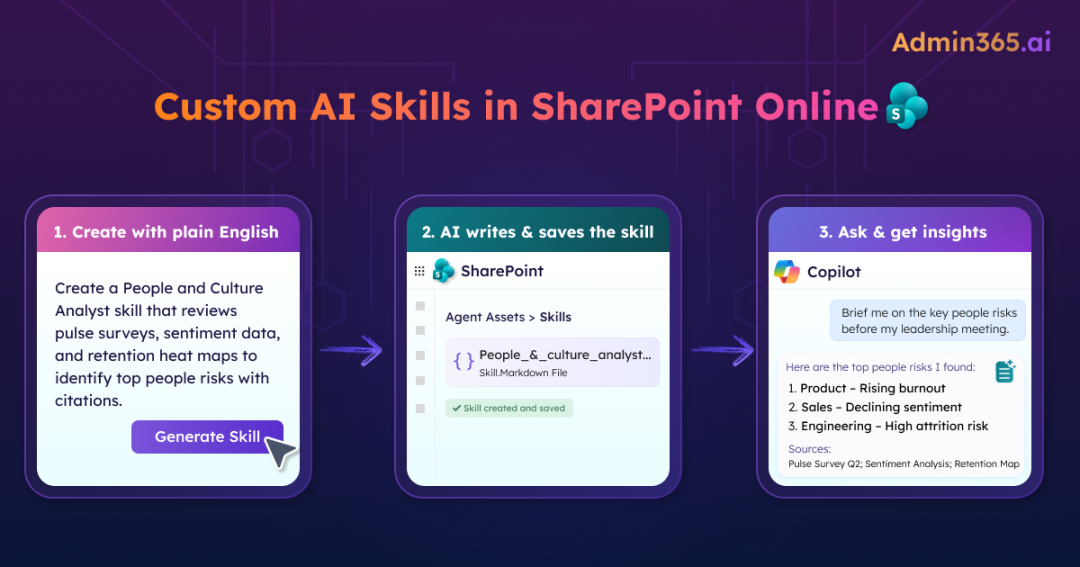
To address this, Microsoft is introducing custom AI skills in SharePoint Online, which are currently in public preview. These allow you to define reusable, multi-step AI instructions using plain natural language. No code. No external tools. You describe what you want AI to do in plain language, and it follows your instructions consistently every time a user triggers that workflow.
In this blog, you’ll learn what custom skills are, how they work, and how to create and run them. Let’s get started!
What Are Custom AI Skills in SharePoint?
Custom skills are reusable AI instructions written in natural language that define how AI in SharePoint handles specific, repeatable business tasks. Building on AI in SharePoint previously known as Knowledge Agent, they allow you to move beyond generic responses. Instead of letting AI improvise a response to every query, you teach it your organization’s exact process once and reuse the skill across future AI prompts.
Capabilities of Custom Skills in SharePoint AI
Think of custom skills as a layer of business logic on top of what AI in SharePoint already does. They give you control over how existing capabilities are applied. It helps you to:
- Review compliance documents and flag missing fields
- Analyze documents (e.g., offer letters) and extract key insights
- Create or update SharePoint list items from document content
- Classify files and route them to the correct folders
- Validate documents for required formats and identifiers
- Summarize large documents into actionable outputs
- Apply organization-specific rules and checklists
- Cross-reference documents to identify risks or gaps
- Automate repetitive document processing tasks
How Custom AI Skills Work in SharePoint
The custom skills act as a bridge between a user’s request and how AI processes content on a SharePoint site.
Imagine your legal team regularly reviews vendor agreements for compliance risks. Instead of manually checking each document, a custom skill is created to handle this process.
Now, when a user asks: “Review this vendor agreement for compliance risks”.
AI in SharePoint:
- Scans the current site’s Agent Assets library
- Identifies a matching skill (e.g., contract review)
- Loads its instructions from a skill definition file
- Executes the defined steps (validate clauses, check identifiers, flag risks)
- Returns a structured, skill-guided response
The user doesn’t need to know the skill name; AI automatically detects and applies the most relevant one. If no matching skill is found, AI simply falls back to its default behaviour.
Rollout Timeline for Custom Skills in SharePoint
Custom skills are a no-code way to make AI in SharePoint follow your organization’s specific processes. You define the instructions once, and every user on that site benefits from consistent, repeatable AI behavior. Custom skills feature is enabled by default in your tenant. There is no tenant-level toggle to turn them off.
- Public Preview: Mid-April 2026 → Early May 2026
- General Availability (GA): Late May 2026 → Early July 2026
Prerequisites for Creating Custom AI Skills
Before custom skills work on your sites, two prerequisites must be in place:
1. Microsoft 365 Copilot License: Users need an active Copilot license. AI in SharePoint is included with this license at no additional cost.
2. Opt In to AI in SharePoint via PowerShell: AI in SharePoint is off by default in all tenants. A SharePoint Administrator or Global Administrator must explicitly enable it.
The underlying PowerShell parameters use the older “KnowledgeAgent” naming from the previous Knowledge Agent preview, which remains unchanged for compatibility during the preview period.
To enable AI in SharePoint across all sites:
- First connect to your SharePoint admin center using the below cmdlet.
|
1 |
Connect-SPOService https://yourtenant-admin.sharepoint.com |
- Then, to enable AI in SharePoint on all sites, run the below one.
|
1 |
Set-SPOTenant -KnowledgeAgentScope AllSites |
- Once enabled, verify the configuration using the cmdlet below.
|
1 |
Get-SPOTenant | Select-Object KnowledgeAgentScope |
If you want a more controlled rollout, you can scope the feature to specific sites only by replacing the <SPOSites> with sites URL:
|
1 |
Set-SPOTenant -KnowledgeAgentScope IncludeSelectedSites Set-SPOTenant -KnowledgeAgentSelectedSitesList @(<SPOSites>) |
Or exclude specific sites from all other sites by replacing the site URL in <SPOSites> placeholder.
|
1 |
Set-SPOTenant -KnowledgeAgentScope ExcludeSelectedSites Set-SPOTenant -KnowledgeAgentSelectedSitesList @(<SPOSites>) |
If your tenant previously opted into the Knowledge Agent public preview, you do not need to opt in again. For multi-geo tenants, the PowerShell script must be run in each geo separately.
3. Activate the Agent Assets Feature Per Site (Required During Preview):
Each site where you want skills to be available must have the Agent Assets feature manually activated:
- Select the Settings icon in the top-right corner of the SharePoint site.
- Open Site information and choose View all site settings.
- Go to Site collection features under Site Collection Administration.
- Locate Agent Assets and click Activate.
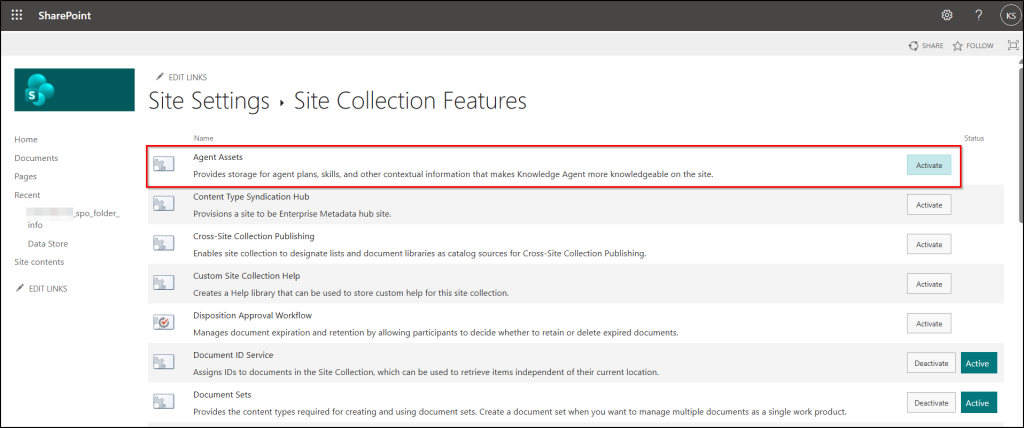
This step will be automated at general availability, but for now it must be done on each site.
4. For EU and UK Tenants – Enable Anthropic as an AI Sub-Processor:
The AI in SharePoint preview uses Anthropic as its advanced reasoning model to support multi-step planning and execution. For tenants in the European Union or United Kingdom, Anthropic is disabled by default because it is currently excluded from EU data boundary commitments.
This is optional but when disabled, it’ll fall back to an alternative reasoning model, and some advanced capabilities may vary. To access the full experience:
- Go to the Microsoft 365 admin center → Copilot → Settings.
- On the Data access page, select “AI providers operating as Microsoft sub-processors”.
- Select “Enable Anthropic as a Microsoft sub-processor subject to the above terms”.
Note: Enabling Anthropic as a sub-processor may apply to other Copilot-powered workloads across Microsoft 365. Review this setting against your organization’s compliance, data handling, and regulatory requirements before enabling.
How to Create a SharePoint Custom AI Skills
Before creating custom skills, it’s important to know the default behaviour of this feature:
- Any user with Edit permissions on a site can create skills on that site.
- Any user with View permissions on a site can use (invoke) skills on that site.
You can create a custom skill in two ways:
1. Through the AI in SharePoint UI (Recommended)
Simply describe what you want the skill to do in natural language, and AI will generate it for you.
- Open the AI in SharePoint chat panel from a site page or document library, ensure the page is not in edit mode.
- Describe the workflow you want to reuse in natural language.
- Example: Create a skill to review legal contracts and verify if each document contains a lawyer ID in a specific format.
- AI generates a draft skill definition. Review it carefully. If needed, ask AI to refine the steps, inputs, or outputs.
- Confirm and save the skill. It will be stored automatically in the Agent Assets library.
To restrict skill creation without restricting general site access: Break permission inheritance on the Agent Assets library and apply more restrictive permissions to that library specifically. This lets you keep general site editing open while limiting who can define or modify AI behavior.
2. By Creating a SKILL.md File
You can also create a skill manually:
- Edit a Markdown file (SKILL.md) with your instructions.
- Upload it to the Agent Assets library.
This method is useful for version control and reusing skills across sites.
Where Custom Skills Are Stored in SharePoint Site
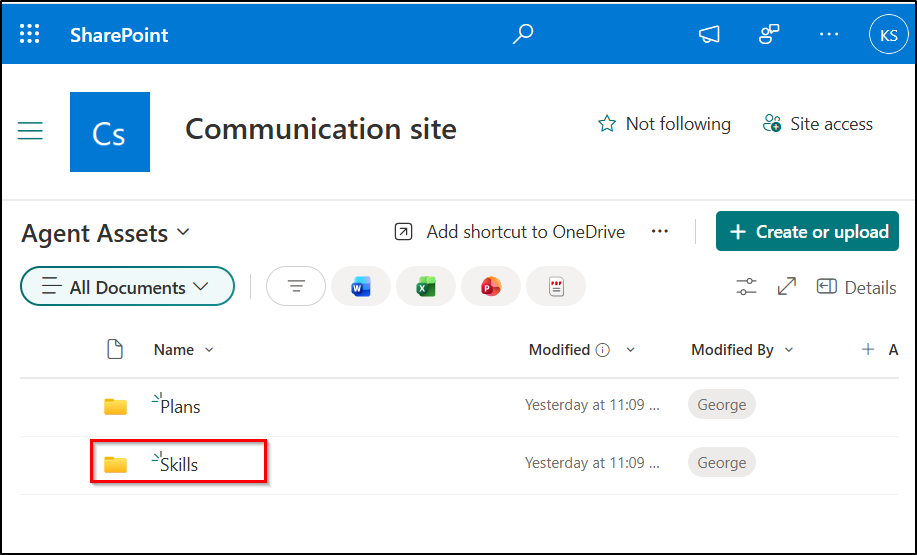
Once created, SharePoint automatically scans the Agent Assets library and loads the instructions from the SKILL.md file. Every SharePoint site includes a built-in Agent Assets library that is system-managed and cannot be deleted, and custom skills are stored at: /Agent Assets/Skills/<skill-name>/SKILL.md.
The SKILL.md file contains YAML frontmatter with the skill name, description followed by the skill instructions in Markdown. Your instructions can include step-by-step guidance, examples of inputs and outputs, and edge case handling.
Because skills live in a standard SharePoint document library, they’re automatically governed by the same retention policies permissions, sensitivity labels, auditing, and compliance controls that apply to the rest of your site’s content.
How Custom Skills Get Invoked
When a user interacts with AI in SharePoint, the AI checks the current site’s Agent Assets library for available skills. It matches the user’s request against skill descriptions using semantic understanding. Users can also invoke a skill explicitly by name if they know what’s available.
When a skill is applied, the AI chat displays a skill indicator card. This shows which skill was used and confirmation that a structured process was followed. If no matching skill is found, AI falls back to its standard behavior and responds without using a custom skill.
Limitations of Custom Skills in SharePoint AI
Custom skills have clear boundaries that are worth understanding before you start building them:
- No external connections: Skills cannot call APIs; trigger Power Automate flows or reach outside SharePoint. If your process requires pulling data from an external system, you need a SharePoint agent built through Copilot Studio instead.
- No custom code execution: Skills are plain-language instructions only. They cannot run scripts, Python, PowerShell, or any executable code.
- No cross-site sharing: Skills are site scoped. A skill created on your HR team site does not exist on your marketing team site. If you want the same skill on multiple sites, you must create it on each site individually.
This site-scoped design means organizations that want consistent AI behavior across many sites need a plan for replicating skills. There is no tenant-wide skill library or central distribution mechanism.
That’s it! Custom skills elevate AI in SharePoint from a simple assistant to a process-aware system. By defining workflows once, you enable consistent and repeatable outcomes across your team. Start by testing skills, refine them over time, and focus on building where they deliver the most value.