AI is becoming more deeply integrated into Microsoft 365. Instead of being limited to basic assistance, AI is now helping users work with their organizational data more naturally. Whether it’s pulling information from files, emails, or conversations, AI is gradually becoming part of how users interact with workplace data.
Building on this shift, Anthropic has introduced Microsoft 365 connectors for Claude, allowing users to access Microsoft 365 data directly within Claude chat. 🤖⚡
Let’s take a closer look at how this integration works and what you should know before connecting Claude to Microsoft 365.
What Is Claude AI’s Microsoft 365 Connector?
The Microsoft 365 Connector for Claude AI is an integration built on Anthropic’s MCP (Model Context Protocol) that connects Claude directly to your Microsoft 365 workspace.
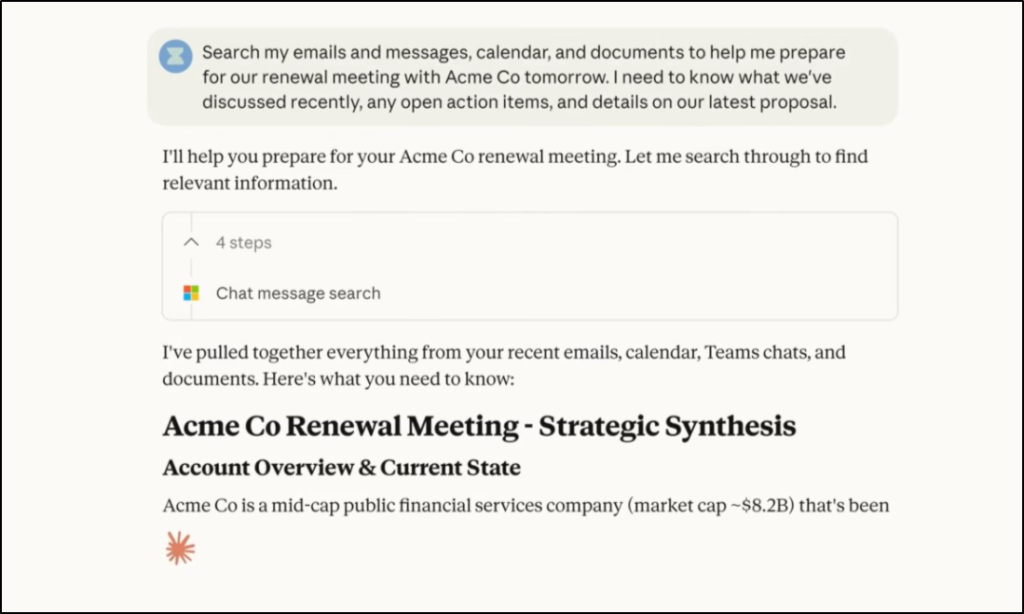
Once connected, Claude can search your Outlook inbox, SharePoint sites, OneDrive files, and Teams conversations. So instead of searching each app separately, you ask Claude one question, and it pulls context from all four services.
Here are a few things you should know about the connector:
- The Microsoft 365 connector is now available across all Claude AI plans, including Free, Pro, Max, Team, and Enterprise. Previously limited to Team and Enterprise, support was expanded to all plans in early April 2026.
- Claude can search and analyze Microsoft 365 data, but cannot modify content.
- Claude only accesses data that the signed-in user already has permission to view.
Claude Microsoft 365 Connector vs Copilot with Anthropic Models
Microsoft is also bringing Anthropic models into Copilot. This is different from the Claude Microsoft 365 connector. Here’s a quick comparison:
| Aspect | Claude M365 Connector | Copilot with Anthropic Models |
| Direction | Claude reads your M365 data | M365 Copilot uses Claude’s AI models |
| Managed by | Anthropic (claude.ai) | Microsoft (M365 admin center) |
| Admin action | Entra Global Admin consent in Claude | Subprocessor toggle in M365 admin center |
| Access type | Read-only search across Outlook, SharePoint, OneDrive, Teams | Claude models power Copilot in Word, Excel, PowerPoint, Researcher |
Similarly, another difference worth knowing is Claude Cowork vs. Microsoft Copilot Cowork. Claude Cowork works across local files and external tools, while Copilot Cowork focuses primarily on Microsoft 365 data and apps.
How to Enable the Claude Microsoft 365 Connector in Your Tenant?
There are three gates to get through. But before you start, confirm these are in place:
- Microsoft 365 business account: Every user connecting must have a work account tied to a Microsoft Entra tenant. Personal accounts (@outlook.com, @hotmail.com, @live.com) will not work.
- Entra Global Administrator: Required for the first-time tenant consent. No one in your tenant can connect until this step is done.
- Claude Organization Owner (Team and Enterprise only): Must enable the connector in Claude org settings before team members can connect. Free, Pro, and Max users skip this entirely.
1. Grant Admin Consent to Connect Claude with Microsoft 365
Granting consent enables the connector for your entire Microsoft Entra ID tenant. Once approved, users across your organization can connect their Microsoft 365 accounts to Claude AI without requiring additional admin approvals.
There are two scenarios to grant consent: an admin with a Claude account and an admin without a Claude account.
For admins with a Claude account:
If the Global Admin already has a Claude account, consent can be granted directly from Claude:
- Sign in to Claude (https://claude.ai)
- Go to Customize > Connectors
- Find Microsoft 365 and click Connect
- Review the permissions in the consent prompt
- Check the box to grant consent on behalf of the organization
- Click Accept
After consent, you should see Microsoft 365 showing a Connected status in your Connectors page.
For admins without a Claude account:
If the Global Administrator doesn’t have a Claude AI account, or if you need to troubleshoot the connector setup, you can manually configure the integration in Entra ID.
This process adds two service principals to your tenant, allowing the Microsoft 365 connector to access data through the Microsoft Graph API.
Add the Service Principals:
Use Microsoft Graph Explorer to create both service principals:
- M365 MCP Client for Claude — Handles authentication from Claude
|
1 |
POST https://graph.microsoft.com/v1.0/servicePrincipals {"appId":"08ad6f98-a4f8-4635-bb8d-f1a3044760f0"} |
- M365 MCP Server for Claude — Handles Microsoft 365 data access
|
1 |
POST https://graph.microsoft.com/v1.0/servicePrincipals {"appId":"07c030f6-5743-41b7-ba00-0a6e85f37c17"} |
Grant Admin Consent:
Open the following URLs (replace {your-tenant-id} with your tenant ID):
- Client App: https://login.microsoftonline.com/{your-tenant-id}/adminconsent?client_id=08ad6f98-a4f8-4635-bb8d-f1a3044760f0
- Server App: https://login.microsoftonline.com/{your-tenant-id}/adminconsent?client_id=07c030f6-5743-41b7-ba00-0a6e85f37c17
You’ll be prompted to approve the delegated permissions required for the connector. Once approved, the Microsoft 365 connector is ready for users to connect.
2. Enable the Connector in Claude Org Settings (Team and Enterprise Only)
If your organization is on Claude Team or Enterprise, there is a second gate. A Claude Organization Owner must enable the connector before team members can use it:
- Go to Organization settings > Connectors
- Click Browse connectors
- Find Microsoft 365
- Click Add to your team
📝Note: On Free, Pro, or Max plans, skip this step. There is no org-level toggle.
3. Connect Microsoft 365 to Claude for Individual Users
After admin consent is granted, users can connect their own Microsoft 365 accounts to Claude AI by following the steps below:
- Go to Customize → Connectors
- Select Microsoft 365 and click Connect
- Sign in with your Microsoft 365 work account
Once connected, test the integration by asking a simple question like:
“What emails did I receive this week?”
If Claude returns relevant results, the Microsoft 365 connection is active.
Restrict Claude M365 Connector Access Using Entra
Granting consent opens the connector to your entire tenant. This is where you decide who actually gets access to the Claude AI Microsoft 365 connector using Microsoft Entra ID.
Restrict Access to Assigned Users Only
To limit access to specific users or groups:
- Open M365 MCP Server for Claude in Enterprise Applications
- Go to Properties
- Set Assignment required? to Yes
- Go to Users and groups
- Add the users or security groups that should have access
Once Assignment required is set to Yes, only explicitly assigned users can connect.
Revoke Specific Microsoft Graph Permissions
You can also restrict what Claude can access by removing selected permissions from the Microsoft Graph API.
For example, you may allow access to SharePoint and OneDrive but block Outlook data.
To revoke permissions:
- Open M365 MCP Server for Claude in Enterprise Applications
- Go to Permissions
- Under Admin consent, locate the permission
- Click the three-dot menu → Revoke permission
- Confirm by selecting Yes, revoke
Removing permissions immediately limits what Claude can access. Here is what each permission category controls, so you know what you are turning off:
| Category | Permissions | What Claude Can Access |
| Mail.Read, Mail.ReadBasic, Mail.Read.Shared | Outlook emails and shared mailboxes | |
| Calendar | Calendars.Read, Calendars.Read.Shared | Calendar events |
| Teams | Chat.Read, ChatMessage.Read, ChannelMessage.Read.All | Teams chats, channels, meeting transcripts |
| Files/Sites | Files.Read, Files.Read.All, Sites.Read.All | SharePoint sites, OneDrive files |
| Directory | User.ReadBasic.All | Basic user profile lookups |
Be aware that if you revoke a permission, users will see a generic “Failed to call tool” error the next time they ask Claude something that requires that permission.
How Claude Handles Your Microsoft 365 Data
When connecting Claude to Microsoft 365, a few common questions usually come up about how your data is accessed and handled. Here are the key ones to know:
Does Claude store your M365 data?
The connector itself does not cache file content. When you ask Claude a question, it reaches into your M365 tenant, pulls the relevant data, and drops the connection. Nothing is stored on the connector side.
However, there is a distinction worth understanding. While the connector does not cache, tool call results in stored Claude conversations that are retained by Anthropic.
If a user asks Claude to summarize an email thread, that retrieved content becomes part of the saved conversation. The connector does not independently cache, but the conversation history does retain what was retrieved.
Can Claude access data beyond your permissions?
No. Claude sees exactly what you see in M365. If a SharePoint site is not shared with you, Claude cannot find it. If a folder is locked to your team, Claude’s access stops at the same boundary as yours.
One limitation related to this: files protected by sensitivity labels with encryption are inaccessible to Claude. If users query for a document that has an encrypted sensitivity label, Claude will not return that content.
Is your data used to train Claude?
This depends on the Claude plan:
| Claude Plan | Training Policy |
| Free / Pro / Max | User controls via Privacy Settings. Training may be enabled by default depending on signup choices. |
| Team | Not used for training (commercial terms) |
| Enterprise | Not used for training (contractual guarantee) |
If your users are connecting on personal Free or Pro Claude accounts, confirm their training setting in Claude’s Privacy Settings before connecting. Team and Enterprise plans prohibit training by default.
How long does the Claude Microsoft 365 connection stay active?
Refresh tokens expire after 90 days of inactivity. If a user hasn’t used Claude AI with the Microsoft 365 connector for three months, the connection silently expires.
Can admins audit what Claude accesses?
Yes. All connector activity is logged in the Microsoft Purview Compliance Center audit logs via Microsoft Graph API. Anthropic also records authentication and tool execution events, providing visibility into when and how data is accessed.
What security certifications does Anthropic have?
Anthropic maintains several enterprise security standards:
- SOC 2 Type II
- ISO 27001
- GDPR compliant
- Data Processing Agreement (DPA) available
These certifications help organizations evaluate compliance and security requirements before enabling the connector.
Closing Thoughts: Should You Enable the Claude Microsoft 365 Connector?
The connector is worth enabling if you need an AI-powered search across your M365 data. Read-only access and delegated permissions make it a low-risk starting point. But “low-risk” is not the same as “no planning required.”
🛡️ Know who in your tenant can connect, confirm your Claude plan’s training policy covers your data, and set up Entra restrictions before you click that consent button!