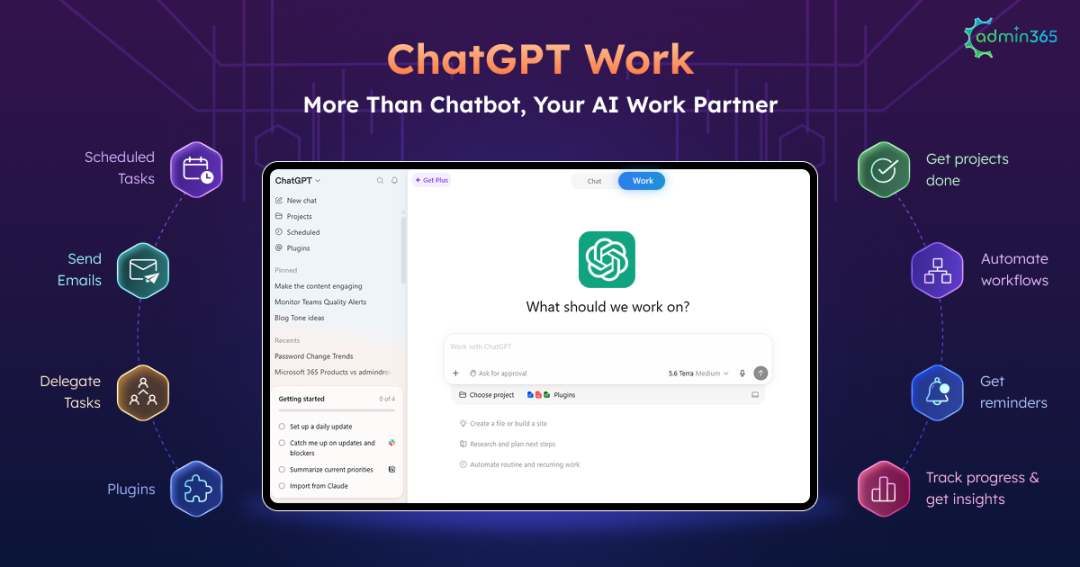
Your ChatGPT plan may now include a new mode called ChatGPT Work, and the name raises an obvious question: Is this a separate product that organizations need to purchase? The confusion is understandable. The name closely resembles ChatGPT Business and ChatGPT Enterprise, leading many users to assume it is another subscription tier or a paid add-on.
In reality, ChatGPT Work is neither. It is a mode inside the ChatGPT you already have, and the shift it represents is bigger than the name suggests. Instead of asking a question and getting an answer, you hand over a goal and get back finished work: presentations, spreadsheets, reports, apps, websites, and files you can actually use.
As organizations increasingly adopt AI to improve workplace productivity, it is essential to understand how ChatGPT Work fits into existing workflows. In this blog, we’ll explore what ChatGPT Work is, its key capabilities, how it differs from the traditional ChatGPT experience, and how organizations can use it effectively.
What Is ChatGPT Work?
ChatGPT Work is an agent mode within ChatGPT that plans and executes multi-step tasks on your behalf. Instead of only responding to prompts, it brings together context from your team’s tools, files, and connected applications to turn scattered information, documents, notes, and ideas into finished work while keeping you in control.
Typically, information is spread across apps, files, spreadsheets, documents, and conversations. The challenge is not just finding information, but bringing everything together to complete the work. ChatGPT Work helps bridge this gap by connecting the context you already have and handling the steps required to turn it into a finished outcome.
Unlike a standard ChatGPT conversation, where you guide each step by providing context, uploading files, and refining prompts, ChatGPT Work can bring together information from connected sources to complete tasks with less manual effort. It can work across approved data sources based on existing permissions, delegate tasks to specialized subagents, review its own output, and continue working through longer-running processes.
For example, consider creating a presentation on last quarter’s campaign performance. With regular ChatGPT, you would upload the campaign spreadsheet, provide background details, and manually collect additional information from sources such as Slack or other business applications. With ChatGPT Work, you can provide the objective, and it can gather relevant information from approved sources, combine the available context, and prepare a presentation or report for your review.
ChatGPT Work is available for users with ChatGPT Plus, Pro, Business, Enterprise, and Edu plans.
Now, let’s look at the key capabilities that make ChatGPT Work different.
Capabilities of ChatGPT Work
ChatGPT Work includes 4 capabilities that help automate complex tasks and improve productivity.
1. Plan Mode: Approve the Plan Before It Acts
Handing a goal to an agent takes a leap of faith. You cannot tell whether it understood you until it finishes. Plan mode removes that guesswork.
Plan Mode adds a review step between your request and execution. Instead of immediately acting on a task, ChatGPT Work first analyzes the goal, gathers relevant context, asks clarifying questions when needed, and creates a step-by-step plan. You can review the proposed approach, make changes, or approve it before ChatGPT Work proceeds.
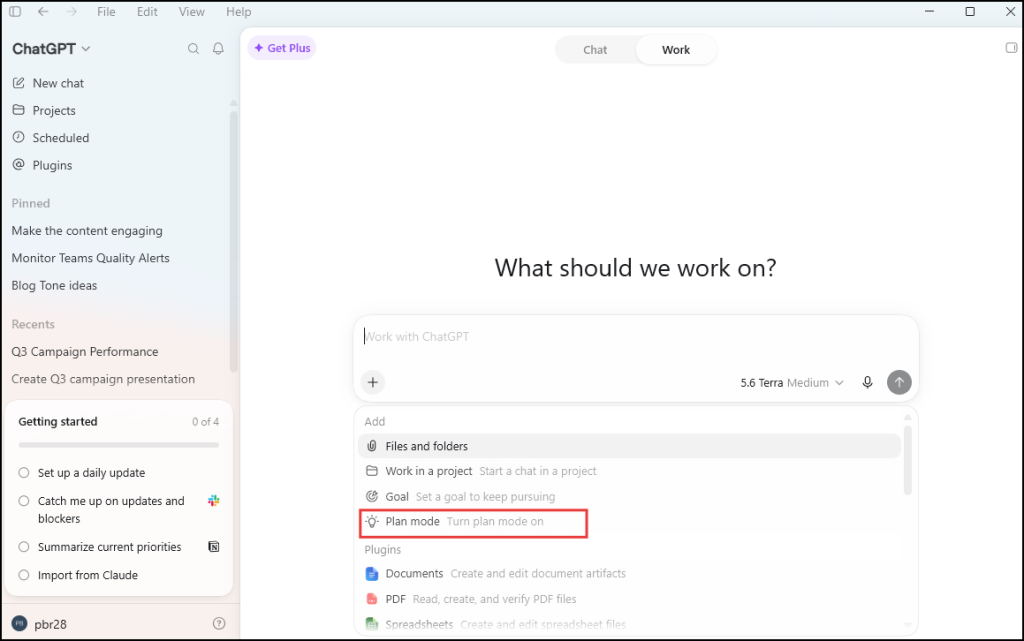
By reviewing the approach before execution, you can correct issues early and avoid spending time fixing the final output.
2. Plugins: Connect ChatGPT Work to Your Apps
While Skills define how work should be done, Plugins provide access to the tools and data needed to complete it.
A plugin is an installable package that include 1400+ connectors. Through connectors, ChatGPT Work can securely access services such as Slack, Google Drive, SharePoint, Microsoft Teams, Outlook, GitHub, Salesforce, and other supported applications.
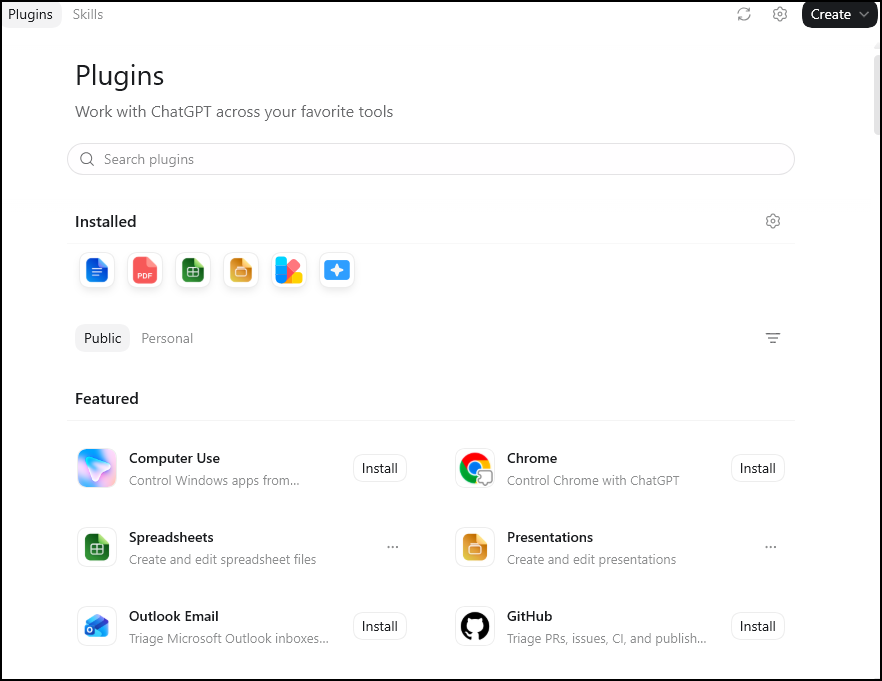
Plugins reduce the need to manually upload files or switch between applications. Once installed, ChatGPT Work can retrieve information from your connected services, combine it with the appropriate Skill, and complete the task using your organization’s existing workflows.
3. ChatGPT Work Can Runs On Your Machine or in the Cloud
You can open ChatGPT Work on the web, on mobile, in the desktop app, and through the CLI and IDE extension. You can access ChatGPT Work from multiple platforms, but where the work runs is what really matters.
The desktop app lets you choose where each task runs.
- Work Locally uses the files and apps on your own machine, making it suitable for data that should remain on your device. However, the task runs only while the desktop app is open.
- Work in Cloud runs on OpenAI’s servers, continues even after you close the app, and can be accessed from another device. A simple way to tell the difference is to close the desktop app and open ChatGPT on your phone. If the task is still running, it’s executing in the cloud.
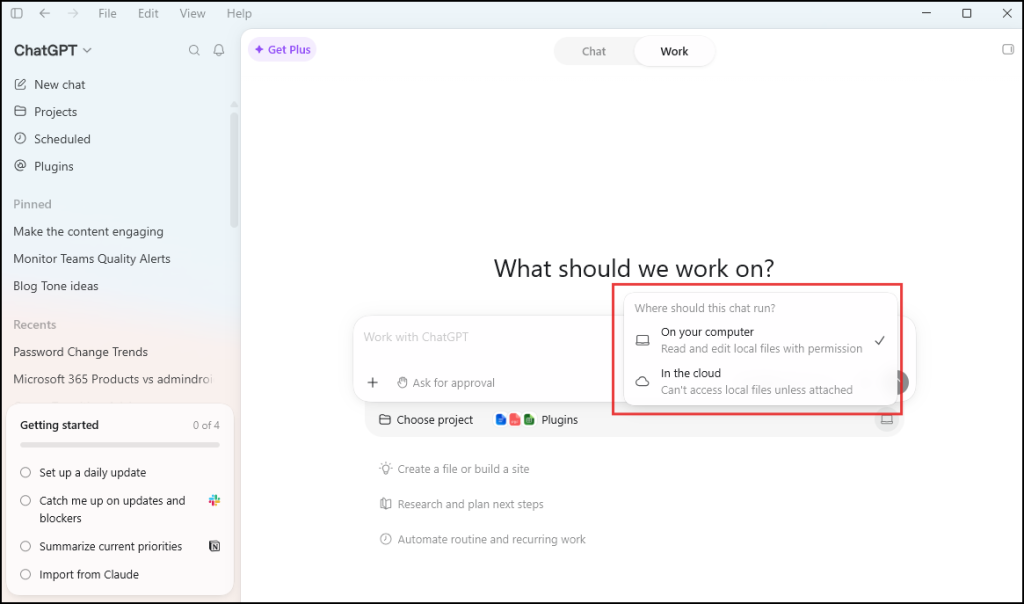
Note: Local and Cloud execution are controlled by separate admin permissions. If Cloud execution is disabled, tasks stop when the desktop app is closed.
Now, we’ve explored the capabilities of ChatGPT Work, let’s explore how to set it up and access it.
How to Deploy ChatGPT Work in Your Organization
Deploying ChatGPT Work involves more than enabling access. Organizations should also plan how users will access it, which apps can connect to it, and how usage will be governed.
Before you begin, ensure your organization has a supported ChatGPT plan and that users who need Work Local have the ChatGPT desktop app installed. Local execution is available only through the desktop app, while cloud-based tasks can be accessed through supported ChatGPT surfaces.
Make sure you have ChatGPT Workspace Owner or Admin permissions before configuring these settings.
To enable ChatGPT Work for your organization, follow the steps below:
- Go to Workspace settings → Permissions & roles.
- Review the Work Cloud and Work Local settings.
- Enable the required capabilities based on your organization’s needs.
- Work Cloud enables cloud-based ChatGPT Work tasks that run through supported ChatGPT experiences.
- Work Local enables local task execution through the ChatGPT desktop app.
After enabling the required settings, users can start using ChatGPT Work while maintaining the access controls and permissions defined by the organization.
Recommended Practices After Enabling ChatGPT Work
Once ChatGPT Work is available for users, consider the following practices to improve security, adoption, and governance.
- Use Role-based Access Control (RBAC): In Workspace settings, open Members, review workspace members, and confirm that users have a supported ChatGPT plan. Users on unsupported plans or roles will not see ChatGPT Work, even if the feature is enabled. Ensure users have supported ChatGPT plans before enabling access.
- Set Up Identity Groups: For larger organizations, use identity groups through SSO and SCIM to manage access. They should then appear as selectable targets in Permissions & roles. This allows you to assign ChatGPT Work permissions to specific teams instead of enabling it for everyone.
- Enable a Pilot Group: Before a company-wide rollout, enable ChatGPT Work for a small group of users in Permissions & roles who have a real recurring deliverable.
- Control Connected App Access: Review which connected applications ChatGPT Work can access. Enable only the apps required for your organization’s workflows. ChatGPT Work respects existing user permissions and can access only the data users are already authorized to access. You can also use built-in safety controls and app restrictions to limit access to unwanted services or website categories.
- Manage Desktop Access Separately: If your organization uses the ChatGPT desktop app, remember that desktop access is governed separately from the web and mobile experience. Review the Work Local and Work Cloud permissions to ensure users have the intended level of access across both environments. Enterprise organizations should also consider device management, security requirements, audit needs, and compliance policies.
- Monitor Usage and Set User Expectations: Before expanding ChatGPT Work broadly, define guidelines for how users should use it. Encourage them to use it for multi-step tasks, remind them that all outputs are review-ready and should be verified before sharing, and monitor adoption, usage, and spend through your workspace analytics.
ChatGPT Work Admin Controls You Should Know
Beyond deploying ChatGPT Work, admins should also understand the controls that govern how it is accessed, managed, and monitored. Here are the key administrative controls every IT admin should know before rolling it out across the organization.
1. ChatGPT Work Runs on Three Surfaces with Separate Admin Controls
ChatGPT Work does not rely on a single admin setting. It operates across three different surfaces, and each is managed through a different set of administrative controls:
- Web and mobile – Governed by Permissions & roles > Work Cloud.
- Desktop app (cloud tasks) – Also governed by Permissions & roles → Work Cloud because these tasks run in OpenAI’s cloud.
- Desktop app (local tasks), CLI, and IDE extension – Managed separately. Local desktop tasks are controlled by Permissions & roles → Work Local, while the CLI and IDE extension rely on Codex Local permissions and managed device configuration using a requirements.toml file.
These controls operate independently. Disabling Work Cloud blocks web, mobile, and cloud-based desktop tasks but does not disable local desktop tasks or developer tools. If your goal is to restrict or disable ChatGPT Work across your organization, verify all three control points instead of relying on a single setting.
2. ChatGPT Work Usage Is Shared Across Multiple OpenAI Products
ChatGPT Work uses a usage-based model. Each workspace first consumes the usage included with its subscription plan. Once that limit is reached, additional usage is billed against your workspace’s credit balance.
These credits are shared across multiple OpenAI products, including ChatGPT Work, Codex, Workspace Agents, and ChatGPT for Excel. Higher usage in one service can reduce available credits for others.
Since usage varies by task complexity, organizations should run a pilot, monitor consumption patterns, and use real usage data for budgeting.
3. Understand ChatGPT Work Audit Log Limitations
ChatGPT compliance logs capture user prompts and responses but do not include uploaded files, connector actions, or tool activity.
For example, logs may show that a user asked ChatGPT Work to find information from SharePoint, but they do not show the specific files accessed or actions performed in SharePoint. For complete investigation details, admins must rely on audit logs from connected applications.
Compliance records are retained for only 30 days, so organizations requiring long-term retention should export required data through the Compliance API.
4. Connectors Respect Existing User Permissions
Enabling a connector allows ChatGPT Work to interact with a connected application, but it does not grant additional permissions. ChatGPT Work always respects the permissions already assigned in the connected system. It can access only the files, sites, emails, or data that the signed-in user is already authorized to access. If a user doesn’t have permission to view a SharePoint site or Slack channel, ChatGPT Work won’t be able to access it either.
Disable ChatGPT Work When Needed
Administrators can revoke ChatGPT Work access at any time by disabling Work Local, Work Cloud, or both settings for the required roles under Permissions & roles.
Keep in mind that disabling ChatGPT Work prevents users from starting new agent tasks, but it does not affect tasks that have already been completed. It also does not restore consumed credits or reverse actions performed by ChatGPT Work. Any files, emails, or changes made in connected applications remain unchanged.
How Users can Access ChatGPT Work
After administrators enable ChatGPT Work for the organization, users can access it through supported ChatGPT experiences, including the web, mobile apps, and desktop app where available. Availability depends on the user’s subscription plan, workspace permissions, and whether the organization has enabled the required Work capabilities.
If you are a user using ChatGPT with a supported individual plan, follow these steps:
- Sign in to ChatGPT using a supported plan.
- Open ChatGPT on supported surfaces such as the web, mobile app, or desktop app (depending on availability).
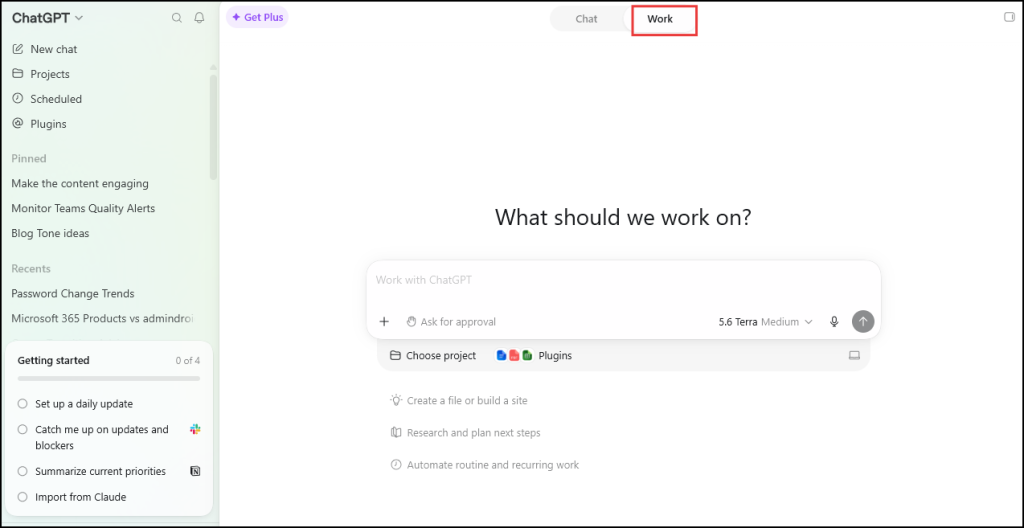
- Toggle the Work mode in your ChatGPT interface.
Once done, start assigning tasks to ChatGPT Work and use available connected tools and data sources based on your existing permissions.
How to Use ChatGPT Work Efficiently for Your Work
Many first-time users struggle with ChatGPT Work for two simple reasons: they use it for tasks that do not require an agent, or they provide too little context for it to deliver the expected result.
Start by knowing when to use ChatGPT Work. It is best suited for tasks that involve multiple steps, require information from different sources, or need a finished deliverable. For quick questions, short summaries, or simple edits, regular ChatGPT is usually the better choice.
For example:
“Make a presentation about our Q3 results.”
and
“Build a 10-slide deck on Q3 results for the leadership team. Use the figures in the finance spreadsheet and the notes in the #q3-planning channel. Lead with revenue against target, then regional performance. Flag anything that looks inconsistent instead of smoothing it over, and pause for my review before you build the charts.”
The second prompt gives ChatGPT Work the details it needs: the audience, data sources, expected output, and review process.
- To work more effectively with ChatGPT Work:
- Explain what you need to achieve and let Work determine the process.
- Review the plan first before allowing Work to continue.
- Use the right data sources. Connect the required apps, files, or data sources before starting a task.
- Choose cloud or local execution based on the task. Use local execution when files or actions need to be kept on your device.
- Use scheduled tasks for recurring reports or routine workflows.
- Provide access only to the resources required for the task.
- Confirm actions before Work makes changes or completes tasks.
- Validate the final output and check accuracy before sharing results with others.
So Is ChatGPT Work Worth Switching On?
ChatGPT Work is worth exploring for teams that regularly handle complex, multi-step tasks. Its value comes from reducing manual effort and helping users move from ideas to finished deliverables faster.
Start with a practical use case, measure the impact, and expand based on what works for your team. As ChatGPT Work continues to evolve, organizations that experiment early will be better prepared to make the most of its capabilities.
We hope this blog helped you explore ChatGPT Work. If you’ve already tried it, we’d love to hear about your experience or feedback. Share it in the comments below. Thanks for reading!