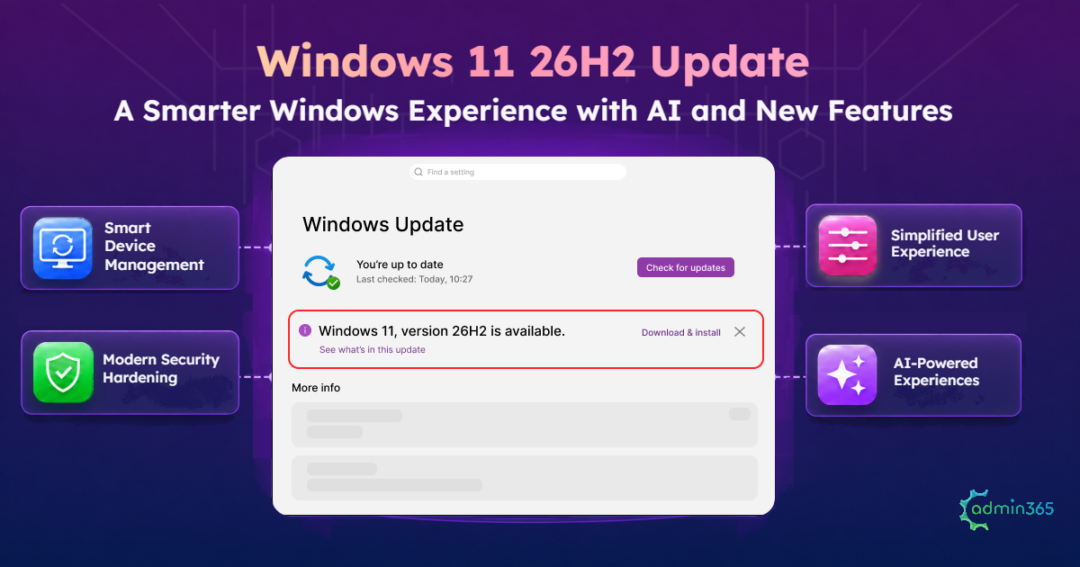
As another half of the year rolls around, Microsoft has released yet another Windows update: Windows 11, version 26H2 (Windows 11 2026 Update). It brings a fresh set of improvements that make everyday interactions more flexible, workflows more intelligent, and devices more secure.
Users get greater control over how their desktops look and work, while AI makes finding and acting on content easier. On the security front, admins gain stronger protection against unauthorized privilege use and better visibility into system activity. The update also brings improvements to device recovery and management.
Whether you’re looking to get more out of your Windows desktop or strengthen your organization’s device security, here’s a closer look at what’s new in Windows 11 26H2.
What is Windows 11 Version 26H2?
Windows 11 version 26H2 is Microsoft’s annual feature update for 2026, continuing its regular release cadence for Windows 11 devices. Released on September 29, 2026, it builds on the foundation of previous Windows releases 24H2 and 25H2 rather than introducing an entirely new operating system platform.
Windows 11 versions 24H2, 25H2, and 26H2 share a common servicing branch and underlying codebase. This allows Microsoft to introduce new features and improvements through monthly updates while maintaining a consistent servicing foundation across these releases.
The Enablement Package (eKB) Servicing Model
Unlike traditional feature upgrades, Windows 11 26H2 uses a lightweight Enablement Package (eKB) to upgrade eligible devices running versions 24H2 or 25H2.
Here’s how it works:
- Microsoft delivers the required feature components through monthly cumulative updates, keeping them inactive until activation.
- The eKB activates these components and updates the OS version to 26H2.
- Since the components are already available, the upgrade requires only a small download and a single system restart.
This streamlined servicing approach reduces installation time and user downtime while allowing IT teams to continue using existing deployment tools, update rings, and management policies. Since 26H2 shares the same core OS foundation as 24H2 and 25H2, organizations can also build on their existing application compatibility testing, simplifying deployment planning.
Windows 11 26H2 Support Lifecycle
Windows 11 26H2 resets the support lifecycle, with different support durations depending on the Windows edition.
| Windows Edition | Home | Pro | Enterprise | Education |
| Support Duration (Months) | 24 | 24 | 36 | 36 |
New Capabilities Introduced in Windows 11 26H2
Windows 11 version 26H2 focuses on practical usability, security hardening, and fleet administration. Instead of a single headline feature, the update delivers targeted enhancements across four primary areas:
1. User Interface & Layout Customization
- Flexible Taskbar Placement: Move the Taskbar to the top, bottom, left, or right side of the screen. An optional smaller layout reduces Taskbar icon size and height, giving users more control over their desktop space.
- Redesigned Start Menu: Choose between category and grid views to find installed apps more easily. Resize the Start Menu and independently show or hide the Pinned, Recent, and All sections.
- Windows Search Improvements: Find applications and files more easily with better search recognition, result previews, and automatic indexing of frequently used folders.
2. AI-Powered Experiences & Intelligence
- Agent in Settings: Search and adjust system preferences using natural language commands, letting on-device AI automatically locate sub-menus or execute system changes.
- File Explorer Contextual AI Actions: Access AI-powered actions to summarize OneDrive and SharePoint documents or edit images directly from the context menu. File Explorer also adds support for additional archive formats, including uu, cpio, xar, and NuGet packages (nupkg).
- AI-Enhanced Narrator: On-device vision models generate descriptive text for visual elements, screen graphics, and data charts to assist low-vision users.
- Taskbar AI Agent Tracking: Dedicated taskbar status indicators make it simple to launch AI tools, trigger app-specific actions, and monitor active background AI agent tasks.
- Task Manager NPU Telemetry: Dedicated NPU processing and memory metrics give users and admins full visibility into background AI workload performance.
- Isolated Voice Access: AI voice isolation suppresses background chatter and ambient noise on Copilot+ PCs for clearer speech recognition.
3. Modern Threat Hardening & Zero Trust Security
- Administrator Protection: A Windows security feature that replaces persistent local admin access with just-in-time elevation, granting temporary administrator privileges only when authorized tasks require them. Admins can configure it through Microsoft Intune or Group Policy.
- Post-Quantum Cryptography Support: Windows adds API support for NIST-standardized ML-KEM and ML-DSA algorithms, helping to protect applications against future cryptographic threats.
- Built-in System Monitoring (Sysmon): Use the integrated Sysmon capability to capture system events for security monitoring and threat detection. Custom configurations help filter the events collected, which are made available through Windows Event Log.
- Enhanced Authentication and App Protection: Windows Hello Enhanced Sign-in Security extends support to compatible external fingerprint sensors. Smart App Control also gains the flexibility to be enabled or disabled without reinstalling Windows, helping organizations block untrusted applications.
4. Device Management & Automated Remediation
- Point-in-Time System Restore: Centrally managed recovery options allow IT teams to roll back PCs to automated restore checkpoints without disturbing user profile data.
- Policy-Based App Removal: Group policy controls enable administrators to silently uninstall non-essential preinstalled app packages across enterprise endpoints.
- Hybrid Cloud Backup & Arm64 Support: First-time sign-in settings restoration for Microsoft Entra hybrid-joined devices, along with full RSAT management tool support on Arm64 hardware.
- Simplified Device Backup and Recovery: Windows Settings Backup and Restore also supports first-sign-in restoration for Microsoft Entra hybrid-joined devices, Cloud PCs, and multi-user environments.
- Improved Windows Autopilot Provisioning: Windows Autopilot Device Preparation supports device association, helping identify trusted devices before enrollment and apply device-targeted policies and setup customizations.
Now that the new capabilities are covered, the next step is to distinguish between what Windows 11 26H2 enables by default and what it removes or deprecates.
One important distinction: some default changes apply specifically to commercial devices, while several features described as part of 26H2 were introduced in earlier monthly updates and are simply activated through the 26H2 enablement package.
What’s Enabled by Default in 26H2
Microsoft identifies three capabilities that are enabled by default for commercial devices in this release. These features were previously introduced but remained under temporary commercial controls.
- Windows Settings Backup: Enabled by default to help preserve supported Windows settings and Microsoft Store app lists. This makes it easier to restore settings during device replacement or recovery.
- App-Specific Taskbar Actions: Allows users to access common actions directly from supported apps through the taskbar, reducing the steps needed to perform everyday tasks.
- File Explorer Enhancements: Enables previously controlled File Explorer improvements by default, making file navigation and everyday file management more convenient.
Note: Existing administrator-configured policies continue to be respected. Enabling these capabilities by default does not override policies already configured by IT administrators.
Deprecated Features
- Windows Management Instrumentation Command-line (WMIC): WMIC was deprecated starting with Windows 11 24H2. It is no longer available as a Feature on Demand (FoD) in 26H2.
Administrators who still rely on WMIC scripts should migrate to PowerShell or the supported Windows Management Instrumentation (WMI) interfaces to manage and query Windows systems.
Windows 11 26H2 vs. 25H2: Feature Comparison
Here is how the two annual updates compare across key performance, usability, and architecture categories:
| Feature category | Windows 11 25H2 | Windows 11 26H2 |
| Release cycle | 2025 annual feature update | 2026 annual feature update |
| AI experiences | Existing Copilot and AI-powered Windows experiences | File Explorer AI actions, taskbar-based AI agent monitoring, and expanded Voice Access capabilities |
| System performance and monitoring | Existing performance and resource monitoring capabilities | Improved responsiveness, NPU usage and memory visibility in Task Manager |
| Hardware requirements | Standard Windows 11 requirements, including TPM 2.0 and Secure Boot | Same baseline hardware requirements |
| File Explorer | Improvements delivered through monthly updates | Additional AI actions, archive format support, faster navigation, and usability enhancements |
| Recovery and security | Recovery capabilities, including Quick Machine Recovery | Point-in-time restore, Administrator Protection, built-in Sysmon, and enhanced recovery options |
| Taskbar and Start menu | Existing customization and layout options | Taskbar positioning, smaller taskbar option, and redesigned Start menu with category and grid views |
How to Deploy Windows 11 26H2
Since Windows 11 version 26H2 uses the same servicing technology as monthly cumulative updates, organizations running versions 24H2 or 25H2 can use their existing deployment infrastructure to roll out the update with minimal disruption.
System Requirements and Licensing Entitlement
- Hardware Compatibility: Windows 11 26H2 retains the standard Windows 11 hardware requirements, including a compatible 64-bit or Arm64 processor, 4 GB RAM, 64 GB storage, TPM 2.0, UEFI firmware, and Secure Boot capability.
- Licensing: Existing qualifying Windows licenses and applicable Windows Enterprise subscription entitlements continue to govern activation and edition eligibility.
Deployment Frameworks and Servicing Channels
IT teams can use their existing deployment infrastructure to roll out Windows 11 26H2:
- Microsoft Intune and Windows Autopatch: Create Feature Update policies targeting Windows 11, version 26H2 to manage phased deployments across device groups.
- WSUS: Synchronize the Windows 11 product and Upgrades classification to receive the feature update. The update appears as Windows 11, version 26H2.
- Configuration Manager: Use the Software Update Point to synchronize and deploy the Windows 11 26H2 feature update through existing servicing workflows.
- Windows Update: Eligible devices can receive the update directly through Windows Update, subject to update availability and applicable policies.
Best Practices to Deploy Windows 11 26H2
Follow these practices for a controlled enterprise rollout:
- Validate in Pilot Environments: Deploy 26H2 to a representative group of devices covering different hardware configurations and business applications.
- Test Critical Workflows: Verify business applications, administrative tools, and security solutions.
- Expand Through Update Rings: Gradually extend deployment after validating pilot results.
- Monitor Deployment Health: Track installation status and review the Windows Release Health Dashboard for known issues.
- Review Security and Support Readiness: Evaluate relevant new security and administrative capabilities and prepare support teams for user-facing changes.
Windows 11 version 26H2 brings new features and improvements while maintaining the shared servicing foundation of previous releases. However, a smooth upgrade still requires proper planning. Assess hardware readiness, validate critical applications, review new security capabilities, and roll out the update gradually through existing deployment channels.
With a controlled deployment strategy and continuous monitoring, IT admins can adopt Windows 11 26H2 while keeping their organization’s devices secure, compatible, and up to date.
Have questions about Windows 11 26H2 or its deployment? Drop them in the comments section below!