Do you know which AI agents are running on your organization’s endpoints?
A developer installs an AI coding assistant to speed up development.
An analyst starts using an AI CLI tool to automate repetitive tasks.
Neither action raises immediate concern because both tools simply run with the user’s existing permissions.
As local AI agents become a standard part of everyday work, tools like Claude Code and GitHub Copilot CLI execute tasks directly on users’ devices. Since these agents inherit the permissions of the user who launches them, they may access sensitive files, repositories, and internal resources without admins even knowing they’re in use.
To address this challenge, Microsoft Defender for Endpoint now automatically discovers local AI agents running across managed devices and exposing them for investigation.
This blog shows you how to view discovered agents in the Microsoft Defender portal, investigate what they can access, and locate the controls used to restrict their usage.
What are Local AI Agents and Which Ones Does Defender Discover?
A local AI agent is an AI-powered tool that runs directly on a user’s device and performs tasks on behalf of the signed-in user. Unlike cloud-based AI services, local AI agents can read files, run commands, and connect to external tools or data sources.
Many agents use the Model Context Protocol (MCP) to access resources such as GitHub repositories, databases, and cloud storage. They may access sensitive files and enterprise resources using users’ permissions.
Thus, without knowing which AI agents are running on managed devices, admins cannot effectively assess their access or enforce governance policies. That’s why discovering these local AI agents is the first step toward securing their use.
The following table lists the currently supported local AI agents and MCP servers by Microsoft Defender for Endpoint.
| Category | Example agents Defender discovers |
| CLI agents | Claude Code, Codex CLI, Gemini CLI, GitHub Copilot CLI, Warp, OpenCode |
| Desktop apps | ChatGPT Desktop, Claude Desktop, Ollama Desktop, Perplexity Desktop, Goose Desktop |
| Agentic IDEs | Cursor, Devin Desktop (formerly Windsurf), Kiro IDE, Antigravity IDE |
| VS Code extensions | Claude Code, Cline, Codex, GitHub Copilot, Roo Code |
| Claw-based agents | OpenClaw, Clawpilot, QClaw, Nanobot |
| MCP server configs | Local and remote MCP servers tied to discovered agents |
How Does Microsoft Defender for Endpoint Discover Local AI Agents?
Microsoft Defender for Endpoint automatically discovers supported local AI agents on onboarded Windows devices. Each discovered agent is identified as a unique combination of the user, device, and agent type rather than multiple installations of the same agent on a single device.
Admins can check and investigate agents, their associated users and devices, and the resources they can access using the following ways in the Microsoft Defender portal:
Note: Defender also discovers supported MCP server configurations connected to these agents automatically.
Requirements to Discover Local AI Agents in Defender for Endpoint
Below are the prerequisites to automatically enable the Local AI agents’ discovery:
| Requirement | Detail |
| Cloud environment | Commercial cloud only. Sovereign and national clouds aren’t supported. |
| License | Microsoft Defender for Endpoint Plan 2, Microsoft 365 E5, Microsoft Agent 365, or Microsoft 365 E7. |
| Onboarding | Devices onboarded to Microsoft Defender for Endpoint. |
| Operating system | A supported version of Windows or macOS, with Microsoft Defender Antivirus on current monthly platform and engine updates. |
| Antivirus state | Microsoft Defender Antivirus running in active mode, with real-time protection enabled. |
View Local AI Agents in the AI Assets Inventory
Once a device meets the listed prerequisites, discovery starts automatically. You don’t deploy anything or toggle a setting to turn it on. You can view the discovered agents by following the steps below:
- Sign in to the Microsoft Defender portal using an admin account.
- In the left navigation pane, select Assets > AI Agents.
- Select Local agents tab to filter the list to agents discovered on endpoint devices.
- Now, click on any agent to open its details pane.
- Review the agent details, such as:
- Agent identities: Agent name, version, and the related process, the associated device and user, first seen and last updated timestamps.
- Risky signals: Integrity level, auto-approve status, trust indicator, and configured MCP servers, when detected.
Auto-approve shows whether an AI agent can execute actions without user confirmation, and the Trust indicator identifies whether the agent is recognized.
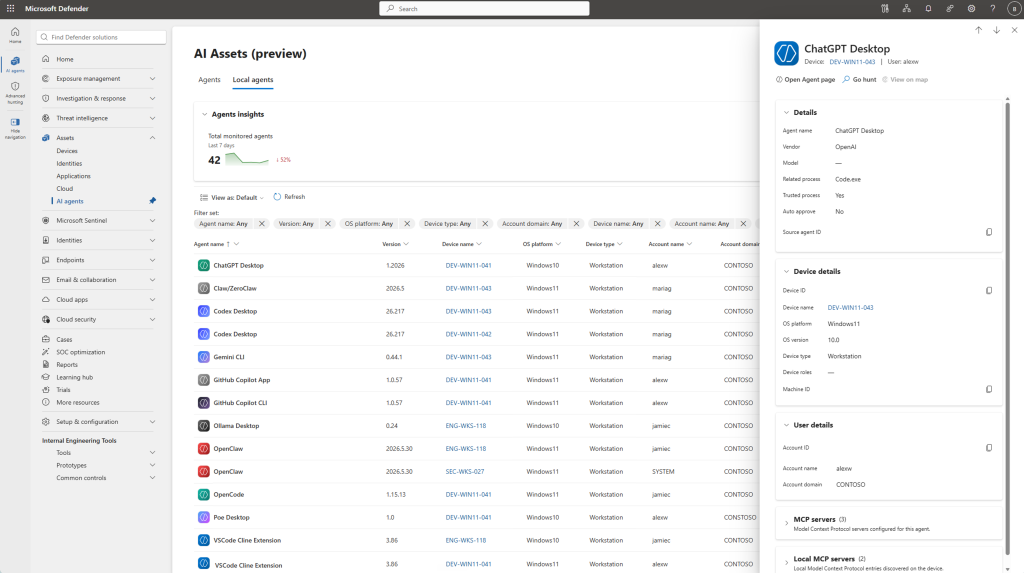
Note: If the below list is empty, revisit the prerequisites above, since an unmet condition is the usual cause.
Query Local AI Agents using Advanced Hunting
Microsoft Defender for Endpoint also makes local AI agent discovery data available through Advanced Hunting, allowing admins to search, investigate, and correlate AI agent activity across their environment using Kusto Query Language (KQL).
Local agents show up in the exposure graph under the label endpointAiAgent, which you query through the ExposureGraphEdges and ExposureGraphNodes tables. The below exposure map draws the relationships between an agent, the device it runs on, the identities on that device, and the resources those identities can reach.
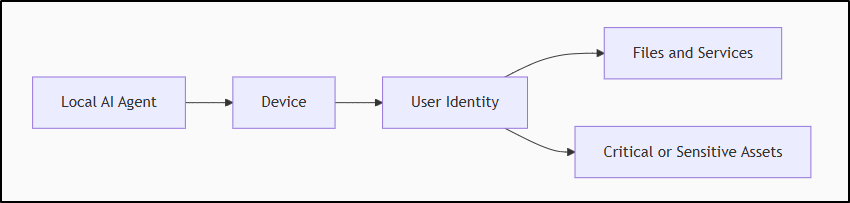
You can proactively check the AI agent presence by navigating to Investigation & response > Hunting > Advanced hunting in the Defender portal.
Check an inventory of AI agents across endpoints
Run the below query to check the full inventory of agents and the devices they associated with:
|
1 2 3 4 5 6 7 |
ExposureGraphEdges | where SourceNodeLabel == "endpointAiAgent" | where EdgeLabel =~ "runs on" | summarize Devices = make_set(TargetNodeName), DeviceCount = dcount(TargetNodeName) by AIAgent = SourceNodeName | sort by DeviceCount desc |
This query lists each discovered AI agent along with the associated devices and device count, sorted by the number of devices on which it is installed. Use it to identify widely deployed agents and distinguish them from one-off installations.
Map Local AI Agents to Users
Next, map agents to the users on their devices, so you know whose credentials are in play:
|
1 2 3 4 5 6 7 8 9 10 11 12 13 14 |
let accessEdges = dynamic(["contains", "has credentials of", "has permissions to", "has role on", "can authenticate as", "can authenticate to"]); ExposureGraphEdges | where SourceNodeLabel == "endpointAiAgent" | project AIAgent = SourceNodeName, DeviceId = TargetNodeId, Device = TargetNodeName | join kind=inner ( ExposureGraphEdges | where EdgeLabel in (accessEdges) | where TargetNodeLabel in ("device", "ec2.instance", "microsoft.compute/virtualmachines") | project UserId = SourceNodeId, User = SourceNodeName, UserType = SourceNodeLabel, DeviceId = TargetNodeId ) on DeviceId | summarize AIAgents = make_set(AIAgent) by Device, User, UserType | sort by Device asc |
This query maps each discovered AI agent to the user accounts associated with its device, so you can identify which identities the agent can effectively operate under.
Microsoft also provides additional Advanced Hunting queries to identify AI agents running on devices used by privileged users and agents that can access critical or sensitive assets. Running these queries after reviewing your inventory helps you prioritize investigations based on potential exposure.
Important: Since Microsoft Defender for Endpoint doesn’t assign risk scores to local AI agents, administrators must assess the risk themselves. Prioritize agents that combine auto-approve, remote MCP servers, and a broadly privileged user.
Defend and Govern Discovered Local AI Agents in Defender
Once you’ve identified the agents running across your organization, the next step is to determine whether they should be monitored, restricted, or blocked. Microsoft provides separate capabilities for runtime protection and governance.
- Investigate and prioritize high-risk agents: Review the agent’s Trust status, auto-approval, MCP servers and the resources it is accessing and focus on high-risk local AI agents.
- Block malicious behavior with Runtime Protection: Local AI agent discovery only provides visibility; it doesn’t prevent malicious actions. To protect against threats such as prompt injection attacks, you can enable AI Agent Runtime Protection in Microsoft Defender for Endpoint.
- Block execution on managed devices: If your organization decides that certain AI agents shouldn’t run on managed devices, you can use Microsoft Intune policies from the Shadow AI page in the Microsoft 365 admin center to block them.
- Review AI agent inventory regularly: Periodically review the local AI agents’ inventory to identify newly installed agents, unsupported or unapproved tools, and changes in MCP server connections.
Can You Trust an AI Agent You’ve Never Seen Running?
For a long time, local AI agents were the part of the endpoint you simply couldn’t account for. Without visibility into these agents, organizations cannot effectively assess their potential exposure. Microsoft Defender for Endpoint helps close this visibility gap by discovering supported local AI agents, identifying their associated MCP servers, and exposing their reach through inventory, exposure mapping, and Advanced Hunting.
We hope this blog helps you discover, defend, and govern the local AI agents across your organization.