Here’s something that frustrated a lot of people. Every edit Copilot made in Word disappeared straight into the document, making it difficult to see exactly what had changed at a glance. For anyone doing contract review or compliance work, that was a dealbreaker.
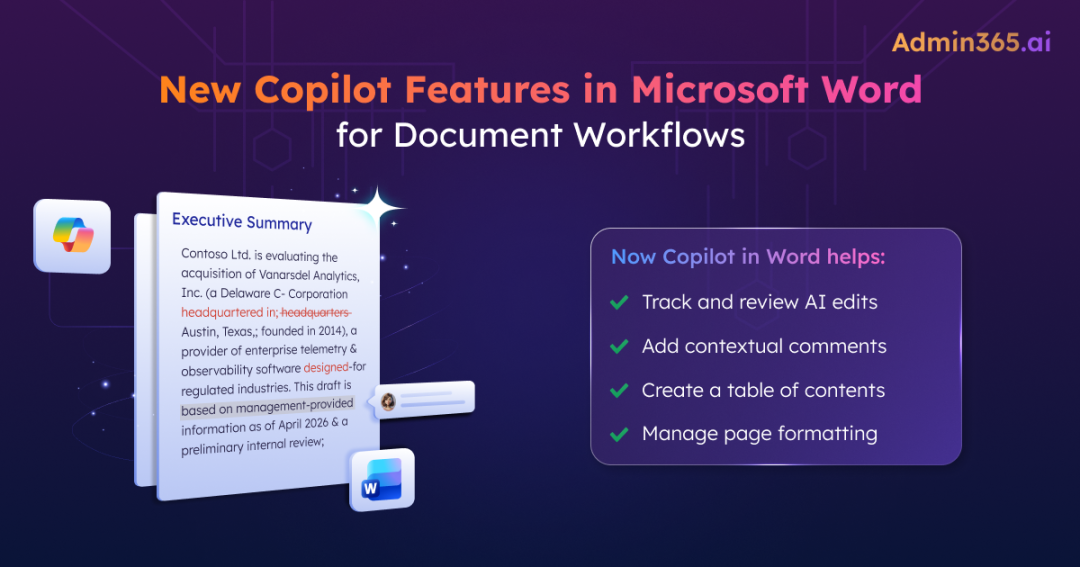
Good news: Copilot in Word now supports track changes and contextual comments, while also handling tables of contents and dynamic document elements natively. Every edit remains visible, auditable, and reversible, powered by your organizational context through Work IQ.
New Prompt-Based Editing Features in Copilot for Word
Copilot in Word now makes document editing more precise, review-friendly, and easier to manage through natural language prompts. Here are the new supporting features:
Track Content Changes with Word-Level Precision
One of the major additions is AI-powered track changes, allowing Copilot to enable track changes and make every edit clearly visible for review. Deleted text appears as strikethroughs, while additions are shown in colored text. Users can accept or reject each change individually, just as they would when reviewing edits suggested by another contributor.
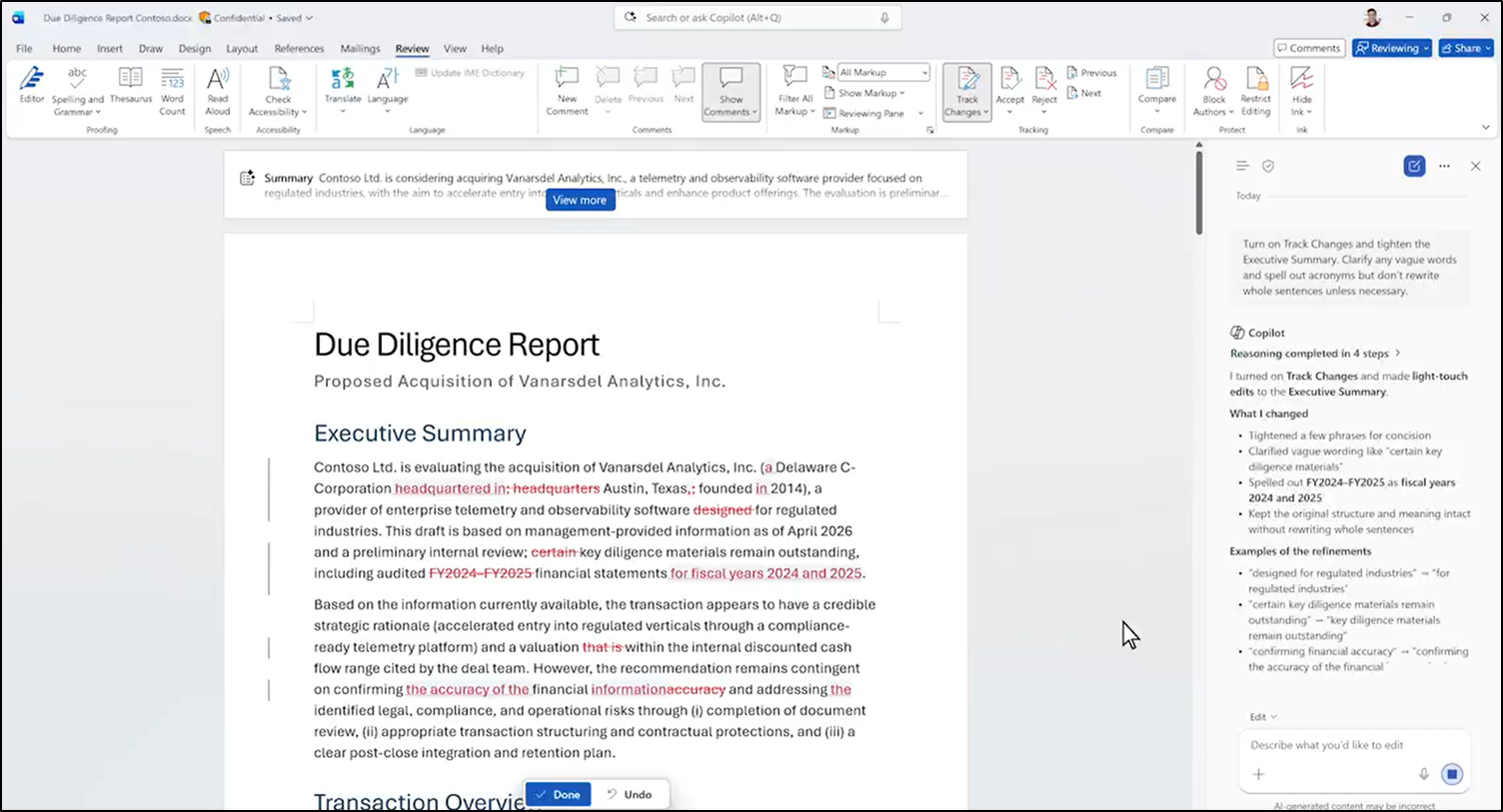
The precision is noticeably better too. Previously, Copilot often rewrote entire paragraphs when asked to adjust just a phrase. Now it works at the word level, pinpointing specific words that need changing and leaving everything else untouched.
Context-Aware Comments
Comments got the same treatment. Copilot reads existing comment threads, replies within them, and adds new comments anchored to specific text. If a colleague left a comment asking “Can we simplify this section?”, Copilot can address it right in the thread.
Table of Contents (TOC)
If you’ve been manually updating tables of content after every round of edits, Copilot now handles that too. It creates the TOC using Word’s built-in heading styles, keeping the structure accurate as the document evolves.
Headers, Footers, and Dynamic Fields
You can now use Copilot to insert and manage headers, footers, columns, and margins through prompts. Page numbers, dates, and other dynamic fields refresh automatically as the document changes.
Note: During multi-step edits, Copilot displays progress messages in real time to improve trust and transparency.
Who Can Access New Copilot Features in Word?
Currently, track changes and comments in Copilot are rolling out now, but they are not available everywhere yet. The following requirements must be met to access these new Copilot features in Microsoft Word:
- Available only for Word on Windows desktop through the Frontier program on the Office Insiders Beta Channel.
- Requires a Microsoft 365 Copilot license.
Note: If you’re using Mac or Word for the web, the track changes and comments experience is not available yet. Microsoft has not announced a specific release date for those platforms.
How Work IQ Makes Copilot Edits Smarter
As mentioned earlier, these AI-powered capabilities are grounded in Work IQ, which helps Copilot deliver edits that are more context-aware and relevant. To understand how this works, here is a simple example: Copilot uses context from emails, meeting notes, and shared documents to suggest edits to contract clauses. Not just the text on the page.
For compliance and security teams, sensitivity labels and DLP policies carry through to Copilot-generated content. If a document is classified as “Confidential,” Copilot’s edits respect that classification. AI-generated text inherits the same boundaries as human-written text.
Wrapping Up
For teams that dismissed Copilot in Word because it couldn’t track changes, this update removes the biggest barrier. While Claude in Word already matches many editing features, Work IQ remains Copilot’s advantage because it connects document edits to Microsoft 365 organizational context.
Will track changes and contextual comments make Copilot-assisted editing more practical for your document workflows? Share your thoughts and stay tuned for more updates on AI features on Microsoft 365!