The idea of handing a task to an AI is no longer new. ChatGPT’s earlier Agent Mode, Copilot Work, and other AI automation tools have made it familiar to ask an AI to research, browse, and carry out work rather than simply return an answer.
But what happens when automation cannot connect directly to the systems involved?
Many business processes still run through web portals, internal tools, and legacy applications without APIs or ready-made integrations. Someone still has to move through the interface manually, open the right pages, apply filters, collect the results, and repeat the process across different systems. Because there’s nothing for a script or a Power Automate flow to hook into.
Project Opal is designed for this type of work.
Instead of relying on APIs or prebuilt integrations, Project Opal works as a computer-use agent. It can move through websites and complete multi-step tasks by interacting with the interface itself, the way a person would
Let’s take a closer look at Project Opal in the blog.
What is Project Opal in Microsoft Copilot?
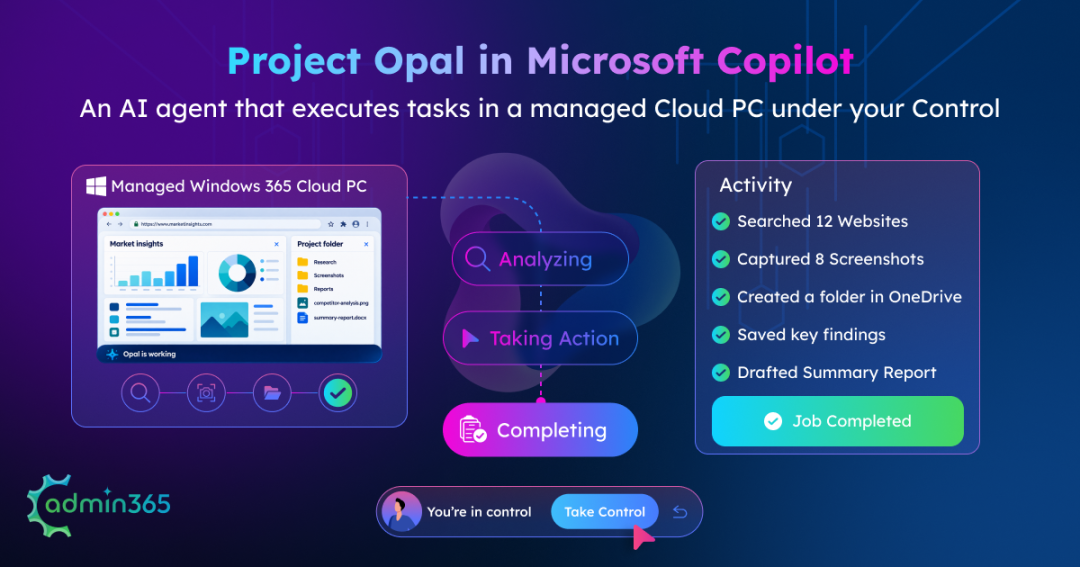
Project Opal is a computer-use agent in Microsoft Copilot — one of four agent experiences on the underlying Windows 365 for Agents platform, alongside Copilot Studio’s computer-use capability, Researcher with computer use, and Agent 365.
- Opal turns a multi-step task into a sequence of actions and works through the required web interfaces on behalf of the user.
- Instead of running the automation on the end user’s own machine, Opal performs the work inside a dedicated Windows 365 Cloud PC, an isolated, governed compute environment provisioned specifically for the job, while you monitor its progress in real-time.
The easiest way to understand where Opal fits is through the type of work it can take on.
Consider reviewing an audit report: apply a filter, check the output, screenshot it, reset the filters, and repeat the process across multiple admin roles. Once finished, the output still needs to be named and organized in the right OneDrive folder.
The individual steps are simple; repeating them all day is the actual cost!
How Project Opal Handles Multi-Step Tasks
This is the kind of work you can hand over to Opal. Instead of describing every click, you define the outcome:
Review the audit report in Purview, filter by each global admin type, export the results as separate CSVs, and organize the screenshots in the specified OneDrive folder.
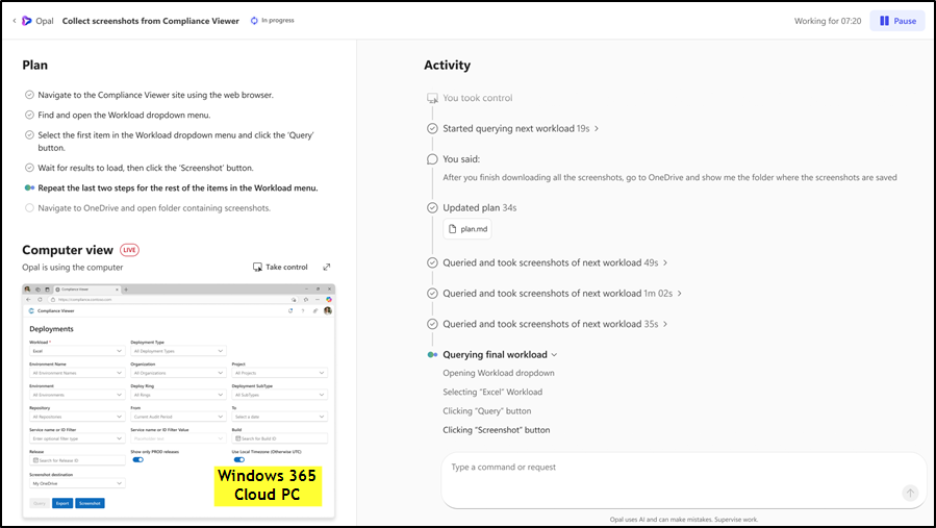
Opal can break that request into a plan and run it as an agentic loop—applying filters, waiting for results, exporting the data, repeating the process, and organizing the output. (Look at the image below for the plan and the live activity view)
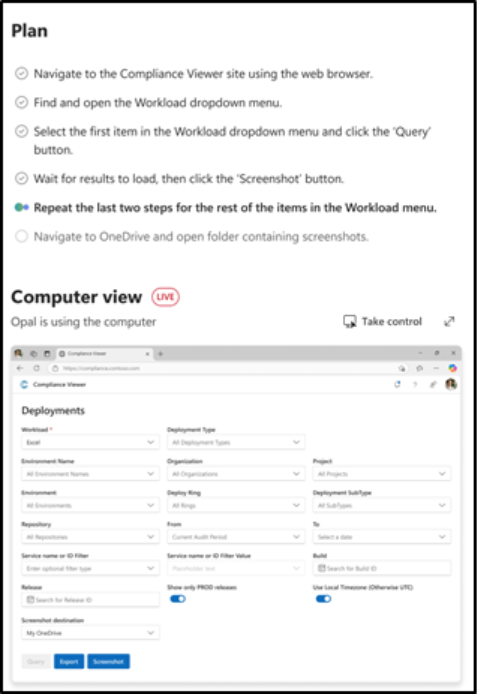
If a step needs something only you can provide, such as credentials, sensitive information, or judgment call, Opal pauses and waits for your input. You can also monitor the work, add instructions while it is running, or take control of the Cloud PC yourself.
For what users and admins can each control during a job, see Control at the User and Admin Levels.
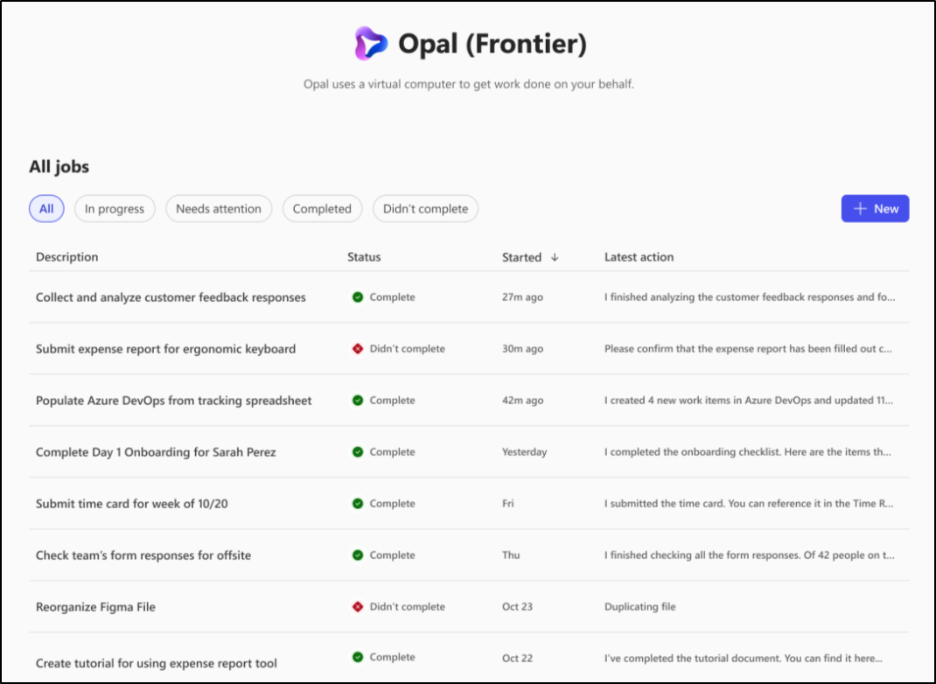
This is what makes Opal different from simply attaching an action to a chat response. A task becomes a job that can be started, monitored, guided, and completed. Previous jobs can also be viewed, duplicated, or rerun.
But to do that, Opal needs two things:
- a way to interact with the interface and
- an environment where that work can happen.
The next section looks at the technical components behind that process, including computer use, Microsoft Edge, and Windows 365 for Agents.
How Does Project Opal Work?
The example would have helped you understand how Opal works in words, but several technical components work together behind that experience.
To carry out the task, Opal needs more than an AI model. Opal needs an agent to interpret the task, a way to interact with web interfaces, and a managed environment where those actions can run.
Here are the main pieces behind it.
- The AI Agent: Plans the work.
- The agent understands the task, builds an execution plan, and determines the next action at each step.
- Computer use – Interacts with the interface.
- Computer use enables Opal to interact directly with web interfaces instead of simply telling you what to click or relying only on APIs and integrations.
- In our audit-report example, this is what lets it apply filters, move through the report, and capture the results.
- Microsoft Edge – Where the interaction happens.
- Opal’s computer-use actions currently run through Edge specifically.
- This is an important limitation to understand because “computer use” can easily create the impression that Opal has unrestricted access to an entire Windows desktop.
- It isn’t; execution is scoped to web-based interfaces, not the local desktop or installed applications.
- Windows 365 for Agents: Provides the execution platform.
An agent working inside company systems raises a governance question: whose machine is it using, and who manages it. Windows 365 for Agents addresses that.
- Opal needs a Cloud PC to perform the work, and Windows 365 for Agents provides and manages that environment. In simple terms, Windows 365 for Agents is the platform, while the Cloud PC is the workspace Opal uses to execute a task.
5. Windows 365 Cloud PC: Where the job actually runs.
If Edge is doing the browsing, it has to run somewhere and instead of the user’s own laptop or desktop, that somewhere is a separate, managed Cloud PC provisioned by Windows 365 for Agents.
- These Cloud PCs are Microsoft Entra-joined and Intune-enrolled, so every action Opal takes stays inside the tenant’s existing identity and device boundary rather than an unmanaged sandbox outside it.
- This gives Opal its own workspace to run the job and lets the user step into that same environment through Take Control action when needed. The Cloud PC is therefore not just infrastructure behind Opal—it is where the actual task execution happens.
Note: One detail worth designing around: Cloud PCs are pooled, not assigned. An agent checks one out, runs the job, and checks it back in — triggering a reset, so nothing persists between runs (no saved sessions, no leftover downloads) and administration happens at the pool level, not per device. Skills persist; but job state doesn’t. Design any workflow accordingly.
License Requirements and Prerequisites:
Opal is currently available through the Microsoft Frontier program and requires the following licensing components:
- Microsoft Copilot, for each user who will run jobs.
- Microsoft Intune license required because Opal provisions and manages Intune-enrolled Cloud PCs.
- Microsoft Entra ID P1 license for the identity boundary the Cloud PCs join.
A separate Windows 365 license is not listed as a requirement for Opal. The Cloud PCs used for task execution are provided through Windows 365 for Agents as part of the Opal environment.
Frontier access alone is not enough. Opal is disabled by default and must be enabled for the appropriate users by an administrator. The setup also involves configuring the Opal environment and its Cloud PC pool through the Microsoft 365 administration experience and the Opal Admin Portal.
How Project Opal Performs Tasks Using Computer Use and Windows 365
Now that we have looked at the components behind Project Opal, the next question is how they work together when you assign it a task.
From the end user side, we don’t need to select which component to invoke or stage a browser session yourself, just describe the task, and Opal orchestrates the rest inside its managed environment.
- [End User] The task: Describe what you want to achieve.
- [By Opal – reasoning layer] The agent: Opal plans how to approach the work. The reasoning model goes first. It turns your request into a dynamic plan, sequences the tools it needs, and adapts mid-flow as it learns what each screen actually contains. The plan is not a script written once and executed blindly. It changes while the job runs.
- [By Opal – execution layer] Computer use: The agent uses Microsoft Edge to interact with the required web interfaces by clicking, typing, navigating, and responding to what appears on the screen, like how a person would.
- [By Opal – execution environment] The Cloud PC: When you start a job, Opal initializes a Windows 365 Cloud PC. This is where the actual browser-based work executes, isolated from the user’s own device.
- [End user, remain involved always] Throughout the run, you can watch the session, inject instructions, or take control of the Cloud PC directly.
This is designed for situations where the work involves repeated actions across an interface, especially when those actions can be delegated, but you still want visibility and the ability to intervene.
Control at the User and Admin Levels
Delegating a multi-step task to an AI naturally raises a practical question: once Opal starts working, how much control do you still have over the process?
Opal separates control at two levels.
- Users control what happens within an individual job
- Administrators define the environment and rules within which those jobs can operate.
This means handing work to Opal does not mean handing over unrestricted control. A user can intervene while a job is running, but the agent still operates within boundaries defined at the tenant level.
What End Users Can Control
A user does not simply submit a task and wait for the result. Opal provides several ways to stay involved while the job is running:
- Monitor the job – View the activity live and follow the work as Opal carries out actions in its Cloud PC.
- Pause or guide the work – Pause and resume a job or provide additional instructions when the task needs to change.
- Respond to sensitive steps – If Opal reaches a step that requires credentials, sensitive information, or confirmation, it pauses and waits for the required input rather than completing that step independently.
- Take control of the Cloud PC – When a step genuinely needs your hands, ‘Take Control’ drops you into a Remote Desktop session on that same Cloud PC used by Opal. After completing the required step, you can ‘return control’ to the agent and continue the job.
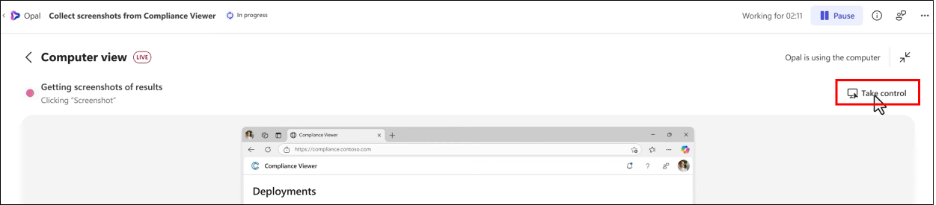
- Reuse previous work – Previous jobs can be revisited, duplicated, or run again when a similar task needs to be completed.
- Create Skills for repeatable processes – Skills allow users to save reusable instructions for recurring work. They preserve the process guidance, while each job still runs in its own execution session.
These controls operate at the job level. They help the person running Opal guide or intervene in a specific task, but they do not change the boundaries within which Opal is allowed to operate.
What Admins Control Across Every Job
Administrators operate at the environment level. Their controls determine what Opal can access, what instructions apply across the organization, and how the underlying environment is configured.
Key areas include:
- Website access is the first setting to check because the default has changed. Opal now allows access to all websites by default, and admins can block specific sites as needed. Previously, websites were blocked unless an admin explicitly allowed them.
- Existing tenants may still use the older configuration, depending on when they were onboarded. Admins should therefore check the website access setting in the Opal Admin Portal.
- Organization-wide instructions – Admins can define standing instructions that provide organizational context or guidance across Opal jobs. This creates three distinct instruction layers:
- Prompt — instructions for the current job.
- Skill — reusable instructions for a repeatable process.
- Tenant instructions — Provide organizational context and standing guidance that can apply across Opal jobs.
These layers serve different purposes and should not be treated as variations of the same setting.
- Scenario starters: Administrators can configure suggested scenarios on the home page, helping users understand the types of tasks they can start.

- File interaction – lets Opal download and upload files on the Cloud PC, but for tenants already onboarded, it ships off and requires enabling through an Intune device policy.
- Environment configuration: Manage the Windows 365 for Agents and Cloud PC resources used to support Opal.
Beyond that, admins manage the underlying Windows 365 for Agents environment and Cloud PC resources, plus overall availability and governance policy for the Opal experience. Some resources created during initial setup are meant to stay untouched — modifying them independently can break the experience rather than customizing it.
This creates a clear division: users control the job, while administrators control the environment in which the job runs.
Project Opal Use Cases: What Can You Use It For?
The audit-report example is only one type of work Opal can take on. The broader pattern is multi-step work that requires moving through web-based interfaces to reach a specific outcome.
1. Repetitive browser-based work: Tasks that involve repeating the same actions across different records, users, or results. For example:
- Applying different filters and collecting results.
- Checking information across multiple pages.
- Capturing screenshots for each result.
- Repeating a process for multiple users, requests, or records.
2. Information collection and organization: Tasks where gathering information is only one part of the job. For example:
- Collecting information from approved websites or business systems.
- Pulling data from multiple sources into a report.
- Capturing supporting evidence or downloading relevant files.
- Organizing outputs into folders and preparing them for review.
3. Structured operational processes: Processes that follow a defined sequence of steps rather than requiring complex judgment. For example:
- Working through onboarding or other operational checklists.
- Adding multiple users to security groups or updating distribution lists.
- Reviewing and processing items through web portals.
- Updating records, tickets, or lists across business applications.
- Performing predefined steps across business applications.
Project Opal is not designed to take over the user’s entire computer. It is particularly useful when people must move between systems that do not already have an API or automation connecting them. If a reliable API or existing automation is available, that will usually be the faster and more predictable option than having an agent to work through the interface.
Frequently Asked Questions:
- Do I need a Windows 365 license to use Project Opal?
No. Opal uses Cloud PCs provided through Windows 365 for Agents, which are part of the environment configured for Opal rather than devices assigned to individual users.
- How is Windows 365 for Agents different from Windows 365 Enterprise?
The main difference is persistence. Windows 365 Enterprise gives a user a persistent Cloud PC that retains its state between sessions.
Windows 365 for Agents provisions non-persistent environments built for agent workloads instead, each session resets on checkout. Files, browser sessions, and other local states should therefore not be expected to carry over to the next run.
How Is Project Opal Different from Other AI Agents?
The idea of an AI agent performing work on your behalf is no longer unique! Several AI products can research, browse, and complete multi-step tasks.
What makes Project Opal interesting is the operating model around that work.
Rather than treating agent execution as a standalone capability, Opal brings it into an environment that organizations can manage. Users remain involved in the work they delegate, while administrators retain control over the boundaries in which that work operates.
Project Opal is still evolving, but it offers an interesting look at how Microsoft is approaching that shift.
We hope this blog gave you a clearer understanding of Project Opal. Share your thoughts in the comments below!