Think about the last time you asked Gemini to summarize a lengthy email thread, draft a polite decline for an invitation, or outline a project plan for the week. You got the answer, but then copied the text, pasted it into a document, and scheduled the follow-up yourself, all manually.
The actual work of jumping between Gmail, Docs, Sheets, and Calendar to get things done still fell on you. That’s where Google’s Gemini Spark comes in.
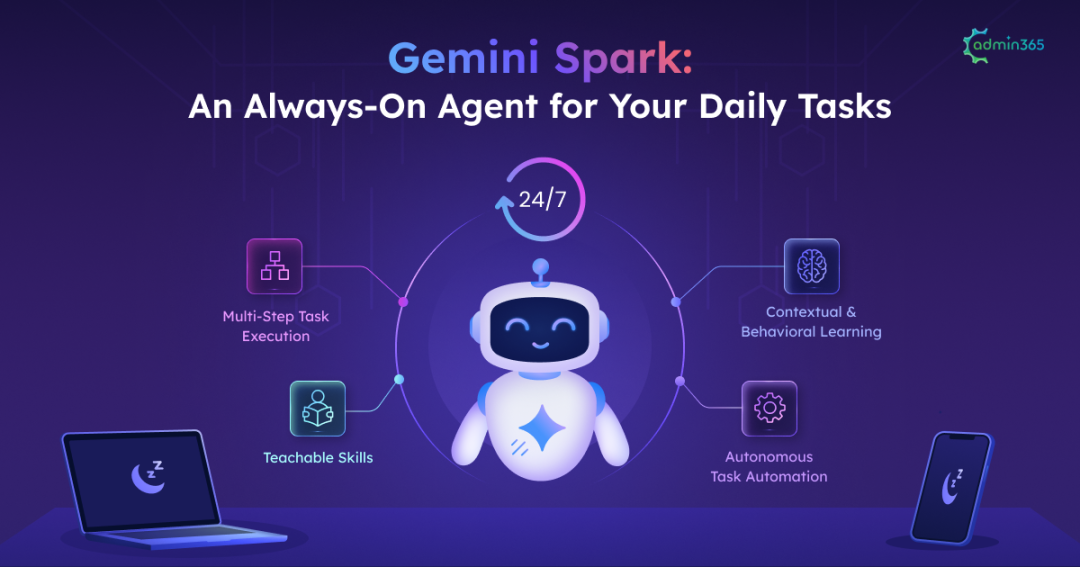
Rather than sitting passively inside a chat window waiting for your next prompt, Gemini Spark is designed as a personal, always-on AI agent that can work across your Google Workspace apps. Running in the cloud, Spark is built to go beyond answering questions and take action on your behalf, even when your laptop is closed.
In this guide, we’ll explore what Gemini Spark actually is, how it works, and what it could mean for everyday productivity.
What is Google Gemini Spark?
Unlike AI agents that work on a per-task basis, Google Gemini Spark is designed as an always-on agentic experience. It combines a persistent cloud environment with Personal Intelligence to handle multi-step workflows with relevant context. While Spark can work autonomously through a workflow, it requires user confirmation before completing certain critical actions, ensuring users stay in control.
Under the hood, Spark is powered by the Gemini 3.6 Flash model, which provides the reasoning and tool-use capabilities needed to handle multi-step tasks and coordinate actions across connected apps.
- A Persistent Model Operating 24/7: Most AI interactions end when the session ends. Spark runs in the cloud, allowing supported tasks and workflows to continue in the background even when you’re not actively using Gemini on your laptop or mobile device.
- Powered by Personal Intelligence: Instead of starting from scratch with every prompt, Gemini Spark builds an evolving understanding of how you work. It uses relevant context from your digital environment to understand your preferences and recurring habits, helping it handle tasks in a more personalized way over time.
To turn that intelligence into action, Gemini Spark connects natively across your Google Workspace tools while extending its reach to popular external platforms. Whether it’s extracting details from an email, updating a spreadsheet, or executing multi-app workflows via open protocols like the Model Context Protocol (MCP), Gemini Spark bridges your entire digital toolkit into a unified operational hub.
To understand why this shift matters, it helps to look at how standard Gemini chat compares to the persistent, agentic capabilities of Gemini Spark.
Gemini Chat vs. Gemini Spark: A Quick Comparison
Here’s how Gemini Chat compares with Gemini Spark:
| Feature | Gemini Chat | Gemini Spark |
| Session Model | User-initiated (session ends when tab closes) | Persistent & always-on (runs continuously in Google Cloud) |
| How It Works | Prompt-and-response interaction | Takes a high-level goal, plans steps, and acts across apps |
| Execution Trigger | Manual prompts only | Manual, scheduled routines, or conditional event triggers |
| Background Execution | No (requires active session/tab) | Yes (always-on agent) |
| Personal Intelligence | Starts fresh for each conversation | Learns habits, style, and preferences over time |
| App Orchestration | Reads context from apps on demand | Actively chains multi-step workflows across Workspace & MCP apps |
| Best For | Quick answers, drafts, and one-off queries | Ongoing, multi-step workflow automation |
How Google Gemini Spark Works
Understanding Gemini Spark comes down to three foundational building blocks that transform high-level goals into active background workflows:
- Tasks: Defines what needs to be accomplished. Instead of specifying every step, you give Gemini Spark the desired outcome, and it can break the goal into multiple actions across supported apps and tools.
- Skills: Teachable Skills capture how you want a task to be completed, including your preferred format, tone, or workflow. Once saved, these instructions can be reused without repeating them.
- Schedules: Automated triggers that allow tasks to run in the background at specific times or when designated events occur. This allows recurring workflows to run without a new prompt each time.
Here’s how the three work together:
| Building Block | Function | Prompt Sample |
| Tasks | Defines the high-level goal and turns it into a multi-step job | “Prepare my weekly project update.” |
| Skills | Defines how the task should be performed (format, tone, structure) | “Use my preferred executive summary layout, bullet points, and concise tone.” |
| Schedules | Determines when the workflow runs (time or event-driven) | “Every Friday at 4 PM, gather the latest updates from my Google Docs and Gmail, and draft the report.” |
Together, tasks define what to do, skills define how to do it, and schedules define when to run it.
So, what does this look like in practice? Gemini Spark is most useful when a task involves multiple steps, recurring work, or information spread across different tools. Common examples include:
- Inbox triage: Pull deadlines from Gmail, summarize a long thread, and draft a reply for review.
- Meeting follow-up: Turn meeting notes into a polished Doc and prepare a follow-up email.
- Recurring monitoring: Check a monthly statement for new or unexpected subscription charges.
- Research and planning: Compare travel or dinner options and prepare a shortlist.
To start delegating these multi-step workflows to your agent, here is a look at what is required and how to access Gemini Spark within the Google ecosystem.
Pre-requisites to Access Gemini Spark
Before you begin, ensure you have the following in place:
- Personal Google Account: Spark currently requires a personal Google Account and isn’t available with work or school accounts.
- Age 18 or older: Spark is currently restricted to users aged 18+.
- Google AI Pro or Ultra: An eligible Google AI Pro or Ultra subscription is required.
- Keep Activity enabled: Gemini Apps Activity (Keep Activity) must be turned on for Spark to work. You can enable it from your Gemini settings.
- Supported region: Spark is currently unavailable in the EEA, the UK, Switzerland, and Nigeria.
- Supported surface: Spark is available through the Gemini mobile app, the Gemini app on Mac, or gemini.google.com. Local auto-browse requires desktop Chrome.
How to Access Google Gemini Spark
Once the prerequisites are met:
- Go to Gemini and sign in with your eligible personal Google Account.
- From the sidebar, select Switch to Spark.
- Explore recommended tasks: Spark includes a Trending section with recommended tasks that you can customize.
- Explore recommended skills: Select Skills to browse recommended skills and customize them for your needs.
- Select Tasks, start a new Spark task, and describe what you want it to manage.
- To get help setting up your first task or skill, enter “set up,” “get started,” or “interview me.”
- Answer Spark’s questions to provide the context needed for your workflow.
Usage Limits: Gemini Spark is subject to Gemini Apps’ compute-based usage limits. The amount of usage consumed depends on the number and complexity of requests, while higher Google AI subscription tiers provide higher limits.
Spark can have up to 15 tasks running at a time. A new task or scheduled run may have to wait if that limit has already been reached.
Gemini Spark Privacy and Safety Controls
An agent that can work across apps and continue tasks in the background also raises an important question: how much control do you have over what it can access and do? To keep your workflows secure, here are the built-in safeguards and best practices to follow:
- Connected Apps: You can manage which apps and services Gemini can access through Connected Apps settings. Enable only the connections needed for your workflows.
- Sensitive information: Avoid entering passwords, payment details, or other sensitive information directly into a Spark task. When a website requires sensitive information, you can take over the browser and enter it yourself.
- Confirmation before important actions: Spark is designed to request confirmation before certain actions, such as sending communications, modifying data, making purchases, or submitting web forms. You can also stop a task or take control of the browser when needed.
- Prompt injection: Because Spark can process information from emails, websites, and documents, malicious instructions hidden in that content can potentially influence an AI agent. Google warns about this risk, making supervision especially important for sensitive tasks.
How to Turn Off Gemini Spark
If you need to pause Spark, you can turn it off at any time:
- Go to Gemini on your computer.
- Select Settings & help → Gemini Spark Settings.
- Under Turn off Gemini Spark, select Turn off.
Turning off Spark pauses your tasks and schedules but does not delete them. Existing chats, tasks, schedules, threads, and files created or updated by Gemini remain available, while remote browser and remote code execution data are deleted.
If you want to remove specific task history or other data, those items need to be managed separately through the relevant Spark or Gemini settings.
With Spark’s capabilities and controls covered, it’s worth seeing how it compares with other AI agent experiences.
Gemini Spark vs Other AI Agents
Here is a comparison table and brief breakdown comparing Gemini Spark against other major agentic AI tools:
| Agent | Ecosystem | How it operates | Key distinction |
| Gemini Spark | Google Workspace + connected web apps | Cloud-based, always-on background runtime with custom Tasks, Skills, and Schedules | Deep integration with Google Personal Intelligence and Workspace app context |
| Microsoft Scout | Microsoft 365 + Windows OS | OS-integrated, proactive background agent monitoring communications, local files, and calendars | Deep integration with Microsoft 365 Work IQ, local Windows execution, and Copilot+ PC hardware |
| ChatGPT Agent / Work | Browser, connected web tools, and uploaded files | Autonomous web-browsing agent that executes multi-hour tasks via virtual browser sessions | Focused on general web-automation tasks, form completion, and long-running web/file deliverables |
| Claude Cowork | Desktop files, local directories, and web tools | Desktop-centric file and workspace automation agent running within the Claude Desktop app | High precision with local document processing, file reformatting, and non-coding desktop workflows |
These agents share the goal of moving beyond simple prompt-and-response interactions, but they differ in how they handle context, execution, and the environments they work across.
Frequently Asked Questions About Gemini Spark
Have questions about Gemini Spark? Here are quick answers to the most common ones.
- Does Gemini Spark work when my device is off?
It depends on how the task runs. Remote-browser tasks can continue when your device is closed, while local Chrome browsing requires your device and Chrome to remain awake.
- Can Gemini Spark be tricked by instructions hidden in an email?
Potentially. This is a form of prompt injection, where untrusted content attempts to influence an AI agent’s behavior. Google provides safeguards, but recommends supervising important and sensitive tasks.
- Can Gemini Spark work with files on my Mac?
Yes. The Gemini app for Mac can let Spark work with files and folders you specifically connect, including analyzing, editing, renaming, and reorganizing them.
- What’s the difference between Gemini Spark, Daily Brief, and regular Gemini?
These are different Gemini experiences. Spark is the agent designed to perform ongoing tasks and workflows; Daily Brief provides a personalized digest; and regular Gemini Chat is primarily a conversational experience for answering questions and completing individual requests.
- How do chat scheduled actions differ from Gemini Spark schedules?
Scheduled Actions automate recurring prompts or content delivery in Gemini. Gemini Spark Schedules trigger broader Spark tasks that can run multi-step workflows using Skills and connected apps in the background.
That’s it about Gemini Spark! By understanding its core mechanics and respecting its safety boundaries, you can configure smart schedules that work for you. Done right, Gemini Spark turns into a reliable, always-on engine for your daily productivity. Have any comments? Drop them in the section below!