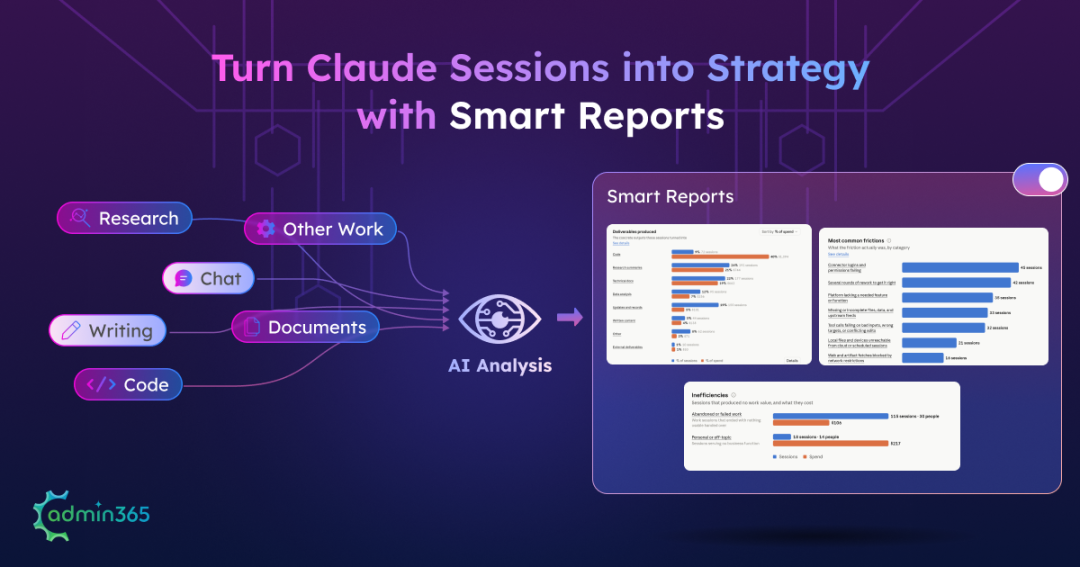
Your Claude usage dashboard shows how much your team uses Claude through messages, tokens, active users, and spend. But usage numbers alone don’t reveal the work happening behind that activity. Admins may not know which tasks are driving up usage, where users are encountering friction, or which workflows could be reused across teams.
To address these visibility gaps, Claude brings smart reports feature. This blog covers how to enable and manage smart reports to gain better visibility into the work behind your team’s AI usage.
What is Smart Reports in Claude Enterprise?
Smart reports analyse a sample of your team’s Claude sessions and turn the findings into an interactive report. It is currently a beta feature and is disabled by default. Reports are not generated in real time. Generation can take a few hours, and Claude sends an email when the report is ready.
There are few limits to consider when planning smart reports.
- Each report can cover up to 28 days.
- Organizations can generate up to 10 free reports per month, with the limit resetting on the first of each month.
Anthropic recommends scoping reports to a single functional team and running the same scope again after about four weeks to compare changes over time.
What Insights do Claude Smart Reports Provide?
Here’s what Claude smart reports analyses to surface actionable insights:
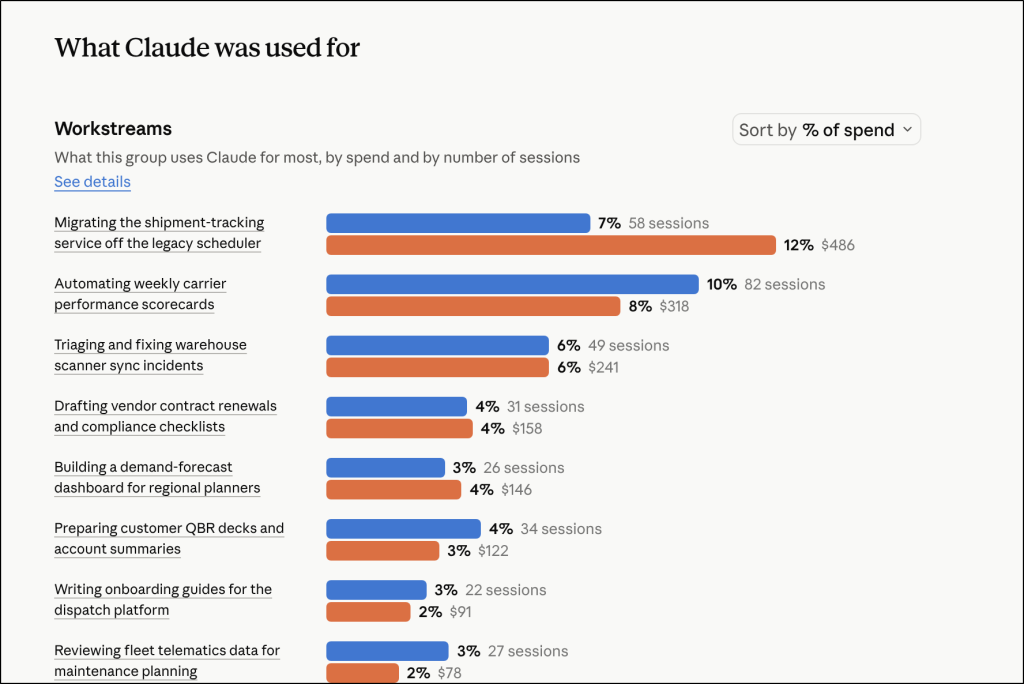
Workstreams: See Where Teams Use Claude
Workstreams gives you the high-level view of how the selected group uses Claude. It compares sessions and spends across workstreams, helping admins see which types of work are driving activity.
Deliverables and Task Outcomes: See What Teams Produce
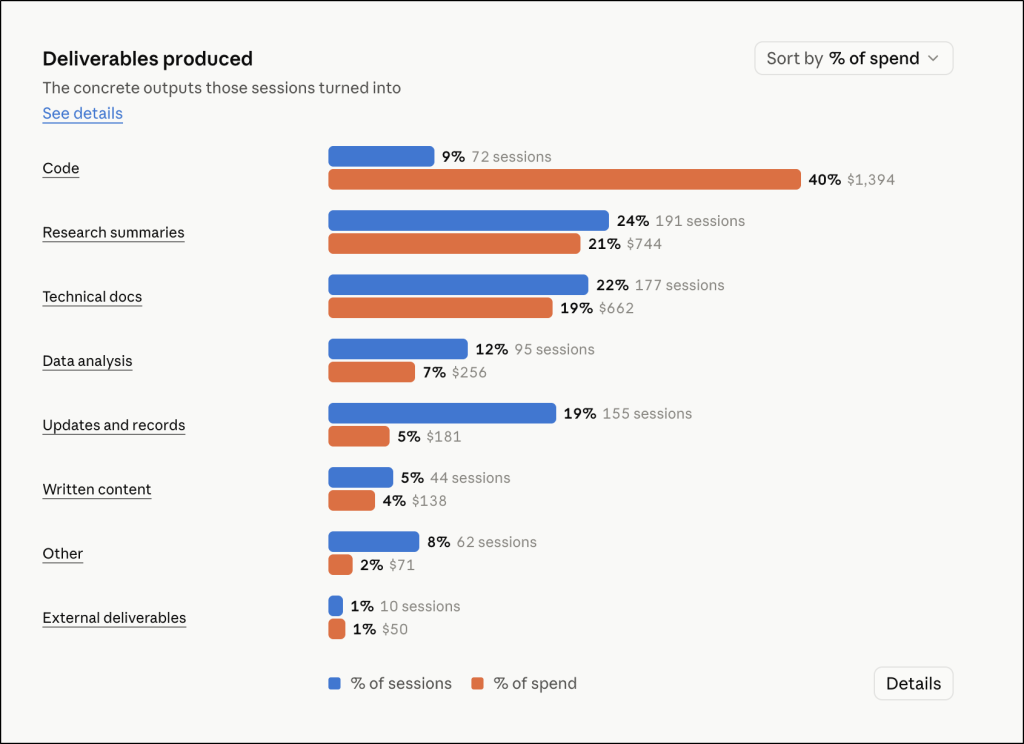
Deliverables groups sessions by output type, such as analysis, documentation, content drafts, and code. Task Outcomes add more context by showing what individual sessions produced.
Together, these sections show the shape of the work coming out of Claude, rather than just the volume of activity.
Cost per Output: Understand Claude Spend
Cost per session by output type shows the average spend associated with different categories of work. This adds a cost perspective to the workstreams, and deliverables identified in the report.
Cost visibility depends on the organization’s billing configuration. Check the table below before enabling smart reports so you know what to expect.
| Your setup | Cost data in reports | What to expect |
| Usage-based Enterprise | Populates | Usage and spend can appear in reports. |
| Seat-based Enterprise without usage credits | Blank | Spend data is not available. Use CSV exports or an external FinOps tool for actual cost figures. |
| Seat-based Enterprise with usage credits | Partial | Only overage spend appears. Usage covered by seat allotments is excluded. |
Friction and Inefficiencies: Find Where Work Gets Stuck
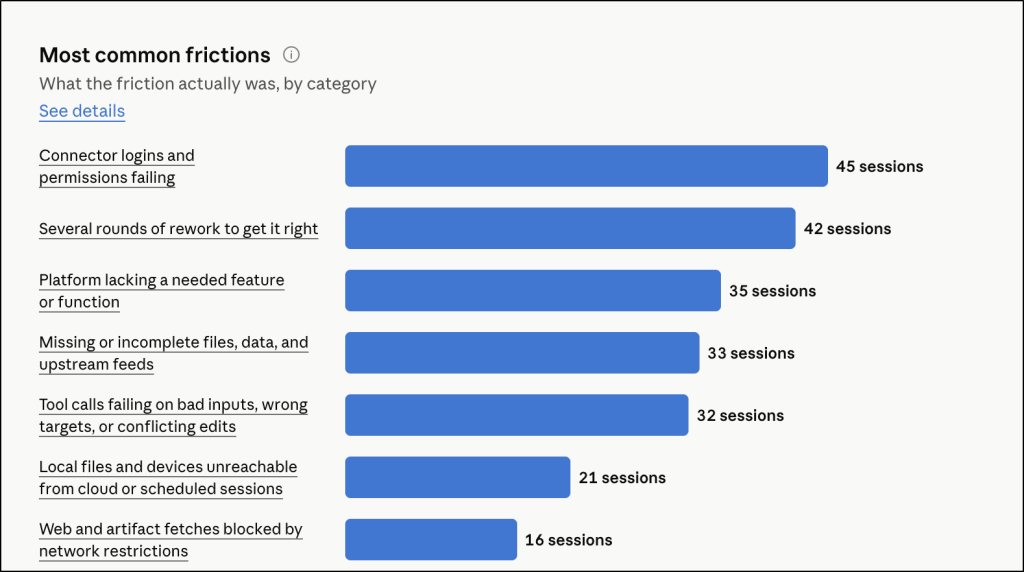
Most common frictions groups blockers such as missing connectors, sign-in or approval requirements, tool failures, output problems, and rework loops. These findings can help admins identify configuration or workflow issues that may be slowing teams down.
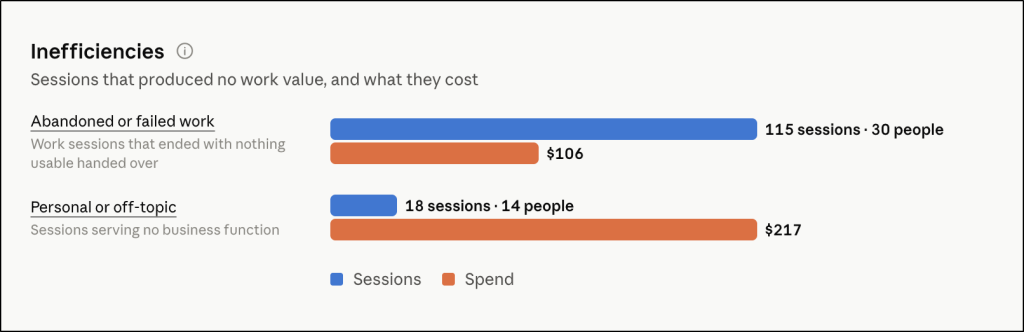
Inefficiencies show sessions that produced nothing usable, along with personal or off-topic sessions as aggregate counts and cost. These results are shown only at an aggregate level, so the section does not identify individual users or expose names, summaries, or session-level details.
Reusable Skills and Workflows: Turn Repeated Work into Shared Skills
Smart reports can identify repeated patterns that may be worth turning into reusable skills. The report goes beyond naming the pattern by providing a starter prompt that can be used to package it as a shared skill.
For example, a repeated workflow for turning meeting notes into follow-ups or preparing account briefs could become a reusable process for the wider team. The suggested prompt can also provide a starting point for building out workflows in Claude Cowork.
Expensive and Autonomous Sessions: Identify Advanced Usage
Smart reports surfaces sessions associated with higher task complexity, time saved, autonomy, and required expertise. It also highlights the most expensive sessions, showing where spend is concentrated across more involved Claude usage.
Custom Questions: Focus on Specific Needs
Custom questions let admins investigate a particular adoption or workflow area. The answers appear in a dedicated section of the report, along with the sessions that informed them. This is particularly useful when a report is created around a specific rollout goal, workflow issue, or adoption question rather than a general usage review.
What are the Prerequisites for Using Smart Reports?
Before enabling smart reports, check three areas: organization eligibility, admin access, and cost-data availability.
1. Organization eligibility
Smart reports is currently available for Claude Enterprise organizations, but some configurations are not supported. It cannot be used if your organization has:
- Customer-managed encryption keys (CMEK)
- A HIPAA configuration
- Access Transparency
- Claude Code for Enterprise with zero data retention
If any of these apply, smart reports cannot be enabled.
2. Admin access
A Primary Owner or Owner must enable smart reports. Once enabled, a Primary Owner, Owner, Admin, or custom role with Analytics view access can create and view reports.
How to Enable Smart Reports in Claude
Once the prerequisites are in place, enable smart reports first, then configure attribution and team scoping based on how you want to analyse the results.
Follow these steps to turn on smart reports and configure user attribution.
- Go to Organization settings –> Capabilities –> Analytics.
- Enable Smart reports (beta).
In the same section, review Allow attribution to individual users. Attribution is disabled by default, so users appear as “User” in report drilldowns when it remains off.
If you enable attribution, names stay hidden until a viewer explicitly reveals them, and each reveal is logged. When sharing reports, Allow attributed view for people you share with separately controls whether recipients can access attributed views.
Note: Disabling organization-level attribution does not undo names that were already revealed or remove them from previously exported reports.
Before creating a smart Report, you can configure team-scoping options if you want to focus the report on a specific group instead of the entire organization. Selecting a team requires an RBAC group or a SCIM-provisioned department or cost center value.
Manage Smart Reports in Claude Enterprise
Once smart reports is enabled and scoped, you can create reports, delegate report access to specific teams, share completed reports and remove reports when they are no longer needed.
How to Create a Claude Smart Report in Your Organization
Follow the steps below to create and scope a smart report for actionable insights.
- Go to Analytics –> Smart reports (beta) and select New report.
- Choose the team or department, date range, and products to include.
- You can also add context files, select a template, and include custom questions.
Since reports take a few hours to generate, choose a focused team and timeframe when creating a report. You’ll receive an email when the report is ready. Adding a context file, such as a rollout plan or team charter, gives the report more background. Custom questions can also focus the analysis on a specific decision or issue instead of producing only general findings.
Delegate Claude Smart Report Access to Teams
You don’t need to make a team lead an admin just to let them run smart reports. Smart reports delegation lets you give specific members access to reports within defined groups, departments, or cost centers.
Follow the steps below to configure delegation:
- Organization settings –> Members –> Custom roles. Make sure the people you want to delegate to use the Custom roles access level.
- Then go to Analytics –> Smart reports (beta) –> Manage access
- Under Add people, select the required members. In People with access, assign their reporting scope using Group, Department, or Cost center.
- Each scope is saved automatically and shows “Saved”.
Important: Adding someone to the delegated role isn’t enough. Each person must also have a defined scope. Delegates cannot run organization-wide reports.
Understanding Claude Smart Reports Delegation Permissions
When delegation is configured for the first time, it automatically creates a Smart Reports delegates group and custom role with the smart reports delegated admin permission. Leave these automatically created settings unchanged. They control the delegated access assigned to members.
A delegate can:
- Run smart reports within their assigned scope
- View smart reports in Analytics
- Share their own reports
- Download their own reports
A delegate cannot:
- Run reports outside their assigned scope
- Access reports they did not run unless they are shared
- Rename, archive, or delete reports
Each delegate can be assigned up to 50 groups, 50 departments, and 50 cost centers. Their reports also count toward the organization’s monthly and concurrent report limits.
How to Share a Claude Smart Report with Specific Recipients
You can share smart reports with individual users within your organization by following the steps below.
- Once a report is ready, select Share and add the people who should have access.
- If organization-level attribution is enabled, turn on Allow attributed view for people you share with when needed.
You can also add recipients while the report is being created or generated, so they can access it as soon as it is ready. Only the selected recipients and admins who already have permission to view smart reports can open the shared report. Public links and external sharing aren’t supported.
How to Delete a Claude Smart Report
Smart reports use an archive-then-delete flow rather than a direct delete option. Follow the below steps to delete a smart report.
- Go to Analytics –> Smart reports (beta) and click the three-dot menu on your report.
- Select Archive.
- Toggle Show archived at the top of the page.
- Click the three-dot menu again, select Delete, then click Delete report to confirm.
Deleting the report permanently removes it from smart reports, but it does not remove copies that were already downloaded or exported.
If an exported report contains spend information, drilldowns, or revealed usernames, those details remain in the downloaded copy. Treat exported reports as separate copies that need to be managed under your organization’s data-handling policies.
Final Thoughts
Claude smart reports can give Enterprise admins a useful view of how teams are using Claude, where workflows face friction, and how usage translates into cost. But the value depends on how the feature is configured. Check your billing model, attribution settings, and team-scoping options before creating a report, and use the results as directional insights rather than definitive measurements.
When paired with the right analytics or cost tools, smart reports can become a practical part of your ongoing adoption and usage analysis.