Many of the tasks we do every day are repetitive. Monitoring updates, getting regular summaries, or reminding ourselves to do something. They’re simple tasks, but repeating them manually every day takes time and increases the chances of forgetting one. ⚠️
Fortunately, you don’t have to keep repeating them yourself. With ChatGPT scheduled tasks, you can automate these recurring activities and let ChatGPT run them for you on a schedule.
This guide walks you through what ChatGPT scheduled tasks are, how to set them up, ideas worth automating, and how this feature evolved after ChatGPT Pulse.
ChatGPT Pulse: A Proactive Update Feature and Its Retirement
ChatGPT Pulse was a feature that proactively delivered personalized updates and insights based on user’s interests and activity.
OpenAI retired the ChatGPT Pulse feature on June 17, 2026, giving users a 14-day sunset period before it was fully removed. As a replacement, users can now use ChatGPT scheduled tasks.
Scheduled Tasks were first introduced as a beta feature in January 2025. Since then, OpenAI has continued to expand its capabilities, and by June 2026, the feature had evolved into a more powerful automation tool.
Scheduled Tasks in ChatGPT
A task in ChatGPT is an instruction or prompt that ChatGPT performs for you. It could be anything from summarizing the latest news and tracking price changes to sending a reminder or checking for updates on a website.
Scheduled tasks build on that idea by letting you automate those tasks. Instead of manually entering the same prompt every day or week, you can schedule it to run once, daily, weekly, or on a custom schedule.
When the scheduled time arrives, ChatGPT runs your prompt and generates a response based on your instructions.
Types of ChatGPT Scheduled Tasks
ChatGPT supports different types of scheduled tasks depending on what you want to automate:
- One-off tasks run once at a specific date and time. They’re useful for reminders, preparing for meetings, or generating a report before an event.
- Recurring tasks run on a repeating schedule, such as daily, weekly, monthly, or on a custom schedule. They’re ideal for recurring reminders, daily news briefings, weekly summaries, and learning exercises.
- Monitoring tasks periodically check the web or other supported sources for changes and notify you only when there’s a meaningful update. For example, you can ask ChatGPT to monitor a product’s price, track news about a company, or watch for changes on a webpage.
Who Can Use ChatGPT Scheduled Tasks?
Each scheduled or monitoring task counts as an active task while it’s running, and the number of active tasks you can have depends on your ChatGPT plan:
| Plan | Scheduled tasks? | Active task limit |
| Go | Yes | 3 |
| Plus | Yes | 5 |
| Business | Yes | 10 |
| Edu | Yes | 10 |
| Pro | Yes | 15 |
| Enterprise | Yes | 15 |
| Free | No | – |
Once you hit your plan’s limit, you can’t create a new task or resume a paused one until you delete one, pause one, or let one finish.
How to Create a Scheduled Task in ChatGPT
There are two ways to create a scheduled task in ChatGPT: by prompting ChatGPT or by using the Scheduled page.
Before you create your first scheduled task, there’s one important setting to check:
Turn On Notifications First
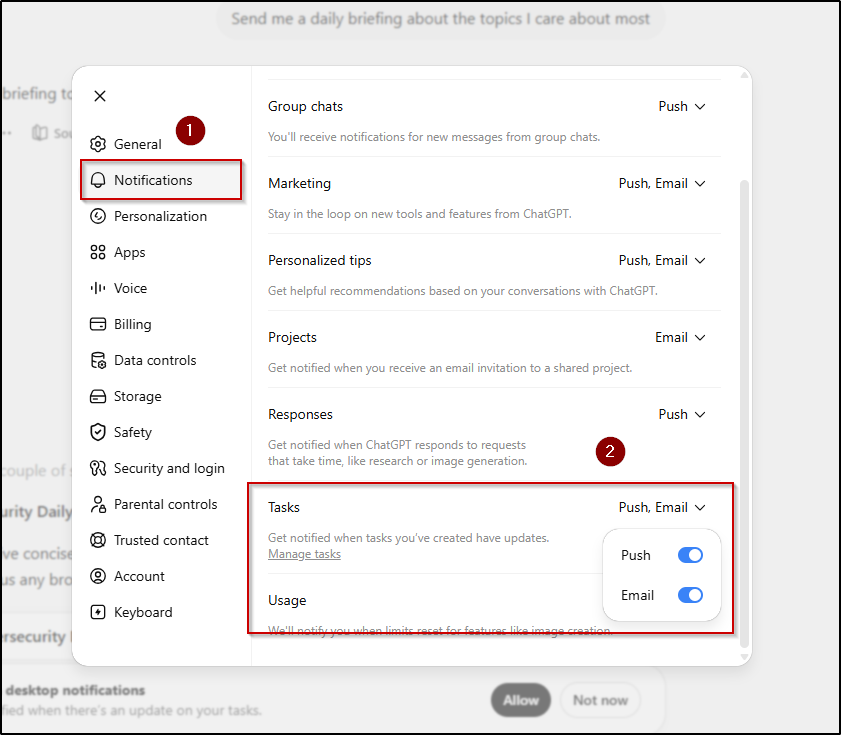
A task is useless if you never see the result. Notifications are opt-in, and they come in two flavors. You can receive task notifications through push notifications, email, or both.
- Push (mobile): Turn on notifications for the ChatGPT app on your phone. For push to work, create the task in the mobile app.
- Email: Go to Settings, then Notifications, and enable email for tasks.
Method 1: Create a Scheduled Task Using a Prompt
The quickest path is conversational. Type what you want and when, then send. ChatGPT catches that you’re scheduling something, sets up the task for you, and shows a small task card you can open to tweak.
Every weekday at 7:30 AM IST, search the web for the top 3 AI headlines and send them as 5 bullet points with a one-sentence summary each.
That single sentence sets the action, the days, the exact time, the source, and the output format. ChatGPT confirms it and you’re done.
Method 2: Use the Scheduled Page to Create Tasks
The Scheduled page is available from the ChatGPT sidebar on both the web and mobile apps.
To create a scheduled task:
- Open ChatGPT.
- In the left sidebar, select Scheduled.
- On the Scheduled page, enter your prompt in the Schedule a task box.
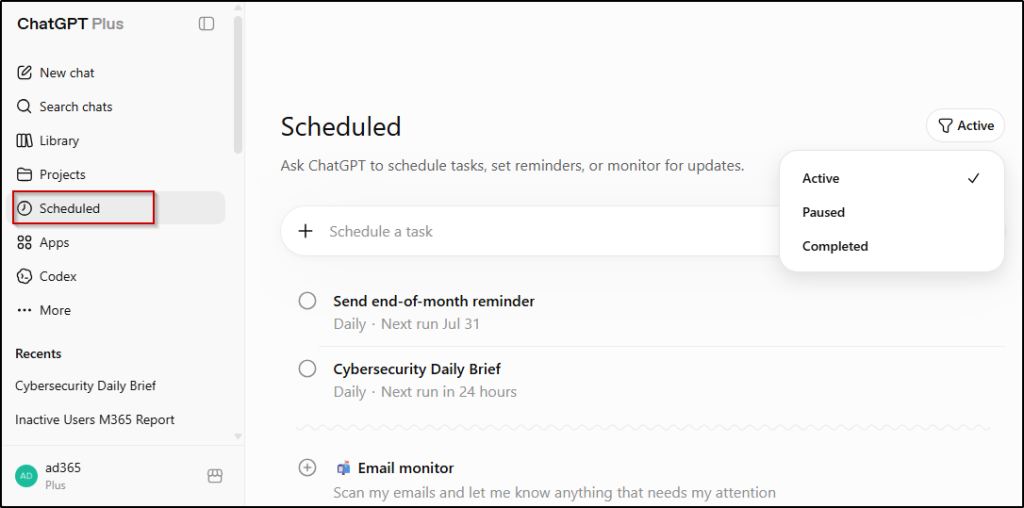
4. Click Send.
Once you click Send, ChatGPT starts setting up the task and displays a confirmation card showing the prompt, schedule frequency, and other details. You can review these settings and make any changes before saving the task.
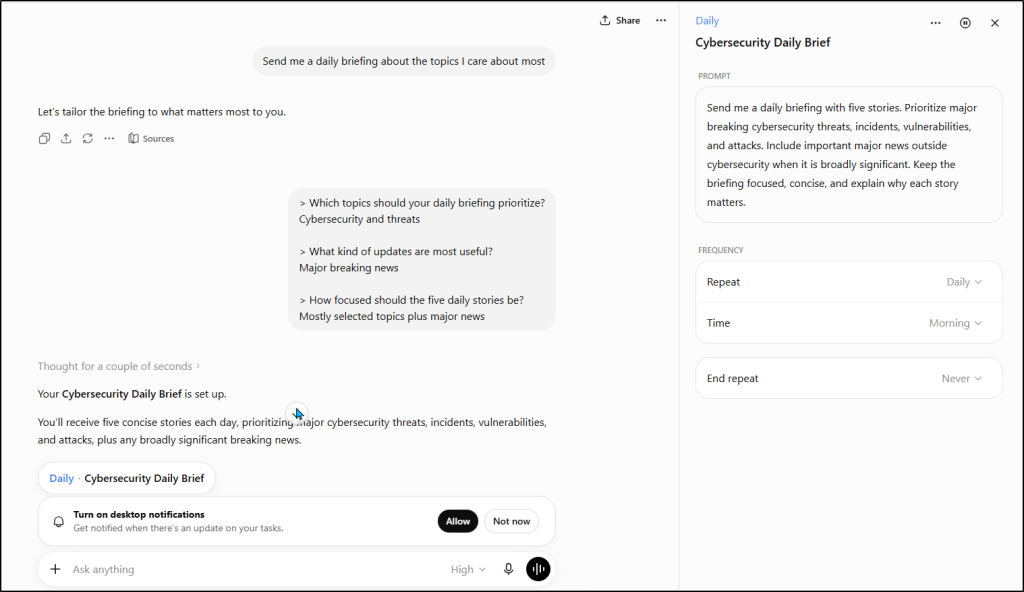
The Scheduled page also lets you view, edit, pause, resume, and delete all your scheduled and monitoring tasks from one place. You can also filter tasks by Active, Paused, or Completed to quickly find and manage them.
How to Write a ChatGPT Task Prompt That Actually Fires Correctly
The difference between a task that works and one that annoys you is specificity. ChatGPT reads your instruction literally, so spell things out.
- Time and timezone: “at 7:30 AM IST,” not “in the morning.” Without a timezone, tasks can run at odd hours.
- Cadence: “every weekday” or “every Monday,” not a vague “weekly.”
- Source: add “search the web for…” so it fetches fresh info instead of repeating a canned answer.
- Format: say how you want it, like “a 5-bullet list.”
- One job per task: if your prompt has an “and then,” split it into two tasks.
Then test it before you trust it. Ask for the same task to run in one minute as a one-off. You’ll see the exact output and confirm the notification lands. If it looks right, set the real recurring time.
Task Ideas Worth Automating Using ChatGPT Scheduled Tasks
The best tasks are the ones you already do by hand. Here are prompts you can copy, tweak the time, and run. Keep each to a single job.
| Use case | Example task prompt |
| Daily news briefing | “Every weekday at 8 AM, search the web for the top 5 stories in [your industry] and summarize each in one sentence.” |
| Reminders and habits | “Remind me to take a break and stretch every day at 3 PM.” |
| Weekly planning | “Every Monday at 9 AM, ask me what my top 3 priorities are this week and hold them for reference.” |
| Price or stock watch | “Each day at 6 PM, check the price of [product URL] and tell me if it dropped below [amount].” |
| Learning practice | “Every morning at 7 AM, give me 5 intermediate Spanish words with example sentences.” |
| Content recap | “Every Friday at 5 PM, summarize the week’s headlines in [topic] as a short newsletter.” |
Notice the pattern. Each one names a time, a source or subject, and a format. That’s what keeps the output consistent instead of drifting.
ChatGPT Scheduled Tasks Limitations
While ChatGPT Scheduled Tasks are useful for automating recurring work, they do have a few limitations. Keep these in mind when planning your tasks:
- One-hour limit: Tasks are limited to one run per hour.
- Project files: Tasks created inside a Project can’t access files uploaded to that Project.
- No voice, file uploads, or Custom GPTs: These features aren’t supported within scheduled tasks.
- Notifications only: Scheduled tasks can browse the web, generate responses, and notify you of the results, but they can’t send emails, update spreadsheets, interact with third-party apps, or perform actions on your behalf.
Frequently Asked Questions About ChatGPT Scheduled Tasks
- Can free users use ChatGPT scheduled tasks?
No. Scheduled Tasks are available only with paid ChatGPT plans, including Go, Plus, Pro, Business, Enterprise, and Edu.
- Why didn’t my ChatGPT scheduled task run?
There are a few common reasons:
- Notifications are turned off.
- The task is paused.
- The timezone is incorrect or missing.
- You’ve reached your plan’s active task limit.
If everything looks correct and the task still doesn’t run, try recreating it.
- Why did my ChatGPT scheduled task run at the wrong time?
This usually happens because the task was created with the wrong timezone or without one. Edit the task and verify the scheduled time and timezone.
- Does ChatGPT scheduled tasks work on the desktop app?
Scheduled Tasks are available on the web and mobile apps. Desktop support is rolling out, so if you don’t see the feature yet, use the web version.
- Can ChatGPT scheduled tasks access my uploaded files?
No. Scheduled Tasks can’t access files uploaded to a ChatGPT Project. If a task needs specific information, include it directly in the prompt.
- How do app permissions work with ChatGPT scheduled tasks?
If a scheduled task uses a connected app, it can only access the information or perform actions you’ve permitted. Personal users can manage app permissions themselves, while Business and Enterprise administrators may control or restrict app access.
In Summary
The whole point is to hand ChatGPT the stuff you keep doing by hand, then get on with your day. You don’t need a perfect system. You need one task that earns its place.
Pick the thing you re-type most often, turn on notifications, and schedule it for tomorrow morning. Keep it specific, test it once, and let it run. That first working task is usually the one that hooks you.
Thanks for reading!