Microsoft 365 Copilot is becoming a regular part of the workday for summarizing meetings, drafting emails, and more. As adoption grows, one question keeps coming up: Can admins actually see what users are asking Copilot?
The short answer is yes — but not through a single “view all prompts” dashboard. Microsoft spreads Copilot visibility across multiple compliance and investigation experiences in Microsoft Purview, each exposing different levels of activity, prompts, and response details.
Whether it’s for compliance, security investigations, or sensitive data protection, admins need to understand how Copilot is being used across the organization. In this blog, we’ll explore the different methods available in Microsoft Purview to track Copilot prompts and responses.
Choosing the Right Purview Method for Copilot Prompt Investigations
Microsoft Purview provides five different ways to investigate Microsoft 365 Copilot prompts and responses:
- Audit search
- eDiscovery
- DSPM for AI
- Communication Compliance
- Insider Risk Management
Each method captures a different level of Copilot activity. Some only provide metadata, while others expose the actual prompt and response content. Choosing the right method depends on your compliance and investigation needs. The table below maps common compliance scenarios to the Microsoft Purview solution that fits best, along with additional details you may need to know.
| Compliance Trigger | Correct Purview Method(s) | License Required | Role Required | What You Get | What You Will NOT Get from This Method | Defensibility Level |
| Regulator or external auditor asks for a user’s Copilot prompts in a date range | eDiscovery | M365 E5 or eDiscovery Premium add-on | eDiscovery Manager / Reviewer | Retained Copilot prompt and response content, searchable export, case-based review | Real-time monitoring or blocking | Legal and compliance investigation |
| Internal HR investigation: Did User X share confidential client data with Copilot? | Communication Compliance (template Detect generative AI interactions) + eDiscovery export | M365 E5 / E5 Compliance | Communication Compliance Investigator + eDiscovery Manager | Pattern-flagged prompts; pseudonymized triage queue; export via eDiscovery | Real-time blocking | HR and policy investigations |
| Insider risk: detect prompt-injection or jailbreak attempts | Insider Risk Management (template Risky AI usage) | M365 E5 / E5 Insider Risk Management add-on | Insider Risk Management Analyst | Pattern-detected risky AI behavior; Defender XDR signal | Full prompt history | Insider risk detection |
| AI governance reporting: which sensitive labels has Copilot processed this quarter? | DSPM for AI | M365 E5 or compliance add-on for full DSPM-AI features | Compliance Administrator and Content Explorer Content Viewer | Sensitive-info-type detections; sensitivity labels on accessed resources; risk severity; prompts/responses (with role) | Legally defensible export and real-time policy enforcement | AI governance and risk assessment |
| Tenant-wide Copilot adoption + AI security posture (XPIA / jailbreak counts) | Audit (Standard or Premium) | Audit Standard included with most enterprise SKUs; Audit Premium needs M365 E5 for extended retention | Compliance Administrator | Metadata such as user, timestamp, app host, accessed resources, XPIA, and jailbreak indicators | Prompt and response text | Operational auditing and activity tracking |
| Forensic incident response: Copilot accessed a sensitive document — when, by whom, was it cross-prompt-injection? | Audit (XPIA / Jailbreak fields) + eDiscovery (content) | Audit Standard + eDiscovery (Premium) | Compliance Administrator + eDiscovery Manager | Audit metadata with security flags + prompt and response content | Real-time alerting ( | Forensic and security investigation |
| Right-to-erasure (GDPR Article 17): delete a user’s Copilot prompts | eDiscovery (delete operation) + Retention policy at Microsoft Copilot Experiences | eDiscovery Premium + Data Lifecycle Management | eDiscovery Manager + Compliance Administrator | Retention enforcement, search & delete retained Copilot data | Audit log of what was deleted survives in audit | Retention and policy management |
Microsoft Purview Methods to Track Microsoft 365 Copilot Prompts and Responses
Now that you have an idea of which method fits each scenario, let’s explore how to configure and use these Microsoft Purview solutions to track Microsoft 365 Copilot prompts and responses.
- Track Copilot activity with Microsoft Purview audit
- Investigate Copilot prompts using Purview eDiscovery
- Monitor Copilot activity with DSPM for AI
- Review Copilot interactions with Communication Compliance
- Detect risky Copilot usage using Insider Risk Management
Track Microsoft Copilot Activity with Purview Audit Reports
Microsoft Purview audit is the first place most admins look when investigating Microsoft 365 Copilot activity. It helps track when Copilot was used, who used it, the app involved, and related activity details across the organization. While it does not expose the full prompt or response content, it provides valuable operational visibility for auditing, adoption tracking, and security investigations.
Before investigating Copilot activity with Microsoft Purview audit, ensure auditing is enabled in your tenant.
Follow these steps to audit Microsoft 365 Copilot activity in Microsoft Purview
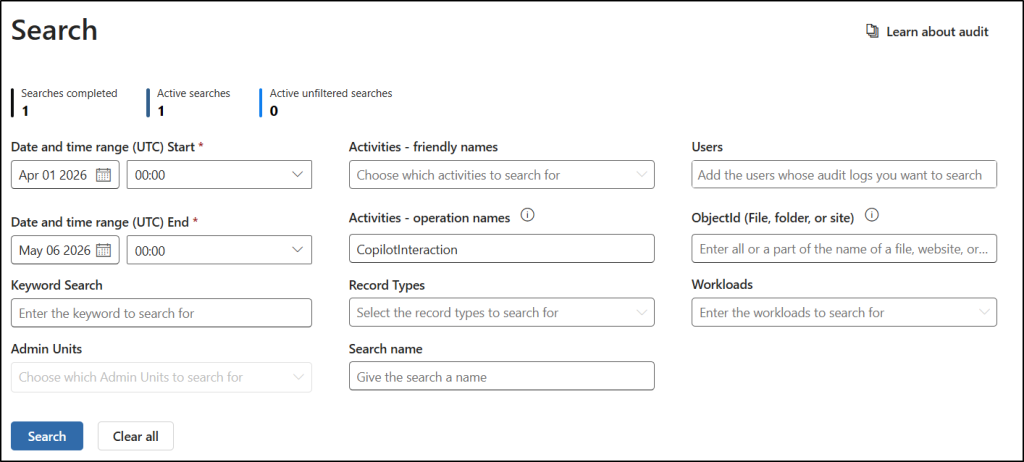
- Sign in to the Microsoft Purview portal and navigate to Solutions → Audit → Search.
- Define a start and end date for the search and enter “Copilot Interaction” in the Activities – operation names field.
- Narrow the audit search by user and workload as needed and click Search.
You can also use the Search-UnifiedAuditLog cmdlet from the Exchange Online module to audit Copilot activity using PowerShell.
First, run the following cmdlet to connect to the Exchange Online module.
|
1 |
Connect-ExchangeOnline |
Next, update the date range based on your requirement and run the following cmdlet to search for Copilot interactions using PowerShell.
|
1 |
Search-UnifiedAuditLog -StartDate (Get-Date).AddDays(-7) -EndDate (Get-Date) -Operations "CopilotInteraction" -ResultSize 5000 -SessionCommand ReturnLargeSet |
Note: Since each prompt and response creates its own Copilot interaction record, the audit count can appear much higher than expected. For more accurate auditing results, enable High Completeness audit search mode before running the search.
What You Get in Microsoft Purview Audit Logs for Copilot Activity
Once the search is completed, each result represents a single Copilot interaction. Opening an audit record gives you valuable investigation details about how Copilot was used across your organization.
Here’s what you can typically find in the audit record:
- User and timestamp – Identify who interacted with Copilot and when the activity occurred.
- AppHost – See where the interaction happened, such as Word, Outlook, Teams, BizChat, Defender, Purview, or other Copilot-connected experiences.
- AppIdentity – Identify the specific Copilot or AI application involved in the interaction.
- AccessedResources – View the files, SharePoint sites, and resources Copilot accessed, including related sensitivity label information.
- Messages metadata – Contains message IDs and flags such as IsPrompt, helping distinguish prompts from responses.
- AI security indicators – This includes security-related flags like:
- XPIADetected for possible cross-prompt injection attempts
- JailbreakDetected for suspected jailbreak or guardrail bypass attempts
However, there’s one important limitation: The audit log does not expose the actual prompt or response text. It mainly provides operational metadata about the interaction. If you need access to retained prompt content for legal or compliance investigations, you’ll typically need to use eDiscovery or DSPM for AI.
Understanding Copilot Security Signals in Purview Audit Logs
If you’re chasing an AI-security incident, these two boolean fields will save you hours of broad searches.
- AccessedResources.XPIADetected – This field flips to true when Copilot accessed a resource that was attempting cross-prompt injection. Someone fed Copilot a poisoned document, and this flag is how you find it after the fact.
- Messages.JailbreakDetected – This field flips to true where a user tried to bypass Copilot safeguards. The user was probing for a jailbreak, and the audit record marks the offending prompt.
Filtering audit logs using these fields can significantly reduce investigation time by highlighting high-risk interactions first. They turn a tenant-wide audit search into a list of events worth reading.
Billing for Auditing Non-Microsoft AI Apps Activity
Microsoft 365 Copilot audit records are included in the Audit Standard at no additional cost. However, auditing interactions with non-Microsoft AI applications uses a pay-as-you-go billing model. These records are logged under operations such as AIAppInteraction and some ConnectedAiAppInteraction events, with a default retention period of 180 days
Investigate Copilot Prompts Using Microsoft Purview eDiscovery
Microsoft Purview audit is useful for understanding when Copilot was used, who used it, and whether any AI security signals were triggered. But when an investigation requires the actual Copilot prompt or response content, Microsoft Purview eDiscovery becomes the primary investigation tool.
Understand Where Copilot Prompts are Atored
You might wonder how Microsoft Purview eDiscovery is able to search Copilot interactions in the first place. That’s because Copilot prompts and responses are stored as mailbox items associated with the user. Same storage as their emails, just in folders the user never sees.
It also means every search you build needs a specific user’s mailbox in scope. And it’s why your first defensive move on any live investigation is a legal hold on the affected mailboxes. Without it, the user or a retention policy can delete their Copilot history before you’ve finished writing the search query.
Now, let’s create a typical eDiscovery workflow to audit Microsoft Copilot prompts and responses.
Licensing Requirements for Copilot Investigations
The eDiscovery workflow to audit Copilot data requires eDiscovery (Premium), which is in Microsoft 365 E5 or available as a separate compliance add-on.
eDiscovery Standard exists, but it’s useful for basic search only: no holds, no review sets, no redaction, no export.
Create eDiscovery Investigation Workflow to Track Copilot Prompts
Once a compliance trigger lands on your desk, follow this sequence:
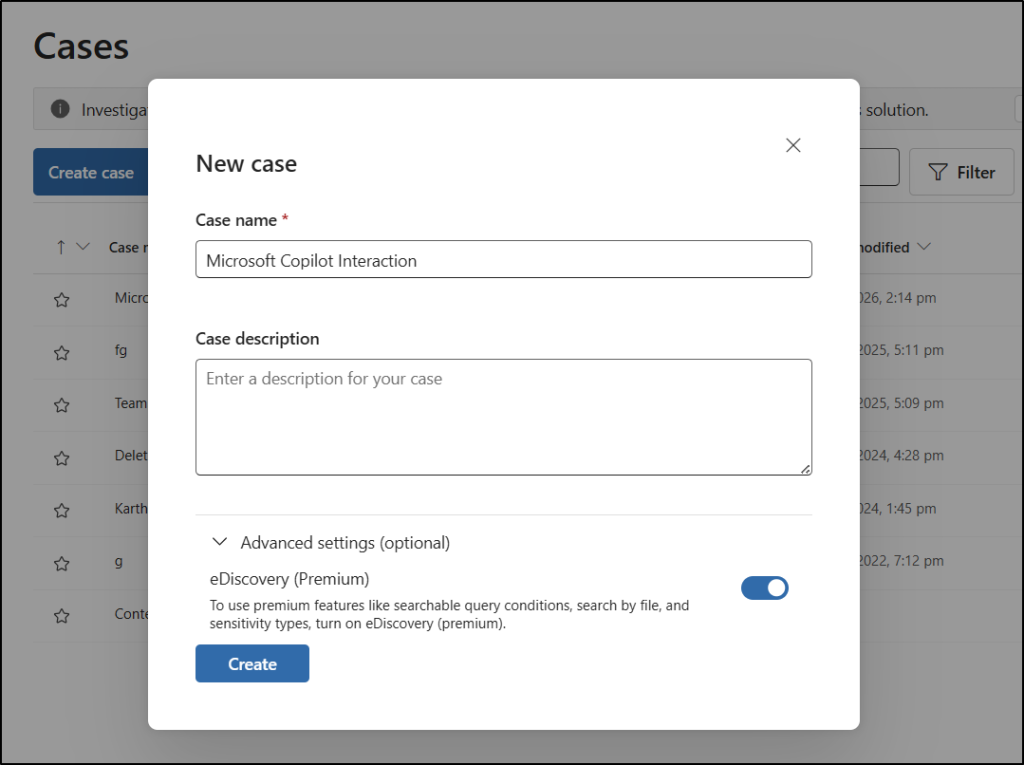
- Set the Stage: Create an eDiscovery case in the Microsoft Purview portal. Give it a clear name so your team knows which investigation it belongs to.
- Add Users: Click the newly created case, go to the Data sources section, and add each target user’s mailbox individually.
- Place a Legal Hold: Navigate to the Hold policies section, click New policy, and enter required details to create an eDiscovery hold for the data sources. The user and retention policies can no longer delete Copilot history.
- Run the Search: Create a search query for the eDiscovery case. You can build the search in two ways. Pick whichever fits the investigation.
- For broader investigation, you can use the query builder experience.
- For app-specific investigation, use KQL filters to narrow the results to workloads. Drop the below in the search box:
(c:c)(ItemClass=IPM.SkypeTeams.Message.Copilot.*)
You can further scope the search by replacing the wildcard with workload-specific values, such as IPM.SkypeTeams.Message.Copilot.Word in the above query.
- Add to Review Set: Review the search result in the review set. Open a sample item and confirm prompt and response text is visible. If it isn’t, your role assignment is off. Fix it before you go further.
- Redact and Export: Apply redactions for personal or third-party content. Export in the format the requesting party asked for (PST, native container, etc.).
Using eDiscovery for Deletion and Retention Scenarios
For compliance scenarios such as right-to-erasure requests, investigators can use the same search workflow to identify retained Copilot items and perform deletion-related actions where supported.
Two things before you click delete. Deletion is irreversible, so coordinate with legal and check that no competing matter has an active hold on the same prompts. eDiscovery also caps how many items you can delete per mailbox per incident. The cap is small, so a high-volume user means paginating across multiple runs.
Monitor Copilot Activity with DSPM for AI Activity Explorer
If you’ve been living in audit-record JSON, opening DSPM for AI is going to feel like a different product. You get a dashboard, drill-throughs, and Copilot prompts already tagged with the sensitive-info types and labels they touched. It’s the fastest path to “what’s happening with Copilot in my tenant?” without writing a single query.
Unlike eDiscovery, DSPM for AI is primarily designed for monitoring and investigation workflows rather than legal-grade evidence collection.
Role requirements for DSPM for AI investigations
- Compliance Administrator – Required to access and configure DSPM for AI, manage policies, and open Activity Explorer reports.
- Content Explorer Content Viewer – Required to view the actual Copilot prompt and response content inside Activity Explorer events. Without this role, only metadata such as timestamps, users, and resource references will be visible.
How to Set Up DSPM for AI to Audit Copilot Prompts in Microsoft 365
If this is the first time you’re enabling it, walk through it in this order. Skipping ahead leaves you staring at empty dashboards.
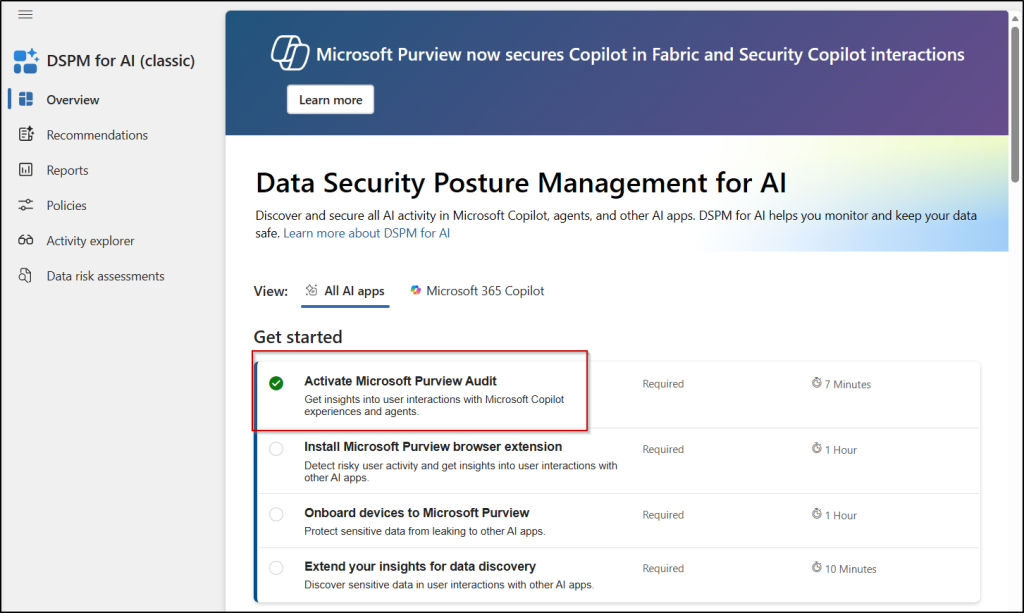
- Turn on Auditing: Go to Microsoft Purview portal → DSPM for AI (classic) → Overview → All AI apps → Get Started. Here, click the Activate Microsoft Purview Audit to enable auditing.
- Switch to the Microsoft 365 Copilot View: From the ‘All AI apps’ view, pick Microsoft 365 Copilot and work through the recommendations specific to Microsoft 365 Copilot, such as:
- Assess and prevent oversharing of sensitive data
- Secure your data in Microsoft 365 Copilot
- Discover Microsoft 365 Copilot activity
- Turn On One-Click Policies: Go to the Recommendations page and start with policies like Detect risky AI usage, Unethical behavior in AI apps, Protect items with sensitivity labels from Microsoft 365 Copilot and agent processing, and Protect your data with sensitivity labels. You can also choose to activate other policies related to Microsoft 365 Copilot if needed.
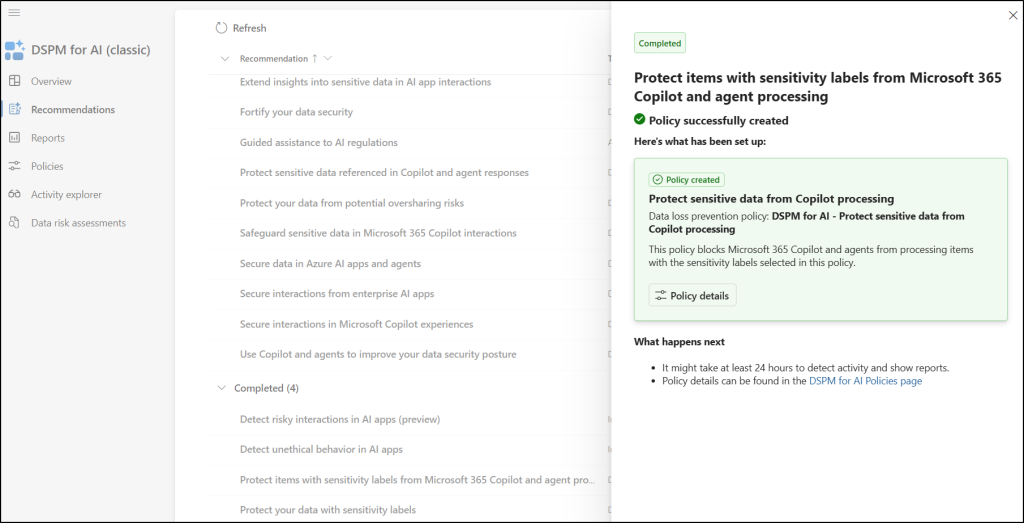
These reports take time to process. You should wait at least 24 hours for the data to populate before checking the Reports page. Once the data flows in, you’ll be able to see key details like total interactions over time, sensitive interactions per app, unethical behavior alerts, the most common sensitivity labels being referenced by Copilot and its agents, and more
Review Copilot interactions with Communication Compliance
While Audit, eDiscovery, and DSPM for AI help investigate what already happened, Communication Compliance focuses on detecting problematic Copilot interactions as they occur. The Communication Compliance policy uses built-in classifiers to detect discrimination, threats, harassment, images, and other confidential data shared with Gen AI.
Communication Compliance is especially useful when organizations want to monitor:
- Sensitive client or financial data shared with Copilot
- Policy violations in AI interactions
- Inappropriate or unsafe prompt content
- Regulated keywords and sensitive information types
How to Set Communication Compliance to Monitor Copilot Activity?
Microsoft provides a built-in template to simplify the setup. In the Purview portal, go to Communication Compliance → Policies → Create policy and select the Detect Microsoft Copilot interactions template.
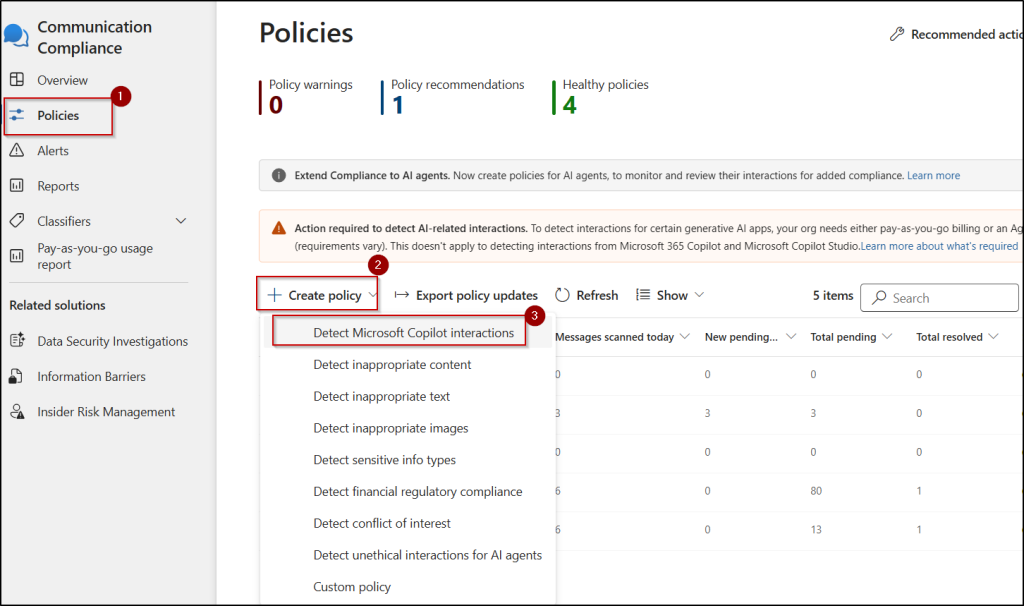
Then, follow the steps below:
- Enter a policy name and choose the user or group to apply the policy.
- Choose reviewers of the policy in the Reviewers tab. These reviewers will receive alerts and investigate potential policy matches.
- Set the Preserve policy matches based on your requirement to preserve the messages detected by this policy.
- Under Detect content matching these trainable classifiers, click Add trainable classifiers to set conditions using pre-built classifiers or sensitive info types, like Adult images, Hate, Profanity, Threat, Violence, etc.
- Once the required classifiers are chosen, click Add.
- Finally, click Create policy to start audit Copilot interactions.
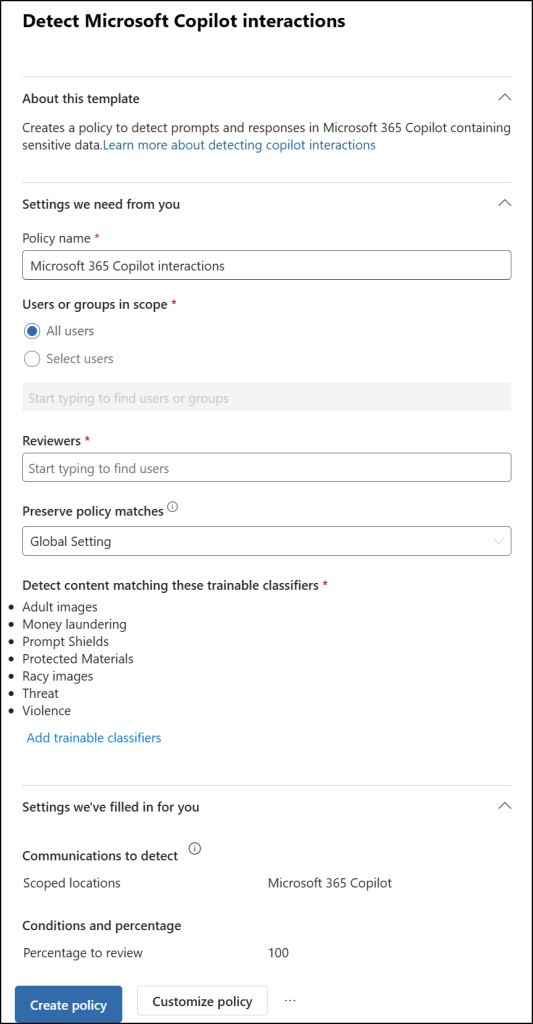
This policy might take up to 24 hours to start auditing Copilot prompts. When a match is found, it lands in a queue. The reviewer can see the prompt text, decide if it’s a problem, and escalate it if necessary.
Detect risky Copilot Usage using Insider Risk Management
Insider Risk Management focuses less on what users said to Copilot and more on how they are using AI systems. It helps organizations identify risky AI behaviors such as jailbreak attempts, prompt injection activity, suspicious access patterns, or interactions involving protected information.
This makes Insider Risk Management useful for detecting:
- Prompt injection attempts
- Attempts to bypass AI safeguards
- Risky or anomalous AI usage behavior
- Access to sensitive resources through Copilot
- Suspicious AI-related activity patterns
Configure Insider Risk Management for Risky AI Detection
To configure risky AI monitoring, follow the steps below:
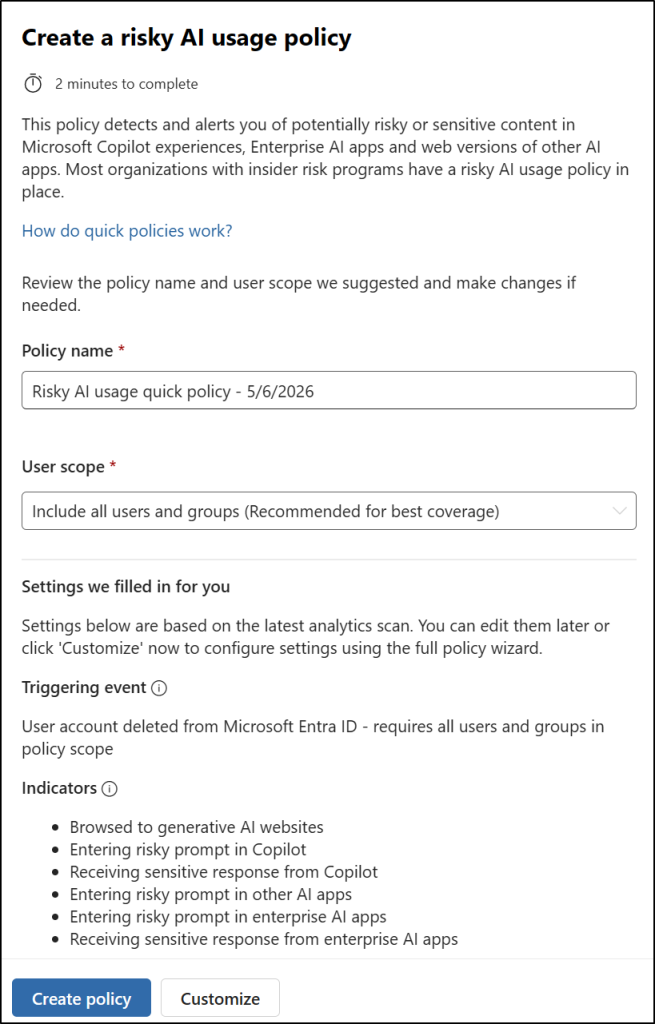
- Open the Microsoft Purview portal and navigate to Insider Risk Management → Policies.
- Click Create policy and select Quick policy.
- Then, click Get started under the ‘Risky AI usage’ template.
- In the Create a risky AI usage policy flyout pane, edit the name and user scope for the policy.
- Review the selected indicators. If needed, click Customize to update custom indicators.
- Review the remaining settings and click Create policy.
Once enabled, Insider Risk Management starts generating alerts and investigation signals for suspicious AI usage patterns.
Frequently Asked Questions
Does the Microsoft 365 Copilot audit log contain the prompt text?
No. Microsoft Purview audit logs mainly capture Copilot activity metadata such as who used Copilot, when the interaction occurred, the app involved, and related accessed resources. They do not expose the actual prompt or response text.
For investigations requiring retained prompt content, organizations typically use Microsoft Purview eDiscovery or DSPM for AI Activity Explorer with the required permissions configured.
What license do I need to view Copilot prompt text in Microsoft Purview?
The required license depends on the investigation scenario. Audit Standard is enough to confirm that a Copilot interaction occurred. However, viewing retained Copilot prompt content in DSPM for AI Activity Explorer requires both the Compliance Administrator and the Content Explorer Content Viewer role.
For legal hold, review sets, export, and advanced investigation workflows, Microsoft Purview eDiscovery Premium capabilities available through Microsoft 365 E5 or related compliance add-ons are typically required.
How do I delete a user’s Copilot prompts for a GDPR right-to-erasure request?
Run the deletion from eDiscovery (Premium): create a case, add the user’s mailbox as a custodian, search, promote results to a review set, and run the deletion. Layer a retention policy at Microsoft Copilot Experiences so erasure stays enforced going forward.
Do Copilot Studio and non-Microsoft AI apps use the same audit log?
Yes. Microsoft Purview uses the same audit platform, but different AI applications generate different audit record types.
For example:
- Microsoft Copilot experiences commonly generate CopilotInteraction records
- Connected AI applications may generate ConnectedAIAppInteraction records
- Some third-party AI monitoring scenarios can generate AIAppInteraction records
Non-Microsoft AI application auditing may also use pay-as-you-go billing depending on the workload and configuration.
Where Should You Start If You Have Nothing in Place Today?
Start by enabling Microsoft Purview auditing and verifying the required compliance permissions. Then choose the Microsoft Purview solution that best matches your primary investigation or compliance scenario, such as Audit, eDiscovery, DSPM for AI, Communication Compliance, or Insider Risk Management.
Microsoft 365 Copilot introduces new compliance and investigation challenges, and Microsoft Purview provides multiple ways to monitor and investigate Copilot activity. From audit logs and eDiscovery to DSPM for AI, Communication Compliance, and Insider Risk Management, each method serves a different purpose. Understanding when to use each solution helps organizations investigate Copilot interactions more effectively while keeping sensitive data protected.
Which Microsoft Purview method do you find most useful for monitoring Copilot activity in your environment? Share your thoughts in the comments below.