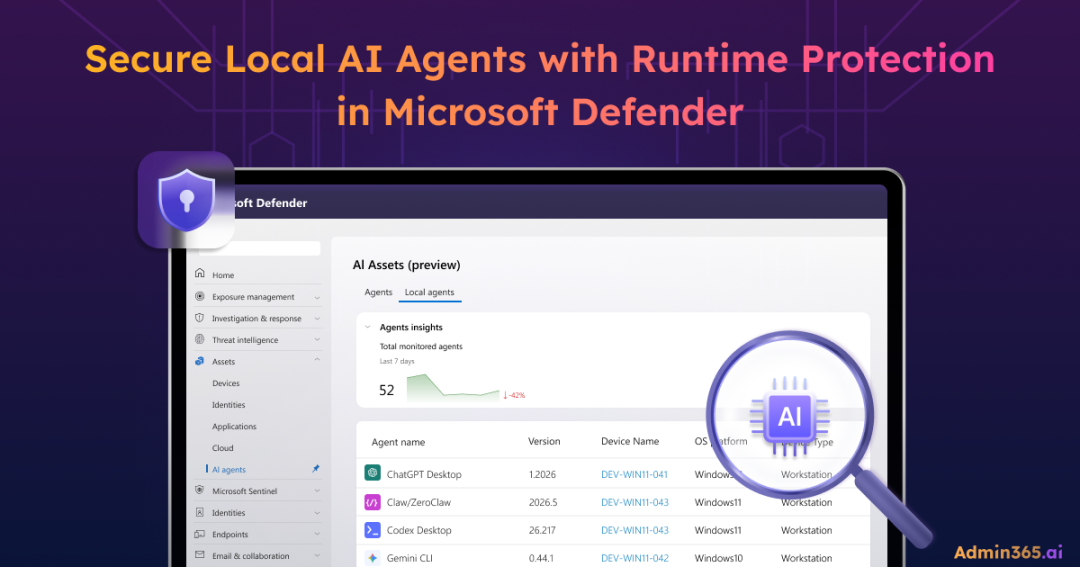
As AI agents become more common in the workplace, organizations need visibility into which agents are running and how they’re being used. To address this, Microsoft recently introduced AI Agent Discovery in Microsoft Defender for Endpoint.
However, visibility alone isn’t enough. AI agents can be targeted by prompt injection, where malicious instructions hidden in code or web content attempt to manipulate an agent into performing unintended actions.
To help mitigate these risks and complement AI agent discovery, Microsoft has introduced AI Agent runtime protection – a new preview capability in Microsoft Defender for Endpoint. In this blog, we’ll explore how this capability work and how to enable them in your environment.
What is Runtime Protection in Local AI Agents?
AI Agent runtime protection helps detect and prevent prompt injection attacks by monitoring AI agents on onboarded devices and inspecting their activity during execution. Depending on the configured mode, Defender can audit or block suspicious actions before they are carried out.
How AI Agent Runtime Protection Works
The challenge with AI agents is that they can’t reliably distinguish trusted instructions from untrusted content. An agent processes information from multiple sources, including user prompts, files, websites, and tool outputs. To the model, all of this content looks the same, making prompt injection one of the most significant risks for AI agents.
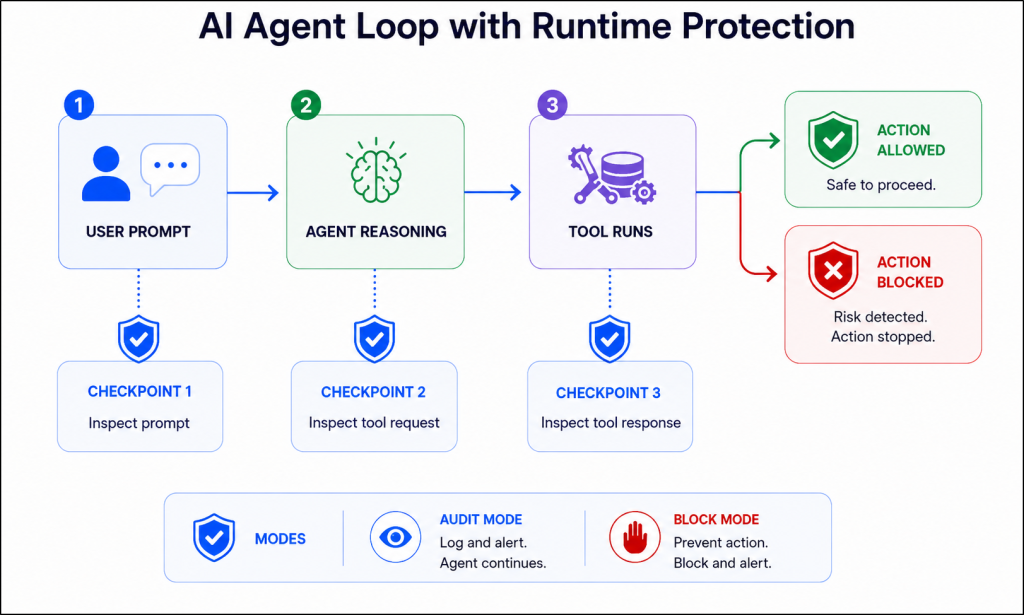
Rather than modifying the model itself, Microsoft Defender adds protection around the agent’s execution process using agent hooks. These are integration points exposed by supported agents, such as Claude Code and GitHub Copilot CLI, that allow Defender to inspect agent activity at key stages of the agent loop.
Defender analyzes three critical points:
- User prompt – The instruction submitted to the agent.
- Pre-tool call – The tool request before it executes.
- Post-tool response – The information returned by a tool before the agent acts on it.
These inspection points cover the primary paths through which untrusted content enters the agent workflow. The post-tool response stage is particularly important because it allows Defender to examine content retrieved from repositories, websites, documentation, and other external sources before the agent processes it.
If Defender detects prompt injection or other suspicious behaviour, it can either audit the activity for investigation or block the action before it executes.
Before you enable AI agent runtime protection, review the prerequisites required in your environment.
Prerequisites for AI Agent Runtime Protection
- A valid license: Microsoft Defender for Endpoint Plan 2, Microsoft 365 E5, Microsoft Agent 365, or Microsoft 365 E7.
- Devices should be onboarded to Microsoft Defender for Endpoint.
- Microsoft Defender Antivirus is running in active mode and up to date.
- A supported local AI agent is installed, such as Claude Code or GitHub Copilot CLI.
- The AI agent supports the required hooks framework.
Note: AI Agent runtime protection is currently available only on devices enrolled in the Defender Beta update channel.
How to Enable Runtime Protection in Microsoft Defender
Once the prerequisites are in place, you can use Microsoft Defender for Endpoint to enable runtime protection to defend them against prompt injection attacks.
Test AI Agent Runtime Protection on a Single Device
Microsoft recommends validating AI Agent Runtime Protection on a small set of devices before deploying it broadly across your organization.
Step 1: Configure the Device to Receive Defender Beta Updates
Open an elevated PowerShell session and run the following commands.
|
1 |
Set-MpPreference -PlatformUpdatesChannel Beta |
|
1 |
Set-MpPreference -EngineUpdatesChannel Beta |
|
1 |
Update-MpSignature |
Note: During preview, AI Agent runtime protection is available only on devices receiving Defender Beta platform and engine updates. Microsoft also recommends running Update-MpSignature three times for preview validation.
Step 2: Verify the Microsoft Defender Security Intelligence Version
Confirm that the device is running signature version 1.451.224.0 or later using the cmdlet below.
|
1 |
Get-MpComputerStatus | Select-Object AntivirusSignatureVersion |
Step 3: Enable AI Agent Runtime Protection on the Test Device
After validating the signature version, enable runtime protection using one of the following modes:
- Audit Mode (Recommended for Testing): Observe detections without interrupting AI agent activity.
|
1 |
Set-MpPreference -AiAgentProtection Audit |
- Block Mode (Active Protection): Actively prevent suspicious AI agent actions from being executed.
|
1 |
Set-MpPreference -AiAgentProtection Block |
- Disabled Mode: Turn off AI Agent runtime protection.
|
1 |
Set-MpPreference -AiAgentProtection Disabled |
Step 4: Verify the Runtime Protection Mode Configuration
After configuring a mode, verify the current setting using the below cmdlet.
|
1 |
Get-MpPreference | Select-Object AiAgentProtection |
The returned values map to the following modes:
| Value | Mode |
| 0 | Disabled |
| 1 | Block |
| 2 | Audit |
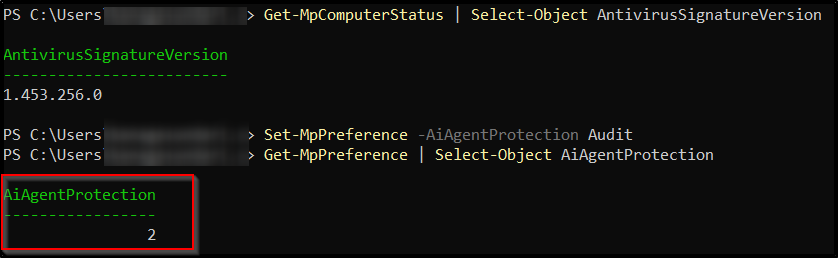
Note: Microsoft recommends starting with Audit mode, monitoring detections for one to two weeks, and then moving to Block mode once you’ve validated the results. The setting is also protected by Defender tamper protection to prevent unauthorized changes.
How to Deploy Runtime Protection Across Your Organization Using Intune
After validating AI Agent runtime protection on test devices, you can use Microsoft Intune to deploy the configuration at scale across your organization.
The cmdlet used in the previous section configure a single device and are intended for testing and validation. To deploy the same settings across multiple devices, create a PowerShell script containing the appropriate runtime protection mode:
|
1 |
Set-MpPreference -AiAgentProtection <Mode> |
Replace <Mode> with audit, block, or disabled.
Note: AI agent runtime protection doesn’t currently have a native Intune policy. For large-scale deployments, use Intune PowerShell scripts to deploy and manage the configuration across your devices.
Review Runtime Protection Detections in Microsoft 365 Defender Alerts
Once runtime protection is enabled, security teams receive visibility when a prompt injection attempt is detected.
Prompt injection detections appear as Suspicious AI prompt injection alerts in Microsoft 365 Defender. Depending on the configured mode, Defender either audits the activity or blocks the action before it executes.
In Audit mode, Defender generates an alert, correlates related activity for investigation, and allows the AI agent to continue running. These alerts are reported with Informational severity.
In Block mode, Defender prevents the action from executing, records the detection in Protection History, and generates an alert with a severity level based on risk, ranging from Low to Critical.
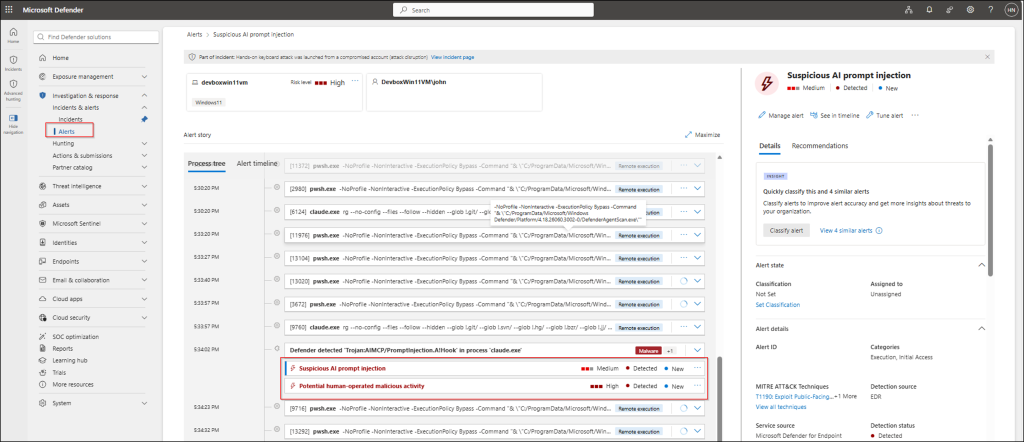
Security analysts can review these detections in Alerts and Incidents, investigate affected AI agents, examine correlated activity, and perform response actions using standard Microsoft Defender investigation workflows.
End User Experience When Runtime Protection Blocks an Action
When Defender blocks a suspicious AI agent action, the user receives notifications in two places:
- Agent interface – The AI agent displays a message explaining that the action was blocked and wasn’t executed.
- Windows notification – A toast notification appears to immediately inform the user about the blocked activity.
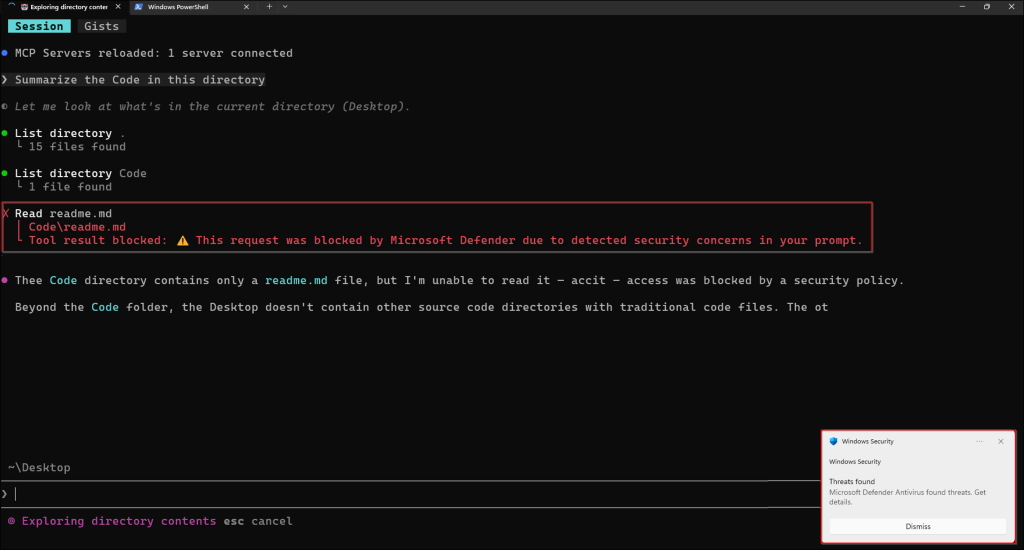
Users can also review detections in Windows Security under Virus & threat protection > Protection history, where they can view details such as the detected threat and remediation status.
That’s it! AI Agent runtime protection helps security teams detect and block potentially harmful actions, protecting users from emerging prompt injection attacks before they leave the device. By enabling runtime protection, organizations can adopt AI agents with greater confidence and control.